EasyManua.ls Logo

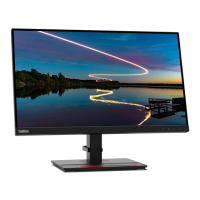
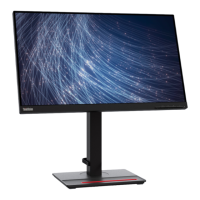
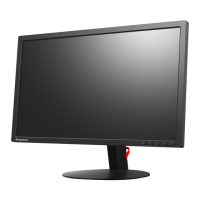
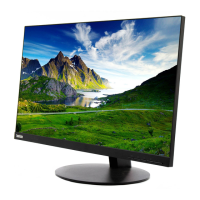
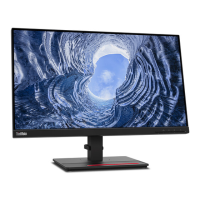
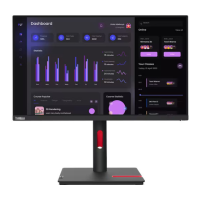
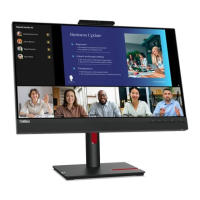
Lenovo ThinkVision T24mv-30 - User Manual

Lenovo ThinkVision T24mv-30
48 pages
Print Icon
To Next Page IconTo Next Page
Loading...
ThinkVision T24mv-30
Users Guide
Machine Types: 63D7

Table of Contents

Other manuals for Lenovo ThinkVision T24mv-30

Questions and Answers

  • A
    Andrew PhelpsAug 9, 2025
    What to do if my Lenovo ThinkVision T24mv-30 power indicator is not lit and there is no image?
    • D
      davisjonAug 9, 2025
      Ensure the power cord is properly connected and the outlet has power. Power on the Lenovo monitor. If it still doesn't work, try another power cord and electrical outlet.
  • M
    Mary OsbornAug 13, 2025
    What to do if the Lenovo ThinkVision T24mv-30 Monitor power indicator is amber, but there is no image?
    • M
      Michele WardAug 13, 2025
      Ensure the video cable is properly connected to the system. Also, adjust the brightness and contrast settings in the OSD menu of your Lenovo monitor.
  • K
    Kelly StevensonAug 19, 2025
    Why is the image quality unacceptable on my Lenovo ThinkVision T24mv-30?
    • A
      April JonesSep 12, 2025
      Make sure the video signal cable is firmly plugged into both the system and the Lenovo monitor. Also, select another color setting from the OSD menu and perform automatic image setup.
  • A
    Andrew BarrAug 25, 2025
    What to do if the Lenovo ThinkVision T24mv-30 Monitor screen is blank and the power indicator is amber?
    • K
      Kenneth DavisAug 25, 2025
      Press any key on the keyboard or move the mouse to restore operation. Also, check the Power Options settings on your computer.
  • R
    Ronnie ScottAug 29, 2025
    How to fix “Out of Range” shown on my Lenovo Monitor?
    • C
      christopherericksonAug 29, 2025
      If you are replacing an old monitor, reconnect it and adjust the display mode to within the specified range for your new Lenovo monitor. If using a Windows system, restart the system in safe mode, then select a supported display mode for your computer.
  • R
    Roy LindseySep 2, 2025
    Why are lines or images blurred on my Lenovo ThinkVision T24mv-30?
    • T
      Thomas MitchellSep 2, 2025
      Adjust the resolution setting of the system to 1920 × 1080 @ 60 Hz, according to the resolution of the Lenovo monitor. Perform automatic image setup, and if that doesn't help, perform manual image setup. You may find additional improvements by adjusting the Dots Per In. (DPI) setting on your system.

Lenovo ThinkVision T24mv-30 Specifications

General IconGeneral
BrandLenovo
ModelThinkVision T24mv-30
CategoryMonitor
LanguageEnglish

Related product manuals