EasyManua.ls Logo

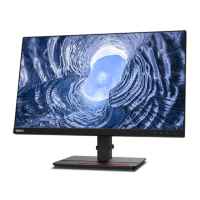
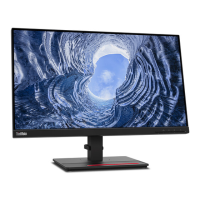
Lenovo ThinkVision T24h-20 - User Manual

Lenovo ThinkVision T24h-20
40 pages
Print Icon
To Next Page IconTo Next Page
Loading...
ThinkVision T24h-20
User Guide
Machine Types: 61F0-GAR1-WW

Other manuals for Lenovo ThinkVision T24h-20

Questions and Answers

  • L
    littletracyJul 27, 2025
    Why is my Lenovo ThinkVision T24h-20 screen blank and the power indicator amber?
    • X
      xoliverJul 27, 2025
      The monitor might be in Standby or Suspend mode. To resolve this: * Press any key on the keyboard or move the mouse to restore operation. * Check the Power Options settings on your computer.
  • H
    Heather RileyAug 1, 2025
    What to do if the Lenovo ThinkVision T24h-20 Monitor power indicator is amber, but there is no image?
    • J
      Jeffrey BowenAug 1, 2025
      This issue may occur if the video signal cable is loose or disconnected from the system or monitor. Ensure the video cable is properly connected to the system. Alternatively, the monitor's brightness and contrast might be at their lowest settings. Adjust these settings via the OSD menu.
  • S
    Sarah WheelerAug 5, 2025
    What to do if the Lenovo ThinkVision T24h-20 Monitor power indicator is not lit and there is no image?
    • N
      Nicholas WilliamsAug 5, 2025
      To solve this issue: * Ensure the power cord is correctly connected. * Verify the outlet has power. * Power on the monitor. * Try a different power cord. * Test with another electrical outlet.
  • A
    Ashley GutierrezAug 9, 2025
    How to fix fuzzy lines or blurry image on Lenovo Monitor?
    • J
      Jeremy ClarkAug 9, 2025
      This issue can occur if the image setup hasn't been optimized. Adjust the resolution settings on your system to match the native resolution for this monitor: 2560 x 1440 at 60 Hz. Also, optimize your system Display Properties by performing automatic image setup. For further improvements, adjust the Dots Per Inch (DPI) setting on your system when working in the native resolution.
  • R
    Robert BrayAug 14, 2025
    Why is the image quality unacceptable on my Lenovo Monitor?
    • B
      Barry WebsterAug 14, 2025
      Poor image quality can result from a few things. First, check that the video signal cable is firmly plugged into both the system and the monitor. If the connection is secure, the color settings may be incorrect, so select another color setting from the OSD menu. Finally, try performing automatic image setup.
  • D
    deckergeorgeAug 17, 2025
    Why does my Lenovo ThinkVision T24h-20 show 'Out of Range' and the power indicator is flashing White?
    • H
      hbellAug 18, 2025
      This happens because the system is set to a display mode not supported by the monitor. If replacing an old monitor, reconnect it and adjust the display mode to within the specified range for your new monitor. If using a Windows system, restart the system in safe mode, then select a supported display mode for your computer.
  • T
    Terry YatesAug 22, 2025
    Why does my Lenovo ThinkVision T24h-20 have discolored pixels?
    • C
      Christina FitzpatrickAug 22, 2025
      The appearance of one or more discolored pixels is a characteristic of LCD technology and not necessarily a defect. If more than five pixels are missing, contact the Support Center.

Summary

Getting Started

Initial Information

Details shipping contents and important initial usage notes.

Product Features and Controls

Explains monitor features, adjustments, controls, and cable lock.

Setup and Registration

Guides on connecting, powering on, and registering the monitor.

Adjusting and Using Your Monitor

Ergonomics and User Comfort

Discusses ergonomic practices, work area setup, and monitor positioning.

Healthy Habits and Accessibility

Provides tips for healthy computing and accessibility features.

Image Adjustment and Direct Controls

Explains how to adjust image settings using direct controls.

On-Screen Display (OSD) Controls

Guides on navigating and using the monitor's OSD menu.

Supported Display Modes

Information on choosing appropriate display resolutions and refresh rates.

Power Management

Explains monitor power states and energy saving features.

Maintenance and Mounting

Instructions on cleaning, detaching the stand, and wall mounting.

Reference Information

Monitor Specifications

Detailed technical specifications for the monitor model.

Troubleshooting

Solutions for common monitor setup and usage problems.

Manual Driver Installation

Step-by-step guide to install monitor drivers on Windows.

Getting Further Help

Information on how to contact Lenovo support for assistance.

Service and Support

Registering Your Product

Instructions to register the product for updates and support.

Technical Support Channels

Information on accessing online and telephone technical support.

Notices

Recycling and Trademarks

Guidelines for recycling and important trademark information.

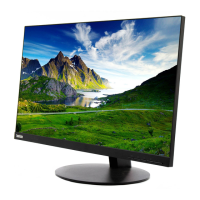
Lenovo ThinkVision T24h-20 Specifications

General IconGeneral
Color depth8 bit
Pixel pitch0.2058 x 0.2058 mm
Screen shapeFlat
Pixel density123 ppi
Response time6 ms
Backlight typeW-LED
Display diagonal23.8 \
Display technologyLED
Native aspect ratio16:9
Maximum refresh rate60 Hz
Response time (fast)4 ms
Viewable size, vertical296.35 mm
sRGB coverage (typical)99 %
Contrast ratio (dynamic)3000000:1
Contrast ratio (typical)1000:1
Display number of colors16.78 million colors
Viewable size, horizontal526.85 mm
Display brightness (typical)300 cd/m²
Supported graphics resolutions2560 x 1440
NVIDIA G-SYNC-
HDMI version1.4
USB hub version3.2 Gen 1 (3.1 Gen 1)
DisplayPort version1.2
USB upstream port typeUSB Type-C
Number of upstream ports1
USB Power Delivery up to75 W
VGA (D-Sub) ports quantity0
USB Type-A downstream ports quantity4
AC input voltage100 - 240 V
AC input frequency47/63 Hz
Power consumption (off)0.3 W
Power consumption (standby)- W
Power consumption (typical)23 W
Package depth149 mm
Package width423 mm
Package height620 mm
Package weight8100 g
Cables includedAC, USB Type-C to USB Type-C
Color nameRaven Black
CertificationCCC, TCO 8.0, TCO Edge 2.0
Product colorBlack
Pivot angle-90 - 90 °
Tilt angle range-5 - 35 °
Cable lock slot typeKensington
Number of OSD languages8
Panel mounting interface100 x 100 mm
Sustainability certificatesRoHS, EPEAT Silver, ENERGY STAR
Weight and Dimensions IconWeight and Dimensions
Bezel width (side)2 mm
Depth (with stand)205 mm
Height (with stand)420 mm
Weight (with stand)6180 g
Bezel width (bottom)24.1 mm
Depth (without stand)44.6 mm
Width (without stand)539.8 mm
Height (without stand)325.7 mm
Weight (without stand)3850 g

Related product manuals