EasyManua.ls Logo

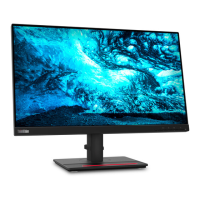
Lenovo ThinkVision T23i-10 - User Manual

Lenovo ThinkVision T23i-10
40 pages
Print Icon
To Next Page IconTo Next Page
Loading...
ThinkVision T23i-10
User Guide
Machine Types: 61AB

Questions and Answers

  • S
    Shannon WalkerJul 27, 2025
    How to improve unacceptable image quality on Lenovo ThinkVision T23i-10?
    • C
      Cindy McgeeJul 28, 2025
      If the image quality on your Lenovo Monitor is unacceptable, first ensure the video signal cable is securely connected to both the monitor and your system. If the connection is fine, try selecting a different color setting from the OSD menu. Performing automatic image setup can also improve the image quality.
  • T
    timothy65Aug 1, 2025
    How to fix fuzzy lines or blurry image on Lenovo ThinkVision T23i-10?
    • R
      Raymond HintonAug 1, 2025
      If you're experiencing fuzzy lines in text or a blurry image, or horizontal/vertical lines on your Lenovo Monitor, try the following: 1. Adjust the resolution settings on your system to match the native resolution for this monitor: 1920 x 1080 at 60 Hz. 2. Perform automatic image setup. If it doesn't help, perform manual image setup. 3. When working in the native resolution, you may find additional improvements by adjusting the Dots Per Inch (DPI) setting on your system.
  • M
    Mark ContrerasAug 5, 2025
    What to do if Lenovo Monitor power indicator is not lit and there is no image?
    • T
      Tanya MullinsAug 5, 2025
      If your Lenovo Monitor's power indicator isn't lit and there's no image, ensure the power cord is properly connected and the outlet has power. Also, verify that the monitor is powered on. Trying a different power cord or outlet can also help resolve the issue.
  • A
    Amanda SchaeferAug 9, 2025
    What to do if Lenovo Monitor screen is blank and power indicator is amber?
    • C
      Cheryl HodgeAug 9, 2025
      If your Lenovo Monitor screen is blank and the power indicator is amber, the monitor is likely in Standby/Suspend mode. Press any key on the keyboard or move the mouse to restore operation. Also, check the Power Options settings on your computer.
  • F
    Felicia HansonAug 13, 2025
    How to fix Lenovo ThinkVision T23i-10 Monitor showing 'Out of Range' error?
    • S
      Sonia JohnsonAug 13, 2025
      If your Lenovo Monitor displays "Out of Range" and the power indicator is flashing green, the system is set to a display mode not supported by the monitor. If replacing an old monitor, reconnect it and adjust the display mode to within the specified range for your new monitor. If using a Windows system, restart the system in safe mode, then select a supported display mode for your computer.
  • G
    gortizAug 17, 2025
    What to do if Lenovo ThinkVision T23i-10 power indicator is amber, but there is no image?
    • G
      Garrett WilliamsAug 17, 2025
      If the power indicator on your Lenovo Monitor is amber but there is no image, ensure the video signal cable is properly connected to the system. Additionally, check the monitor's brightness and contrast settings in the OSD menu and adjust them if they are at the lowest setting.
  • C
    Carol WalkerAug 22, 2025
    Why do some pixels appear discolored on my Lenovo Monitor?
    • L
      Lisa GriffinAug 22, 2025
      If one or more pixels appear discolored on your Lenovo Monitor, it's likely a characteristic of the LCD technology and not a defect. However, if there are more than five missing pixels, contact the Support Center.

Summary

Chapter 1. Getting started

Shipping contents

Lists all items included in the product package, such as the monitor, cables, and documentation.

Notice for use

Provides essential instructions and warnings for safe and proper setup of the monitor.

Product overview

Introduces the monitor's features, adjustment types, controls, and connectivity options.

Types of adjustments

Details the monitor's tilt, swivel, height, and pivot adjustment capabilities.

Monitor controls

Explains the function of the monitor's keypad controls for accessing various settings.

Cable lock slot

Describes the location and purpose of the security cable lock slot on the rear of the monitor.

Setting up your monitor

Guides users through the process of connecting cables and powering on the monitor.

Registering your option

Encourages users to register their product for support updates and service information.

Chapter 2. Adjusting and using your monitor

Comfort and accessibility

Emphasizes ergonomic practices for user comfort and productivity while using the computer.

Arranging your work area

Guides on optimizing workspace layout for comfort, efficiency, and good posture.

Positioning your monitor

Provides guidelines for optimal monitor placement for viewing comfort and posture.

Quick tips for healthy work habits

Offers advice on maintaining good posture and taking breaks for healthy computing.

Accessibility information

Details Lenovo's commitment to accessibility and available assistive technologies.

Adjusting your monitor image

Explains how to adjust monitor settings for optimal image quality and appearance.

Using the direct access controls

Explains how to use monitor buttons for direct access to settings when OSD is off.

Using the On-Screen Display (OSD) controls

Details how to navigate and use the On-Screen Display (OSD) menu for adjustments.

Selecting a supported display mode

Explains how the computer controls display modes and recommends optimal settings.

Understanding power management

Describes the monitor's power states, indicators, and energy efficiency features.

Caring for your monitor

Provides instructions on safe cleaning and maintenance practices for the monitor.

Detaching the monitor base and stand

Step-by-step guide on how to safely remove the monitor's base and stand.

Wall Mounting (Optional)

Instructions for mounting the monitor on a wall using a compatible kit.

Chapter 3. Reference information

Monitor specifications

Lists detailed technical specifications of the monitor model, including dimensions and input types.

Troubleshooting

Provides solutions for common problems and error messages encountered with the monitor.

Manual image setup

Step-by-step guide for manually adjusting image settings for optimal display quality.

Manually installing the monitor driver

Provides instructions for installing the monitor driver in Windows 7 and Windows 10.

Getting further help

Directs users to the Lenovo Support Center for unresolved issues or additional assistance.

Service information

Outlines customer responsibilities regarding warranty, misuse, and service.

Service parts

Lists available replacement parts for the monitor model, including part numbers and descriptions.

Appendix A. Service and Support

Registering your option

Instructions for registering the product online for service updates, support, and offers.

Online technical support

Information on accessing technical support through Lenovo's website and product lifecycle.

Telephone technical support

Provides contact information and guidelines for phone-based technical support.

Appendix B. Notices

General Disclaimer and Limitation of Liability

States terms of use, warranty disclaimers, product use limitations, and intellectual property notices.

Recycling information

Information on responsible recycling of Lenovo IT equipment and components.

Trademarks

Lists Lenovo trademarks and mentions Microsoft Windows trademarks.

Lenovo ThinkVision T23i-10 Specifications

General IconGeneral
NVIDIA G-SYNCNo
Windows operating systems supportedWindows 10 Education, Windows 10 Education x64, Windows 10 Enterprise, Windows 10 Enterprise x64, Windows 10 Home, Windows 10 Home x64, Windows 10 IOT Core, Windows 10 Pro, Windows 10 Pro x64, Windows 7 Enterprise, Windows 7 Enterprise x64, Windows 7 Home Basic, Windows 7 Home Basic x64, Windows 7 Home Premium, Windows 7 Home Premium x64, Windows 7 Professional, Windows 7 Professional x64, Windows 7 Starter, Windows 7 Starter x64, Windows 7 Ultimate, Windows 7 Ultimate x64
Color gamut72 %
Pixel pitch0.2652 x 0.2652 mm
Screen shapeFlat
Pixel density95.8 ppi
Response time6 ms
Display diagonal23 \
Display technologyLED
Native aspect ratio16:9
Viewable size, vertical302.8 mm
Contrast ratio (typical)1000:1
Display number of colors-
Viewable size, horizontal517.2 mm
Display brightness (typical)250 cd/m²
Supported graphics resolutions1920 x 1080 (HD 1080)
USB hub version3.2 Gen 1 (3.1 Gen 1)
Built-in USB hubYes
USB Type-A downstream ports quantity5
Tilt angle range-5 - 30 °
Cable lock slot typeKensington
Number of OSD languages8
Panel mounting interface100 x 100 mm
Sustainability certificatesEPEAT Gold, ENERGY STAR
CertificationTCO7.0, China Energy Label 2, RoHS, RoHS (China), TUV Eye Comfort Certified
Product colorBlack
Market positioningBusiness
Operating temperature (T-T)0 - 40 °C
Operating relative humidity (H-H)10 - 80 %
Power consumption (max)45 W
Power consumption (standby)- W
Power consumption (typical)16 W
Harmonized System (HS) code85285210
Weight and Dimensions IconWeight and Dimensions
Depth (with stand)264.2 mm
Height (with stand)337.7 mm
Weight (with stand)4920 g
Depth (without stand)264 mm
Width (without stand)522 mm
Height (without stand)448 mm
Weight (without stand)3250 g

Related product manuals