EasyManua.ls Logo

Lenovo ThinkVision T2364t - User Manual

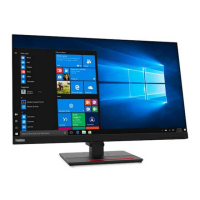
Lenovo ThinkVision T2364t
39 pages
Print Icon
To Next Page IconTo Next Page
Loading...
ThinkVision T2364t
User Guide
Machine Types: 60E9

Questions and Answers

  • N
    Nathaniel WilliamsAug 2, 2025
    What to do if my Lenovo Monitor power indicator is not lit?
    • H
      Heather RamosAug 2, 2025
      If your Lenovo Monitor's power indicator isn't lit and there's no image, ensure the power cord is properly connected and that the outlet has power. Also, make sure the monitor is powered on. You can also try using another power cord or electrical outlet to troubleshoot the issue.
  • M
    Melissa GonzalesAug 6, 2025
    Why is my Lenovo Monitor screen blank with an amber power light?
    • C
      Christopher TorresAug 6, 2025
      If your Lenovo Monitor screen is blank and the power indicator is amber, try pressing any key on the keyboard or moving the mouse to restore operation. Also, check the Power Options settings on your computer.
  • H
    harrisginaAug 11, 2025
    What to do if Lenovo Monitor has amber light but no image?
    • C
      Christopher GarciaAug 11, 2025
      If the power indicator on your Lenovo Monitor is amber but there's no image, ensure the video cable is properly connected to the system. Additionally, adjust the brightness and contrast settings on the OSD menu.
  • C
    Calvin LloydAug 15, 2025
    How to fix blurry image on Lenovo Monitor?
    • D
      Darin WellsAug 15, 2025
      If you are experiencing fuzzy lines in text or a blurry image, or horizontal/vertical lines on your Lenovo Monitor, adjust the resolution settings on your system to match the native resolution for this monitor: 1920 x 1080 at 60 Hz. You can also perform automatic or manual image setup. When working in the native resolution, you may find additional improvements by adjusting the Dots Per Inch (DPI) setting on your system.
  • P
    pkellyAug 23, 2025
    How to fix Lenovo ThinkVision T2364t showing 'Out of Range' error?
    • C
      Christina Hernandez DDSAug 23, 2025
      If your Lenovo Monitor displays "Out of Range" and the power indicator is flashing green, it means the system is set to a display mode not supported by the monitor. If replacing an old monitor, reconnect it and adjust the display mode to within the specified range for your new monitor. If using a Windows system, restart the system in safe mode, then select a supported display mode for your computer.
  • A
    alejandro38Aug 28, 2025
    Why are pixels discolored on my Lenovo ThinkVision T2364t Monitor?
    • F
      fullerbrandonAug 28, 2025
      If one or more pixels appear discolored on your Lenovo Monitor, note that this is a characteristic of LCD technology and not necessarily a defect. If there are more than five pixels missing, contact the Support Center.
  • J
    Julie AndersonSep 10, 2025
    How to improve the image quality on my Lenovo ThinkVision T2364t Monitor?
    • T
      theresa18Sep 12, 2025
      If the image quality on your Lenovo Monitor is unacceptable, ensure the video signal cable is firmly plugged into both the system and the monitor. You may also want to select another color setting from the OSD menu or perform automatic image setup.

Summary

Safety Information

General Safety Guidelines

Essential safety instructions for proper monitor usage.

Getting Started with Your Monitor

Package Contents and Shipping

Lists all items included in the product package.

Important Usage Notices

Key precautions and important notes before setting up the monitor.

Monitor Product Overview

An overview of the monitor's features and capabilities.

Monitor Adjustment Types

Details the various physical adjustments available for the monitor.

Adjusting Monitor Tilt

Instructions for adjusting the monitor's tilt angle for optimal viewing.

Monitor Control Buttons

Identifies and explains the function of the monitor's physical control buttons.

Cable Lock Slot Security

Describes the location and purpose of the monitor's cable lock slot.

Monitor Setup and Connection

Guides users through the physical setup and connection of the monitor.

Powering On the Monitor

Step-by-step instructions for connecting cables and powering on the monitor.

Monitor Usage and Adjustments

Ergonomics and Workplace Comfort

Focuses on ergonomic practices for comfortable and productive use.

Workspace Arrangement Tips

Advice on organizing your workspace for optimal comfort and efficiency.

Optimal Monitor Positioning

Guidance on adjusting monitor height, distance, and angle for best viewing.

Healthy Work Habit Tips

Practical advice for maintaining good posture and health during use.

Accessibility Features Overview

Information on Lenovo's commitment to accessibility for users with disabilities.

Adjusting Monitor Image Settings

Explains how to adjust the monitor's display settings for optimal image quality.

Using Direct Access Controls

Details how to use the monitor's direct access buttons for quick adjustments.

Navigating On-Screen Display (OSD)

Guides users through navigating and using the On-Screen Display menu.

Touch Screen Functionality

Explains how to use the monitor's touch screen functionality and gestures.

Supported Display Mode Selection

Information on choosing optimal display modes and resolutions for the monitor.

Understanding Power Management Modes

Details the monitor's power management features and states.

Monitor Care and Maintenance

Provides instructions and precautions for cleaning and maintaining the monitor.

Detaching Monitor Stand and Base

Step-by-step guide on how to safely remove the monitor's base and stand.

Optional Wall Mounting Guide

Instructions for mounting the monitor on a wall using a compatible kit.

Technical Reference and Troubleshooting

Monitor Technical Specifications

Lists detailed technical specifications of the monitor.

Monitor Troubleshooting Guide

Offers solutions to common problems encountered with the monitor.

Manual Image Setup Procedure

Step-by-step guide for manually adjusting image settings for analog input.

Installing Monitor Driver Manually

Instructions for installing the monitor driver in Windows 7 and Windows 10.

Product Service Information

Provides general information regarding product service and support.

Customer Warranty Responsibilities

Outlines customer responsibilities and warranty limitations.

Monitor Service Parts List

Lists available FRU (Field Replaceable Unit) parts for service.

Support and Service Information

Product Registration and Updates

Information on how to register the product for updates and support.

Online Technical Support Access

Details on accessing technical support via the Lenovo website.

Telephone Support Contact Numbers

Information on contacting Lenovo support via phone, including contact numbers.

Important Notices and Compliance

IT Equipment Recycling Information

Information on recycling programs and environmental considerations for IT equipment.

Lenovo and Third-Party Trademarks

Lists trademarks belonging to Lenovo and other companies.

Power Cord and Adapter Usage

Guidelines for using the correct power cords and adapters with the monitor.

Lenovo ThinkVision T2364t Specifications

General IconGeneral
Color gamut72 %
Aspect ratio16:9
Screen shapeFlat
Display diagonal23 \
Touch technologyMulti-touch
Display brightness250 cd/m²
Display technologyLED
Touchscreen technologyCapacitive
Contrast ratio (dynamic)3000000:1
Contrast ratio (typical)1000:1
Display number of colors16.78 million colors
CertificationENERGY STAR, ISO 9241-307, FCC Class B, TCO Displays 7.0, TCO Certifi ed Edge 2.0, WEEE, RoHS, EPEAT Gold
Product colorBlack
USB hub version3.2 Gen 1 (3.1 Gen 1)
USB Type-A downstream ports quantity3
Dimensions (W x D x H) with stand318.2 x 522.2 x 72.7 mm
Tilt angle range-10 - 70 °
Operating temperature (T-T)0 - 45 °C
Operating relative humidity (H-H)10 - 80 %
NVIDIA G-SYNCNo
Windows operating systems supportedWindows 10 Education, Windows 10 Education x64, Windows 10 Enterprise, Windows 10 Enterprise x64, Windows 10 Home, Windows 10 Home x64, Windows 10 Pro, Windows 10 Pro x64, Windows 7 Enterprise, Windows 7 Enterprise x64, Windows 7 Home Basic, Windows 7 Home Basic x64, Windows 7 Home Premium, Windows 7 Home Premium x64, Windows 7 Professional, Windows 7 Professional x64, Windows 7 Starter, Windows 7 Starter x64, Windows 7 Ultimate, Windows 7 Ultimate x64, Windows 8, Windows 8 Enterprise, Windows 8 Enterprise x64, Windows 8 Pro, Windows 8 Pro x64, Windows 8 x64, Windows 8.1, Windows 8.1 Enterprise, Windows 8.1 Enterprise x64, Windows 8.1 Pro, Windows 8.1 Pro x64, Windows 8.1 x64
Sustainability certificatesRoHS, ENERGY STAR
Weight and Dimensions IconWeight and Dimensions
Depth (with stand)522.2 mm
Width (with stand)318.2 mm
Height (with stand)72.7 mm
Weight (without stand)4320 g

Related product manuals