9
●NOTE: lowering the lid whilst the record is on the Turntable will reduce the build up of
dust, etc on the record which would impair the performance of the unit.
Recording to computer using Audacity
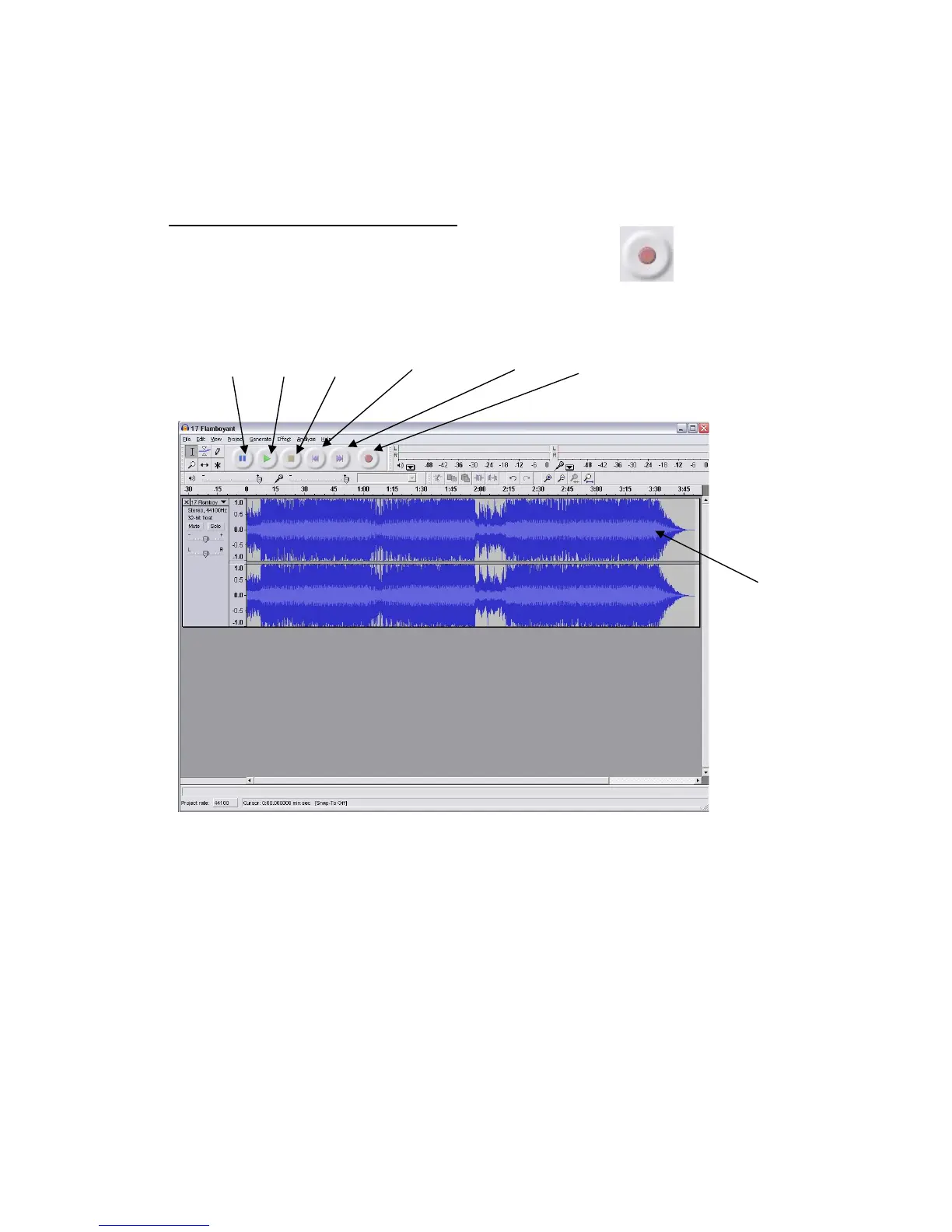
●Start the record playing as described above, and press Record at the top of the
Audacity window to start recording to the computer.
●Once recorded use the Transport controls at the top of the screen to, Go to start, Play,
Record, Pause, Stop and Go to end of Wave form as below:
●Use the file, Edit, View, Project, Generate, Effect and Analyse menus to Save, Export
and Manipulate your music.
● If the recording level requires adjustment, click on ‘START’, ‘SETTINGS’ and select
control panel. Under Control Panel select ‘SOUNDS and AUDIO DEVICES’, click on
the ‘VOLUME’ tab and select ‘ADVANCED’.
● On the Master volume window select options at the top left hand corner, click on
properties in the drop down menu.
● In the Properties window select “USB Audio Device “ from the drop down menu at the
top. Click on “OK “ to confirm the selection and a window will now appear with a
Waveform
Pause - Play -Stop - Go to Start - Go to End - Record


 To Next Page