13
NOTE:
If you own a dual band router (2.4GHz and 5.0GHz), make sure you connect to the 2.4GHz
band, otherwise it will fail to connect the weather station to Wi-Fi.
NOTE:
The time will automatically synchronize to the internet per an hour.
WI-FI CONNECTION STATUS
When the weather station successfully connects to your Wi-Fi router, the Wi-Fi signal will
appear on the LCD display. If the Wi-Fi signal is not stable or the weather station is trying to
connect to the router, the icon will flash. If the icon disappeared, it means the weather
station is not connected to the Wi-Fi router.
TIME SERVER CONNECTION STATUS
CREATE YOUR WEATHERUNDERGROUND ACCOUNT
After the weather station has connected to the internet, it will attempt to connect to the
internet time server to obtain the UTC time. Once the connection succeeds and the weather
station’s time has updated. The icon “SYNC” will appear on the LCD.
To display the correct time for your specific time zone, you will need to change the time zone
in the CLOCK setting mode from 00 (default) to your time zone (eg. -5 for EST). If you don’t
know your time zone, you can look it up online.
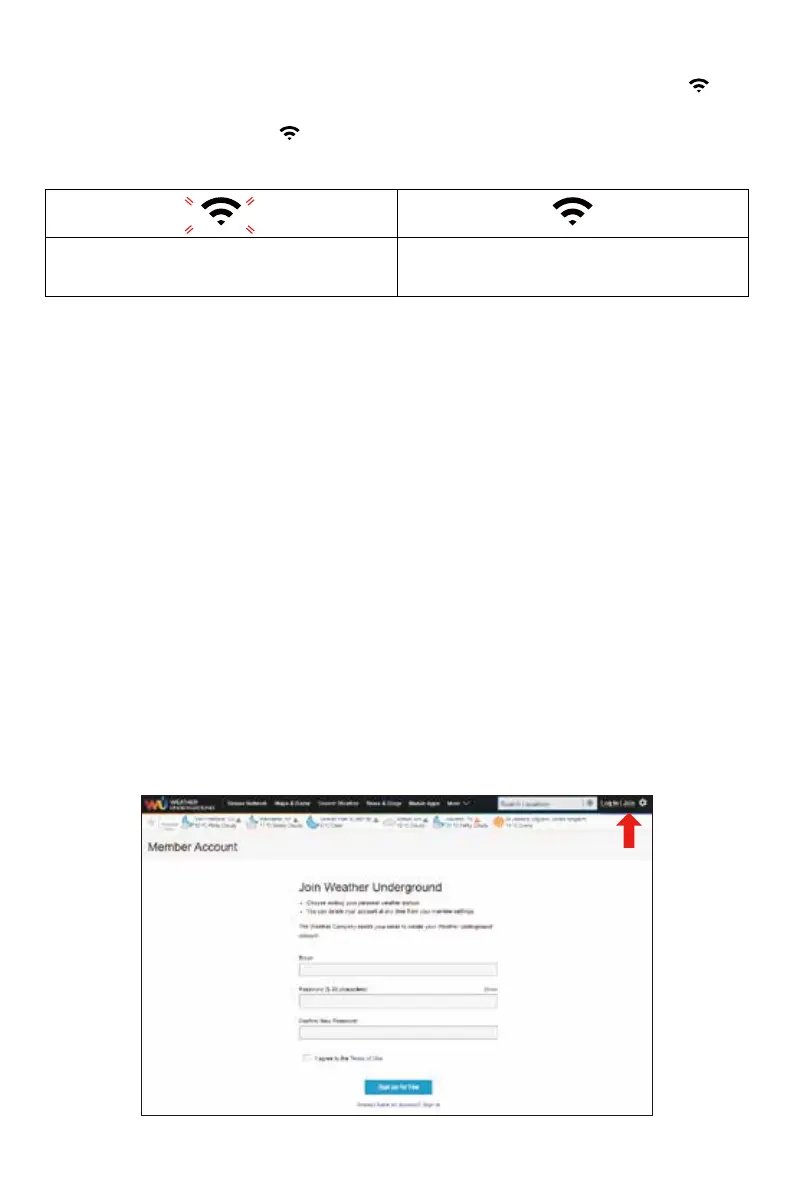
1.) Visit: https://Wunderground.com, and select the “Join” in the upper right and corner
and create a Free Account.
Flashing: the weather station is attempting
to connect to your wireless router
Solid: the weather station has been
connected to your wireless router.
● CREATE AND SYNC YOUR WEATHER SERVER ACCOUNT


 To Next Page