Need help?
Do you have a question about the LG 16Z90Q Series and is the answer not in the manual?
Identifies key hardware components of the notebook, including ports, keyboard, and touchpad for user familiarization.
Provides steps for connecting a LAN adapter to the notebook's USB-C port and establishing internet connectivity.
Explains the procedure for connecting the AC adapter to power and charge the notebook.
Details the various ports and connectors available on the left and right sides of the notebook for connectivity.
Details the correct procedures for shutting down or powering off the notebook.
Highlights critical safety warnings and cautions to prevent potential hazards and damage.
Provides crucial warnings regarding battery handling, environmental conditions, ventilation, and cable management.
Offers guidance on maintaining battery health, including optimal charge levels and usage patterns for longevity.
Details about the built-in battery, including initial charging, consumables, and replacement service.
Addresses issues where Windows functions may not work or are unsupported, suggesting potential causes and solutions.
Guides on resolving problems when parts of the LG software are not installed, including using the Microsoft Store.
Provides steps to resolve screen color distortion, including checking Reader Mode and Night light settings.
Offers solutions for the notebook failing to power on, including checking connections and system reset procedures.
Addresses system freezes or improper shutdown, suggesting system reset and cautioning about data loss.
Explains how to resolve touchpad issues, including checking its enabled/disabled state via LG Smart Assistant.
Guides on how to reinitialize the PC to correct the wrong display language in Windows and back up data.
Provides steps to resolve wireless network connection problems, including checking airplane mode and drivers.
Offers solutions for specific sites or programs not running, including adjusting User Account Control settings.
Guides on how to remove existing drivers and reinstall them using LG Update & Recovery for optimal performance.
Advises checking for viruses or malicious code as a primary step when encountering error messages.
Lists registered trademarks and provides information on obtaining open source code and license terms.
Declares compliance with UK statutory requirements for radio equipment type PC.
Declares compliance with EU Directive 2014/53/EU for radio equipment type PC.
This document is an owner's manual for an LG Notebook, specifically the 16Z90Q Series. It provides essential information for the safe and convenient use of the product, including precautions, component descriptions, setup instructions, and troubleshooting tips.
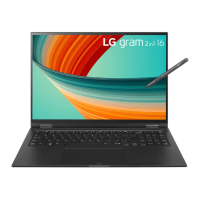
The LG Notebook is a portable computing device designed for various tasks. It features a main body, an AC adapter for power, and a power cable. An optional LAN adapter is available for wired network connectivity. The front of the notebook includes an IR LED, a webcam with an operation status lamp, and built-in microphones for communication and biometric functions. Input is managed through a keyboard and a touchpad. A power button is provided for turning the device on and off.
The notebook offers multiple ports for connectivity. On the left side, there is an HDMI port for connecting to external displays, a USB-C™ port (USB 4.0 Gen 3x2 / Thunderbolt™) which also supports a LAN adapter and power input, and a 4-pole earset headphone port. The USB-C™ port supports Quick Charging and Always-On Charging for devices that support USB PD (Power Delivery). On the right side, it features built-in speakers, a microSD card slot for expandable storage, a standard USB port (USB 3.2 Gen 2x1), and a Security Keyhole (Kensington Security Slot) for physical security.
The device supports wireless connectivity through Wi-Fi (IEEE802.11 b/g/n/ax and Wi-Fi 6E modes) and Bluetooth. The manual details the frequency ranges and output power for these wireless functions, ensuring compliance with regulatory standards.
To begin using the notebook, users must first check all provided components against the list in the manual. The AC adapter and power cable are used to connect the notebook to a power outlet, which powers the device and charges its internal battery. The AC adapter can operate within a voltage range of 100 V to 240 V. The AC adapter jack connects to the PC's USB-C™ port.
For network connectivity, the optional LAN adapter connects to the USB-C™ port, and then a network cable (CAT5 or higher is recommended) connects to the LAN adapter. This allows for proper internet access.
The notebook's power status is indicated by an AC adapter lamp: solid on means connected and charging complete, blinking means connected and charging, and off means not connected. If the laptop enters Hibernate mode or shuts off due to low battery, the AC adapter lamp will blink three times when the power button is pressed, indicating the need to connect the AC adapter and charge the battery before restarting.
System shutdown and power off procedures are initiated by pressing the Windows key or Ctrl + ESC to open the Start menu, then selecting the power button icon and choosing "Shut down."
The manual highlights the use of hot keys for convenient Windows operation, with further details available in the LG Easy Guide. The USB-C™ port's versatility allows it to function as a USB or Thunderbolt™ port depending on the connected device. The 4-pole ear microphone port supports US type 4-pole standards, and users should be aware that external standalone microphones are not supported through this port.
The notebook includes a "Reader Mode" and "Night Mode" for display settings, which can affect screen color and brightness to reduce eye strain. These modes can be adjusted or turned off via the LG Smart Assistant or Windows settings.
The manual provides important safety precautions to prevent damage and injury. Users are warned against using non-certified batteries, storing or using the product in high-temperature or high-humidity environments (above 60 °C), and operating it on soft furnishings or covering the adapter, as these can lead to overheating, malfunction, fire, or burns. The battery should be kept away from heat sources, and any leakage or unusual odor from the battery requires immediate contact with an authorized service center. Metallic objects should not come into contact with the battery terminals to prevent damage or fire. Only the provided AC adapter should be used for charging. The AC adapter cable should not be bent excessively to avoid damage and electrical hazards.
For battery maintenance, it is recommended to keep the battery level at 50% when the PC is not used for extended periods to increase its lifespan. Using the battery for a while before fully charging it, rather than keeping it constantly at 100%, also helps prolong its life. The "Extend Battery Life" function in LG Smart Assistant can limit the charge to 80% for better longevity. Leaving the product fully charged for long periods without use can decrease battery lifespan.
The internal battery is not user-removable or replaceable and doing so will void the warranty. For battery removal or replacement, users must visit a designated service center, which may incur a fee.
Troubleshooting guidance is provided for common issues. If Windows functions do not work normally, users are advised to check for separate hardware, drivers, or software requirements, update the BIOS, and be aware that Windows updates may incur internet usage fees and system requirements. LG UWP apps can be installed from the Microsoft Store.
If the screen color is incorrect, users should check if Reader Mode is on and turn it off if necessary. Using Reader Mode and Night Mode simultaneously can cause color distortion. If the screen still displays improperly, LG Electronics service center should be contacted.
If the power does not turn on, users should check the power cord connection. If reconnecting the power cord doesn't work, holding the power button down for at least 6 seconds can reset the system.
For touchpad issues, users should check the touchpad settings in LG Smart Assistant, ensuring it's not disabled or in "Touchpad Auto" mode when a mouse is connected.
If the wrong display language is selected, the system can be initialized using the "Recovering the System" guide in LG PC Manuals, but all critical data should be backed up first.
Wireless network connection problems can often be resolved by checking if the wireless network device is turned off (using Fn + F6 to toggle airplane mode) or by reinstalling the wireless LAN driver. For secure networks, the administrator should be consulted.
If a specific site or program doesn't run, users can adjust User Account Control settings to "Never notify" or check for virus/malware infections. LG Electronics and Microsoft recommend using User Account Control.
Drivers can be reinstalled via "LG Update & Recovery" or by removing the existing driver through Windows settings and then reinstalling. If error messages appear, checking for viruses or malicious code is recommended.
 General
| Display Size | 16 inches |
|---|---|
| Resolution | 2560 x 1600 |
| Display Type | IPS LCD |
| Processor | Intel Core i7-1260P |
| RAM | 16GB LPDDR5 |
| Graphics | Intel Iris Xe Graphics |
| Battery | 80Wh |
| Operating System | Windows 11 |
| Weight | 1.2 kg |
| Ports | HDMI, 3.5mm audio jack |
| Wireless | Wi-Fi 6E |
| Storage | 512GB / 1TB (NVMe SSD) |

 To Next Page