EasyManua.ls Logo

LG 20MP48A - User Manual

LG 20MP48A
44 pages
Print Icon
To Next Page IconTo Next Page
Loading...
www.lg.com
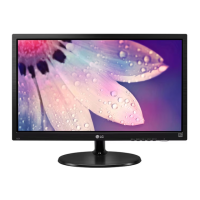
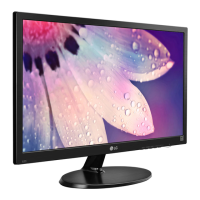
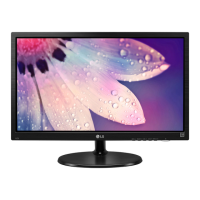
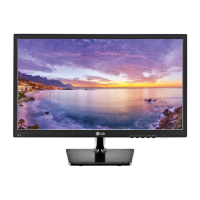
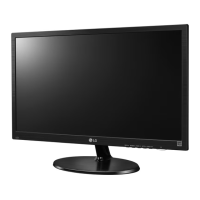
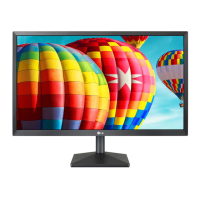
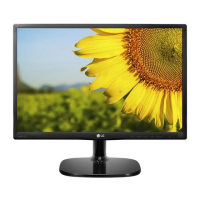
IPS LED MONITOR MODEL
Please read this manual carefully before operating
your set and retain it for future reference.
Owner's Manual
IPS LED MONITOR
(LED MONITOR*)
*LG LED Monitors are LCD Monitors with LED Backlighting.
22MP48A
22MP48D
22MP48HQ
23MP48D
23MP48HQ
20MP48A 24MP48HQ 27MP48HQ

Questions and Answers

  • W
    Walter PattersonJul 27, 2025
    How to fix an LG 20MP48A when no image appears?
    • A
      Anthony PerezJul 27, 2025
      If no image appears on your LG Monitor, ensure the power cord is properly connected to the outlet and that the monitor is turned on by pressing the Power button. If the monitor is in power saving mode, move the mouse or press any key on the keyboard. Also, verify that your PC is turned on. If the issue persists, consult the 'Specifications' section to configure your display correctly. Note that the monitor enters DPM mode if it remains on 'No-Signal' for 5 minutes.
  • A
    Alicia ChandlerAug 4, 2025
    What to do if the display image is incorrect on my LG 20MP48A Monitor?
    • E
      Erica GregoryAug 4, 2025
      To correct an incorrect display image on your LG Monitor, first press the AUTO button to automatically adjust the display to the ideal setting. If that doesn't work, go to Control Panel ? Display ? Settings and adjust the display to the recommended resolution. Also, ensure that your color setting is higher than 24 bits (true color).
  • M
    Mrs. Dawn HodgesAug 10, 2025
    What to do if my LG 20MP48A shows 'Unrecognized monitor, Plug&Play (VESA DDC) monitor found'?
    • J
      jburnsAug 10, 2025
      If you see an 'Unrecognized monitor, Plug&Play (VESA DDC) monitor found' message on your LG Monitor, install the display driver from the CD (or diskette) that came with your display. Also, make sure to check if the video card supports Plug&Play function.
  • P
    Peter SandovalAug 19, 2025
    How to unlock OSD on LG Monitor?
    • T
      tjohnsonAug 19, 2025
      If you see an 'OSD LOCKED' message on your LG Monitor, you can unlock the OSD controls by pushing the MENU button for several seconds until the message 'OSD UNLOCKED' appears.

Summary

ASSEMBLING AND PREPARING

Monitor Parts and Buttons

Identify physical buttons and connection ports on the monitor for operation.

Setting Up the Monitor Stand

Guide for attaching the monitor stand base and preparing it for use.

USING THE MONITOR SET

CUSTOMIZING SETTINGS

Menu Settings and Adjustments

Explore display settings: Picture, Color, Display, Audio, Others, and basic OSD navigation.

TROUBLESHOOTING

Troubleshooting No Image

Resolve issues when the display shows no image or the power indicator is off.

Resolving Display Image Errors

Fix incorrect display position, lines, or distorted images on the screen.

SPECIFICATIONS

LG 20MP48A Specifications

General IconGeneral
BrandLG
Model20MP48A
CategoryMonitor
LanguageEnglish

Related product manuals