EasyManua.ls Logo

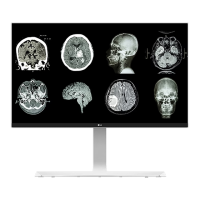
LG 27HJ712C - User Manual

LG 27HJ712C
56 pages
Print Icon
To Next Page IconTo Next Page
Loading...
www.lg.com
Please read this manual carefully before operating
your set and retain it for future reference.
OWNER’S MANUAL
MEDICAL
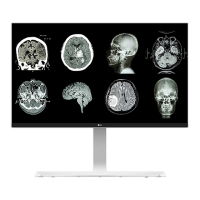
MONITOR
27HJ712C

Questions and Answers

  • B
    Briana ThompsonSep 13, 2025
    What does "Unrecognized monitor, Plug and Play (VESA DDC) monitor found" mean on LG 27HJ712C?
    • C
      Christopher PachecoSep 13, 2025
      If you see an "Unrecognized monitor, Plug and Play (VESA DDC) monitor found" message on your LG Monitor, install the display driver from the display driver CD (or diskette) that came with your display. Also, ensure that your graphics card supports the Plug and Play function.
  • R
    rubenyatesAug 25, 2025
    What to do if the screen display is unstable and shaky on my LG Monitor?
    • S
      Sheena FisherAug 25, 2025
      If your LG Monitor's screen display is unstable, shaky, or images leave shadow trails, and the resolution is set to HDMI 1080i 60/50 Hz (interlaced), the screen may be flickering. Try changing the resolution to 1080p or the recommended resolution.
  • N
    Nathan GutierrezAug 25, 2025
    How to fix no sound from headphone port or speaker of LG 27HJ712C Monitor?
    • W
      whitedanielleAug 26, 2025
      If there is no sound from the headphone port or speaker of your LG Monitor, first try increasing the volume using the button on the monitor. If that doesn't work, set the audio output of your PC to the monitor you are using. In Microsoft Windows, go to Control Panel > Hardware and Sound > Sound and set the monitor as the default device.
  • J
    joseph34Sep 23, 2025
    How to turn off OSD Lock on LG 27HJ712C?
    • S
      Shawn WashingtonSep 23, 2025
      If the OSD Lock message is displayed on your LG Monitor, go to Menu > General and set OSD Lock to Off.
  • P
    Paul FordSep 14, 2025
    How to turn off the OSD Lock message on my LG 27HJ712C?
    • B
      brownpaulSep 14, 2025
      If the OSD Lock message is displayed on your LG Monitor, go to Menu > General and set OSD Lock to Off.
  • C
    Christopher CurtisSep 23, 2025
    How to resolve 'Unrecognized monitor, Plug and Play (VESA DDC) monitor found' message on LG 27HJ712C?
    • L
      Louis ProctorSep 23, 2025
      To resolve the 'Unrecognized monitor, Plug and Play (VESA DDC) monitor found' message on your LG monitor, be sure to install the display driver from the display driver CD (or diskette) that came with your display. Also, make sure to check if the graphics card supports Plug and Play function.
  • K
    Keith NewmanSep 6, 2025
    How to fix unstable and shaky screen display or shadow trails on my LG 27HJ712C Monitor?
    • R
      Robert PayneSep 7, 2025
      If your LG Monitor's screen display is unstable, shaky, or images leave shadow trails, and the selected resolution is HDMI 1080i 60/50 Hz (interlaced), the screen may be flickering. Try changing the resolution to 1080p or the recommended resolution.
  • S
    slarsenSep 7, 2025
    What to do if the screen retains an image on my LG 27HJ712C Monitor?
    • J
      Joshua PowellSep 7, 2025
      If your LG Monitor screen retains an image, it may be due to displaying a still image for a prolonged time, which can cause damage. To extend the monitor's lifetime, use a screensaver.
  • T
    Tina WillisSep 23, 2025
    What to do if I see an 'Unrecognized monitor' message on my LG 27HJ712C?
    • N
      Nicole CarpenterSep 23, 2025
      If you see an "Unrecognized monitor, Plug and Play (VESA DDC) monitor found" message with your LG Monitor, install the display driver from the CD or diskette that came with your display. You can also download the driver from http://www.lg.com. Also, ensure that your graphics card supports the Plug and Play function.
  • L
    Lisa DelgadoAug 31, 2025
    How to fix an LG Monitor when nothing is displayed on the screen?
    • R
      rcunninghamAug 31, 2025
      If nothing is displayed on your LG monitor, try these steps: Ensure the power cord is correctly plugged into the outlet, check the power cable connection and press the power button. Also, verify that the connected input is enabled via Menu > Quick Settings > Input. If the monitor is in sleep mode, move the mouse or press a key. Confirm that your computer is turned on. If the signals from the PC are out of the monitor's frequency range, see the Product Specification section of this manual to set the appropriate frequency. Finally, check the cable and reconnect it.

Summary

Safety Information

Warning and Caution Symbol Explanations

Explanation of warning and caution symbols related to potential hazards.

Safety Information (continued)

Medical Device Classification and Standards

Details on medical device classification and compliance with safety standards.

Electro-Magnetic Emissions Guidance

Guidance on electro-magnetic emissions and compatibility for the device.

Electro-Magnetic Immunity

Immunity Test Levels and Guidance

Details on immunity tests (ESD, burst, surge, dips) and environmental guidance.

Electro-Magnetic Immunity (continued)

RF Immunity and Separation Distances

Guidelines for conducted and radiated RF immunity and recommended separation distances.

Recommended Separation Distance

Warning Precautions

Electrical Safety and Handling Warnings

Critical warnings regarding electric shock, connection, and equipment modification.

Cautionary Notes

Environmental, Storage, and Handling Cautions

Cautions related to environment, storage, handling, and health.

Product Installation Precautions

Installation Safety Guidelines

Precautions to take when installing the product to ensure safety and proper function.

Product Handling and Transport Precautions

AC;DC Adaptor and Power Safety

Safety precautions for using the AC/DC adaptor and power cord.

Product Usage Precautions

General Usage Safety Advice

Precautions for using the monitor, including avoiding damage and environmental factors.

Product Specifications

Assembly and Preparation (continued)

Assembly and Preparation (continued)

Moving and Lifting the Monitor Safely

Instructions and cautions for safely moving and lifting the monitor to prevent damage.

Monitor Installation

Assembling the Monitor Stand Base

Step-by-step guide for assembling the monitor's stand base.

Monitor Installation (continued)

Wall Mounting Cautions

Important cautions regarding wall mounting, screw usage, and safety.

Power Cord Connection Safety

Safety guidelines for connecting the power cord to a grounded outlet.

Monitor Installation (continued)

Monitor Installation (continued)

Using the Monitor

Connecting to a PC via HDMI

Guide for connecting the monitor to a PC using an HDMI cable.

Using the Monitor (continued)

Connecting to a PC via DisplayPort

Guide for connecting the monitor to a PC using a DisplayPort cable.

User Settings

User Settings (continued)

User Settings (continued)

User Settings (continued)

User Settings (continued)

Picture-by-Picture (PBP) Mode Setup

Instructions for setting up and configuring the Picture-by-Picture (PBP) mode.

Troubleshooting Common Issues

Display Not Showing or Out of Range

Solutions for display problems like no image, out of range, or no signal messages.

OSD Lock and Image Sticking Problems

Resolving issues with OSD lock and addressing screen image retention.

Screen Instability and Shadow Trails

Troubleshooting unstable displays, shaky images, and shadow trails.

Troubleshooting Advanced Issues

Display Color Abnormalities

Addressing issues with discolored or unstable display colors and screen spots.

Product Specifications (continued)

LG 27HJ712C Specifications

General IconGeneral
Screen Size27 inches
Panel TypeIPS
Aspect Ratio16:9
Brightness250 cd/m²
Response Time5ms (GTG)
Refresh Rate60 Hz
Contrast Ratio1000:1
Viewing Angle178° (H) / 178° (V)
Color GamutsRGB 99%
VESA Mount100 x 100 mm
ConnectivityHDMI, DisplayPort
Resolution1920 x 1080 (Full HD)

Related product manuals