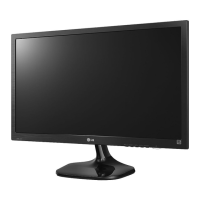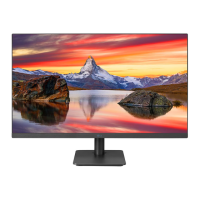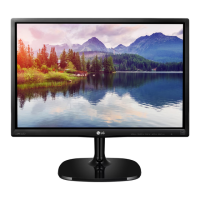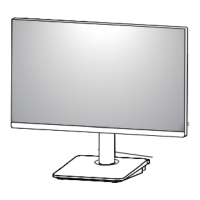
Why is my LG 27MP35HQ screen flickering?
- TTracy ButlerJul 30, 2025
If your LG Monitor screen is flickering, and the selected resolution is HDMI 1080i 60/50 Hz, try changing the resolution to the recommended resolution of 1080P.
Why is my LG 27MP35HQ screen flickering?
If your LG Monitor screen is flickering, and the selected resolution is HDMI 1080i 60/50 Hz, try changing the resolution to the recommended resolution of 1080P.
How to fix no image on LG Monitor?
First, ensure the power cord is properly connected to the power outlet. If that's not the issue, press the Power button. Also, adjust the brightness and contrast settings. If your LG Monitor is in power saving mode, try moving the mouse or pressing any key on the keyboard. Finally, verify that your PC is turned on. If a message appears indicating the signal from the PC (video card) is out of the display's frequency range, consult the 'Specifications' section of the manual to reconfigure your display. Note that the monitor enters DPM mode if it's on "No-Signal" for 5 minutes.
What to do if the display image is incorrect on LG 27MP35HQ?
To address an incorrect display image on your LG Monitor, repeatedly press the AUTO button to automatically adjust the image to the ideal setting. Also, check Control Panel ? Display ? Settings and adjust the display to the recommended resolution or adjust the display image to the ideal setting. Ensure the color setting is higher than 24 bits (true color).
Why is the screen color mono or abnormal on my LG Monitor?
If the screen color on your LG Monitor appears mono or abnormal, first check if the signal cable is properly connected, using a screwdriver to fasten it if necessary. Then, ensure the video card is properly inserted in its slot. Lastly, set the color setting higher than 24 bits (true color) at Control Panel ? Settings.
What to do if I see an "Unrecognized monitor, Plug&Play (VESA DDC) monitor found" message on LG 27MP35HQ Monitor?
To resolve the “Unrecognized monitor, Plug&Play (VESA DDC) monitor found” message on your LG Monitor, install the display driver from the display driver CD (or diskette) that came with your display. Also, make sure to check if the video card supports Plug&Play function.
Why does my LG Monitor screen blink?
If the screen of your LG Monitor blinks, check if the screen is set to interlace mode. If it is, change it to the recommended resolution.
How to unlock OSD on LG 27MP35HQ?
You can unlock the OSD controls on your LG Monitor by pushing the MENU button for several seconds until the message “OSD UNLOCKED” appears.
Lists accessories included in the product box for initial setup.
Identifies all physical buttons and connection ports on the monitor.
Step-by-step instructions for securely attaching the monitor's stand base.
Procedures and considerations for mounting the monitor securely on a wall.
Instructions for connecting the monitor to a computer via D-SUB or HDMI.
Guide to accessing and adjusting various display settings via the OSD menu.
Accesses advanced functions like Super Energy Saving, Picture Mode, and more.
Reduces power consumption by adjusting screen brightness for energy efficiency.
Troubleshooting steps for when the screen shows no image or a 'No Signal' message.
Lists accessories included in the product box for initial setup.
Identifies all physical buttons and connection ports on the monitor.
Step-by-step instructions for securely attaching the monitor's stand base.
Procedures and considerations for mounting the monitor securely on a wall.
Instructions for connecting the monitor to a computer via D-SUB or HDMI.
Guide to accessing and adjusting various display settings via the OSD menu.
Accesses advanced functions like Super Energy Saving, Picture Mode, and more.
Reduces power consumption by adjusting screen brightness for energy efficiency.
Troubleshooting steps for when the screen shows no image or a 'No Signal' message.
| 3D | - |
|---|---|
| Pixel pitch | 0.3114 x 0.3114 mm |
| Aspect ratio | 16:9 |
| Backlight type | W-LED |
| Display diagonal | 27 \ |
| Display technology | LED |
| Supported video modes | 1080p |
| Contrast ratio (dynamic) | 5000000:1 |
| Contrast ratio (typical) | 1000:1 |
| Display number of colors | 16.78 million colors |
| Digital vertical frequency | 56 - 75 Hz |
| Digital horizontal frequency | 30 - 83 kHz |
| Display brightness (typical) | 200 cd/m² |
| Supported graphics resolutions | 1920 x 1080 (HD 1080) |
| On/off switch | Yes |
| USB Type-A downstream ports quantity | 0 |
| Certification | UL (cUL)\\r TUV-Type\\r FCC-B\\r CE |
| Product color | Black |
| LED indicators | Power |
| Tilt angle range | -5 - 20 ° |
| Cable lock slot type | Kensington |
| Number of OSD languages | 17 |
| Panel mounting interface | 100 x 100 mm |
| AC input voltage | 100 - 240 V |
| AC input frequency | 50 - 60 Hz |
| Annual energy consumption | 34 kWh |
| Power consumption (standby) | 0.3 W |
| Power consumption (typical) | 23 W |
| Sustainability certificates | ENERGY STAR |
| Package depth | 470 mm |
| Package width | 796 mm |
| Package height | 158 mm |
| Package weight | 7300 g |
| Cables included | AC, VGA |
| Depth (with stand) | 254 mm |
|---|---|
| Height (with stand) | 485 mm |
| Weight (with stand) | 4800 g |
| Depth (without stand) | 47 mm |
| Width (without stand) | 642 mm |
| Height (without stand) | 390 mm |
| Weight (without stand) | 4200 g |