EasyManua.ls Logo

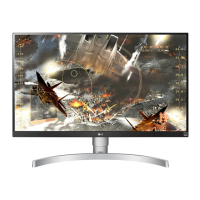
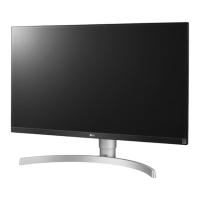
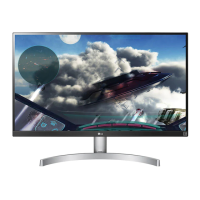
LG 27UL600 - User Manual

LG 27UL600
31 pages
Print Icon
To Next Page IconTo Next Page
Loading...
* LG LED Monitor applies LCD screen with LED backlights.
Please read this manual carefully before operating your set and
retain it for future reference.
27UL650
27BL65U
27UL600
OWNER’S MANUAL
LED LCD MONITOR
(LED Monitor*)
www.lg.com
Copyright © 2018 LG Electronics Inc. All Rights Reserved.

Other manuals for LG 27UL600

Questions and Answers

  • E
    Elizabeth CollinsAug 21, 2025
    Why is there no sound on my LG 27UL600?
    • L
      Lauren OsborneAug 21, 2025
      If images are displayed without sound on your LG Monitor, first ensure that the headphone port connections are properly made. If that's not the issue, try increasing the volume using the joystick. Finally, set the audio output of your PC to the monitor you are currently using. Note that the settings may vary depending on your operating system.
  • M
    mcaldwellSep 4, 2025
    What to do if my LG 27UL600 Monitor screen display is unstable and shaky?
    • J
      John SpencerSep 4, 2025
      If your LG monitor's screen display is unstable, shaky, or images leave shadow trails, and if the resolution is set to HDMI 1080i 60/50 Hz (interlaced), the screen may be flickering. Try changing the resolution to 1080p or the recommended resolution. Also, ensure that the graphics card is set to the recommended (optimal) resolution to avoid blurred text, a dimmed screen, a truncated display area, or misalignment of the display. Note that setting methods may vary depending on the computer or operating system, and some resolutions may not be available depending on the performance of the graphics card.
  • J
    Joann WeeksSep 2, 2025
    What to do if my LG 27UL600 Monitor screen display is unstable?
    • R
      Richard GutierrezSep 2, 2025
      If the screen display on your LG Monitor is unstable and shaky, or if images leave shadow trails, and the resolution is set to HDMI 1080i 60/50 Hz (interlaced), the screen may be flickering. Try changing the resolution to 1080p or the recommended resolution. Also, ensure that the graphics card is set to the recommended (optimal) resolution. If it is not, this may result in blurred text, a dimmed screen, a truncated display area, or misalignment of the display.
  • S
    stevensimmonsSep 1, 2025
    How to fix LG 27UL600 Monitor when nothing is displayed on the screen?
    • M
      Mark WellsSep 1, 2025
      If nothing is displayed on your LG Monitor screen, ensure the power cord is correctly plugged into the power outlet and that the power cable is properly connected. Then, press the power button. Also, verify that the connected input is enabled in the monitor settings (Settings > Input). Finally, check the signal cable between your PC and the monitor to ensure it's properly connected. If the issue persists, the signals from your PC might be outside the monitor's frequency range; refer to the product specifications to set the appropriate frequency.
  • K
    kellyhillAug 30, 2025
    How to fix no sound from the headphone port on my LG 27UL600 Monitor?
    • T
      Troy LewisAug 31, 2025
      If you're not getting any sound from the headphone port on your LG Monitor, ensure the headphone port connections are properly made. You can also try increasing the volume using the joystick. Additionally, set the audio output of the PC to the monitor you are using. The settings may differ depending on your operating system.
  • E
    Eric HolmesAug 29, 2025
    What to do if nothing is displayed on my LG 27UL600 screen?
    • C
      Christine HallAug 29, 2025
      If nothing is displayed on your LG Monitor screen, try the following: * Ensure the power cord is correctly plugged into the power outlet. * Check the power cable connection and press the power button. * Verify that the connected input is enabled in the monitor's settings (Settings > Input). * Check the signal cable between the PC and the monitor and reconnect it. * Ensure signals transferred from the PC (graphics card) are within the horizontal or vertical frequency range of the monitor. Refer to the Product Specification section of the manual to set the appropriate frequency.
  • M
    marie52Aug 27, 2025
    What to do if there is no sound from the headphone port of my LG 27UL600 Monitor?
    • M
      Mark HansonAug 28, 2025
      If there's no sound from the headphone port on your LG Monitor: * Ensure the headphone port connections are properly made. * Try increasing the volume using the joystick. * Set the audio output of your PC to the monitor you are using. Note that the settings may differ depending on your operating system.
  • T
    Theresa VaughnAug 26, 2025
    Why is my LG 27UL600 Monitor screen display unstable and shaky?
    • G
      Gregory RichardsAug 27, 2025
      If your LG Monitor's screen display is unstable or images leave shadow trails: * If the resolution is HDMI 1080i 60/50 Hz (interlaced), the screen may flicker. Change the resolution to 1080p or the recommended resolution. * Blurred text, a dimmed screen, a truncated display area, or misalignment can occur if the graphics card isn't set to the recommended resolution. Setting methods vary by computer and OS, and some resolutions depend on the graphics card's performance. If issues persist, consider contacting the computer or graphics card manufacturer.
  • B
    bradfordlucasAug 25, 2025
    Why is there no sound from the headphone port on my LG 27UL600?
    • D
      Diana HollandAug 25, 2025
      If there is no sound from the headphone port on your LG monitor, first, ensure that the headphone connections are properly made. Then, try increasing the volume using the joystick. Finally, set the audio output of your PC to the monitor you are using. Note that the settings may differ depending on the operating system.
  • B
    bmooreAug 23, 2025
    How to fix an LG Monitor when nothing is displayed on the screen?
    • J
      Justin AndersonAug 23, 2025
      If nothing is displayed on your LG monitor, ensure the power cord is correctly plugged into the outlet and that the power cable is securely connected. Press the power button. Also, verify that the connected input is enabled in the monitor's settings under the Input section. Check and reconnect the signal cable between your PC and the monitor. Finally, confirm that the signals from your PC's graphics card are within the monitor's horizontal or vertical frequency range, referring to the product specifications for appropriate settings.

Summary

ASSEMBLING AND PREPARING

Assembly and Handling Cautions

Safety warnings for assembly and handling components.

Product and Button Description

Moving and Lifting the Monitor

Guidelines for safely moving and lifting the monitor.

Monitor Handling Cautions

Warnings about touching the screen and using the monitor without a stand.

Installing on a Table

Screen Height Adjustment Warning

Warning about adjusting screen height and avoiding finger injury.

Power Connection Cautions

Precautions regarding unplugging the power cord and using grounded outlets.

Pivot Feature

Pivot Warning

Warning to avoid scratching the stand base when using the pivot feature.

Installing on the Wall

Wall Mounting Warnings

Warnings about electric shock, ceiling/slanted wall mounting, and screw length.

Wall Mounting Cautions

Precautions for unplugging power, mounting, and using VESA standards.

USING THE MONITOR

Monitor Usage Cautions

Warnings about prolonged screen use and power connection.

USER SETTINGS

Activating the Main Menu

Steps to activate and navigate the main menu using the joystick.

Quick Settings

Accessing Quick Settings

Accessing quick settings for Brightness, Contrast, Volume, Color Temp.

Input Settings

Picture Settings

Picture Mode for SDR

Picture modes for SDR signals: Custom, Vivid, Reader, Cinema, FPS, RTS, Color Weakness, EBU, REC709, SMPTE-C.

HDR Picture Mode Settings

HDR Picture Modes

Picture modes for HDR signals: Custom, Vivid, Standard, Cinema, FPS, RTS.

Picture Adjustments

Game Adjustments

FreeSync Configuration

Synchronizes vertical frequency for seamless images, requires compatible hardware.

FreeSync Cautions

Cautions regarding FreeSync interface, graphic card, and driver updates.

General Settings

HDMI ULTRA HD Deep Color

Deep Color Settings

Settings for HDMI ULTRA HD Deep Color and Buzzer.

HDMI ULTRA HD Deep Color Feature

Provides sharper images with ULTRA HD Deep Color support.

Reset Initial Settings

Resets all settings to their default values.

TROUBLESHOOTING

No Screen Display

Troubleshooting steps for no display or power issues.

Unstable or Shaky Display

Troubleshooting for unstable display or shadow trails.

Image Sticking Issues

Troubleshooting for image sticking, recommending screensaver use.

Disabled Features Troubleshooting

Troubleshooting for disabled functions due to OSD Lock.

Unrecognized Monitor Message

Display Driver Installation

Steps to install display drivers and check Plug and Play support.

No Sound from Headphone Port

Troubleshooting No Sound

Troubleshooting for no sound issues from the headphone port.

PRODUCT SPECIFICATION

Resolution Specification

Max and recommended resolution (3840 x 2160 @ 60 Hz).

Power Source Specifications

Power rating and consumption details for different modes.

LG 27UL600 Specifications

General IconGeneral
3DNo
Pixel pitch0.1554 x 0.1554 mm
Screen shapeFlat
Display surfaceMatt
Display diagonal27 \
Display technologyLED
Native aspect ratio16:9
Maximum refresh rate60 Hz
sRGB coverage (typical)99 %
Contrast ratio (typical)1000:1
Display number of colors1.073 billion colors
Display brightness (typical)350 cd/m²
Supported graphics resolutions-
Headphone outYes
DisplayPort version1.4
VGA (D-Sub) ports quantity0
AC input voltage100 - 240 V
AC input frequency50 - 60 Hz
Energy efficiency scaleA to G
Power consumption (max)43 W
Power consumption (off)0.3 W
Power consumption (standby)0.5 W
Power consumption (typical)30 W
Panel mounting interface100 x 100 mm
Package depth436 mm
Package width694 mm
Package height148 mm
Package weight7500 g
Cables includedDisplayPort, HDMI
Product colorSilver, White
Market positioningGaming
Harmonized System (HS) code85285210
Weight and Dimensions IconWeight and Dimensions
Depth (with stand)209.4 mm
Width (with stand)613.1 mm
Height (with stand)455.2 mm
Weight (with stand)5200 g
Depth (without stand)73 mm
Height (without stand)364.4 mm
Weight (without stand)4700 g

Related product manuals