EasyManua.ls Logo

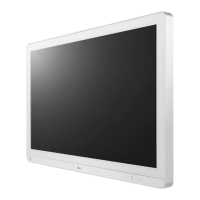
LG 32HL714S - User Manual

LG 32HL714S
52 pages
Print Icon
To Next Page IconTo Next Page
Loading...
www.lg.com
Copyright 2020 LG Electronics Inc. All Rights Reserved.
Please read this manual carefully before operating your set and retain it for future reference.
32HL714S
MEDICAL MONITOR
OWNER’S MANUAL

Questions and Answers

  • E
    Erica HernandezAug 8, 2025
    Why is nothing displayed on my LG 32HL714S Monitor screen?
    • H
      Howard RodriguezAug 8, 2025
      If nothing is displayed on your LG Monitor, ensure the power cord is correctly plugged into the power outlet. Also, verify the power cable connection and turn on the power switch. Check if the input setting is correct. If signals from the PC are out of the monitor's frequency range, see the product specifications in the manual to set the appropriate frequency. Finally, check the cable and reconnect it.
  • J
    Jacqueline McdonaldAug 13, 2025
    What to do if nothing is displayed on the LG 32HL714S Monitor screen?
    • P
      Patricia MclaughlinAug 13, 2025
      If nothing is displayed on the LG Monitor screen, check if the power cord is correctly plugged into the power outlet. Also, verify the power cable connection and ensure the power switch is turned on. Confirm that the input setting is correct. If signals from the PC are out of range, see the product specifications section of this manual to set the appropriate frequency. Finally, check the cable and reconnect it.
  • J
    Jennifer MayoAug 18, 2025
    What to do if my LG 32HL714S displays nothing on the screen?
    • C
      christineparkerAug 18, 2025
      If your LG Monitor screen is blank, ensure the power cord is securely plugged into the power outlet and that the power cable is properly connected, with the power switch turned on. Also, verify that the input setting is correct by navigating to [All Settings] > [Input]. If the issue persists, check the signal cable between the PC and the monitor, ensuring it is properly connected.
  • G
    Gail ChristensenAug 25, 2025
    Why is the display color abnormal on my LG 32HL714S?
    • B
      Brittany BurnsAug 25, 2025
      If the display color on your LG Monitor is abnormal, set the number of colors to 24 bit (true colors) or higher via Windows Control Panel > Display > Settings > Color Quality. Also, check if the signal cable is properly connected and reconnect it, or reinsert the PC's graphics card. Note that pixilated spots (red, green, blue, white, or black) may appear, which is normal for an LCD screen and not an error.
  • R
    Ronald LopezAug 28, 2025
    What to do if my LG Monitor screen is unstable and shakes?
    • L
      larry36Aug 28, 2025
      If your LG Monitor screen is unstable and shakes, or if there are shadowy traces, and the selected resolution is HDMI 1080i 60/50 Hz (interlaced), the screen may be flickering. Change the resolution to 1080p or the recommended resolution.
  • C
    carrie90Sep 2, 2025
    How to prevent image retention on my LG 32HL714S Monitor?
    • J
      Jacqueline MartinSep 2, 2025
      Displaying a still image for a prolonged time may cause damage to the screen of your LG Monitor, resulting in the retention of the image. To extend the lifetime of the monitor, use a screensaver.

Summary

Product and LED Control Buttons

Front Controls

Identifies and illustrates control buttons on the front of the monitor.

LED Control Button Functions

Input Button

Explains the function of the input selection button.

PIP;PBP Button

Explains the function of the Picture-in-Picture/Picture-by-Picture button.

Hotkey Button

Explains the function of the hotkey button for quick settings.

Brightness Button

Explains the function of the brightness adjustment button.

OK Button

Explains the function of the OK button for selection and confirmation.

Contrast Button

Explains the function of the contrast adjustment button.

Menu Button

Explains the function of the menu button to access settings.

Power Indicator

Describes the power indicator light and its meaning.

Power Switch

Explains how to turn the monitor on and off.

Connectors

Installing on the Wall

Installing the Wall Mount Plate

Wall Mount Specifications

Details VESA mount compatibility and screw requirements.

Wall Mounting Precautions

USER SETTINGS

Activating the Quick Menu

Steps to access and navigate the monitor's quick settings menu.

Quick Settings Menu

Brightness and Contrast Adjustments

How to adjust screen brightness and contrast settings.

User Preset Management

Input Settings

Input Configuration Options

Picture Settings

Picture Mode Settings (HDR)

Picture Adjustments

Brightness and Contrast Control

Fine-tuning screen brightness and contrast.

Advanced Picture Adjustments

Color Adjustments

Gamma and Color Temperature

Adjusting gamma curves and color temperature settings.

General Settings

General Configuration Options

DisplayPort and OSD Settings

TROUBLESHOOTING

No Display on Screen

Solutions for when the monitor shows no image.

Image Sticking

Addressing issues with retained images on the screen.

Screen Stability and Color Issues

Screen Instability and Shakes

Troubleshooting flickering or unstable screen images.

Abnormal Display Color

Resolving issues with discolored or monochrome displays.

PRODUCT SPECIFICATIONS

EXTERNAL CONTROLLER SETUP

RS-232 C Connection Diagram

Illustrates the connection setup for remote control via RS-232C.

Set ID Function

Command Reference List

Power, Screen Mute, and Input Commands

List of commands for basic monitor control like power and input.

Command Reference - Picture Settings

Brightness, Contrast, and Sharpness Commands

Commands for adjusting brightness, contrast, and sharpness.

Transmission;Reception Protocol

Command Structure and Data Format

Details the format for sending and receiving commands.

Communication Error Handling

Command Reference - Aspect Ratio and Input

Aspect Ratio Commands for Main and Sub

Commands to control aspect ratio on different screen sections.

Command Reference - PBP;PIP and Screen Swap

PBP;PIP Mode and Size Commands

Commands to manage PBP/PIP modes and picture size.

Command Reference - Picture Mode and Brightness

Picture Mode and Brightness Commands

Commands for selecting picture modes and adjusting brightness.

Command Reference - Picture Enhancements

DFC, Response Time, Black Level Commands

Commands for DFC, response time, and black level adjustments.

Super Resolution and HDMI Deep Color Commands

Commands for Super Resolution and HDMI Deep Color.

Command Reference - Color Settings

Uniformity, Gamma, Color Temp Commands

Commands for screen uniformity, gamma, and color temperature.

Command Reference - General Settings

Command Reference - OSD Lock and Reset

OSD Lock and Reset Commands

Commands to lock the OSD and reset settings.

Command Reference - Failover and SDI Modes

Failover Input Switch and SDI Mode Commands

Commands for input failover and SDI signal processing modes.

PREVENTIVE MAINTENANCE PLAN

Daily Maintenance Tasks

Recommended daily checks and cleaning procedures for the monitor.

Monthly Maintenance Tasks

Recommended monthly checks and cleaning procedures for the monitor.

LG 32HL714S Specifications

General IconGeneral
BrandLG
Model32HL714S
CategoryMonitor
LanguageEnglish

Related product manuals