EasyManua.ls Logo

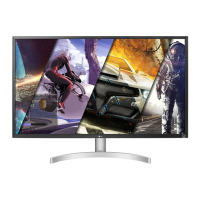
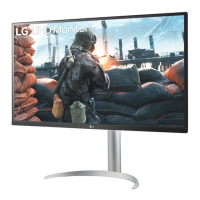
LG 32UP550 - User Manual

LG 32UP550
33 pages
Print Icon
To Next Page IconTo Next Page
Loading...
* LG LED Monitor applies LCD screen with LED backlights.
Please read this manual carefully before operating your set and
retain it for future reference.
27UP550
32UP550
OWNER’S MANUAL
LED LCD MONITOR
(LED Monitor*)
www.lg.com
Copyright © 2021 LG Electronics Inc. All Rights Reserved.

Questions and Answers

  • B
    bnolanJul 29, 2025
    How to fix LG 32UP550 when nothing is displayed on the screen?
    • T
      theodore58Jul 29, 2025
      If nothing is displayed on your LG Monitor screen, first ensure the power cord is properly connected to the power outlet. Then, check the power cable connection and press the power button. Also, verify that the connected input is enabled in the monitor settings (Settings > Input). Finally, inspect the signal cable between your PC and the monitor to ensure it's correctly connected. If the issue persists, the signals from your PC might be outside the monitor's frequency range; refer to the Product Specification section of the manual to set the appropriate frequency.
  • J
    Johnny YoderAug 4, 2025
    What to do if there is no sound from the headphone port on LG Monitor?
    • M
      Melissa AustinAug 4, 2025
      If you are not getting any sound from the headphone port on your LG Monitor, ensure that the headphone connections are properly made. You can also try increasing the volume using the joystick. Finally, make sure the audio output of your PC is set to the monitor you're currently using. Note that the exact settings can vary depending on your operating system.
  • C
    crosbytroyAug 9, 2025
    Why is my LG 32UP550 Monitor screen display unstable and shaky?
    • J
      Joan SantanaAug 10, 2025
      If the screen display on your LG Monitor is unstable and shaky, or if images leave shadow trails, the selected resolution might be HDMI 1080i 60/50 Hz (interlaced). Change the resolution to 1080p or the recommended resolution. Also, ensure that the graphics card is set to the recommended (optimal) resolution. Note that setting methods may vary depending on the computer or operating system, and some resolutions may not be available depending on the performance of the graphics card.
  • J
    jessicasmithAug 16, 2025
    What to do if I see an "Unrecognized monitor, Plug and Play (VESA DDC) monitor found" message on my LG 32UP550?
    • K
      Kathleen HooverAug 16, 2025
      If you see an "Unrecognized monitor, Plug and Play (VESA DDC) monitor found" message on your LG Monitor, make sure to install the display driver from the LG website. Also, verify that your graphics card supports the Plug and Play function.
  • M
    Melanie SmithAug 21, 2025
    How to enable disabled features on LG Monitor?
    • L
      Laura BruceAug 21, 2025
      If some features are disabled on your LG Monitor, it might be because the OSD is locked. To resolve this, disable OSD Lock in the General settings.

Summary

License Information

HDMI Trademarks

Trademarks and logos of HDMI Licensing Administrator.

USB Implementers Forum Trademarks

Registered trademark of USB Implementers Forum.

Video Electronics Standards Association Trademarks

Trademarks of the Video Electronics Standards Association.

MaxxAudio Trademarks

Trademarks of Waves Audio Ltd.

Open Source Software Notice

Obtain Source Code

How to obtain source code for GPL, LGPL, MPL, and other licenses.

Assembling and Preparing

Genuine LG Components

Use genuine LG components for safety and performance.

Handling and Assembly Precautions

Warnings for handling and assembly to prevent damage.

Product and Button Description

Joystick Button Functionality

Controls monitor functions like power and volume.

Moving and Lifting the Monitor

Safe Transportation Guidelines

Instructions for moving and lifting the monitor safely.

Installation and Adjustment

Table Placement Requirements

Place monitor upright, 100mm from wall for ventilation.

Stand Height Adjustment

How to adjust stand height safely using both hands.

Screen Angle Adjustment

Adjust screen forward/backward from -5° to 20°.

Pivot Feature

Monitor Rotation

How to rotate the monitor 90° clockwise using the pivot feature.

Security and Mounting

Kensington Lock Usage

How to connect a Kensington security cable to the monitor.

Wall Mount Plate Installation

Monitor meets specs for wall mount plates; sold separately.

Wall Mounting Ventilation

Mount monitor 100mm from wall for ventilation.

Wall Mount Specifications

VESA Screw Details

Details on standard screws and wall mount plates for VESA compatibility.

Using the Monitor

Basic Operation

Using the joystick to navigate menus and settings.

Connecting to a PC

Connect the monitor to a computer using various ports.

Connecting Devices

HDMI AV Connection

Connect AV devices via HDMI, use certified cables.

USB Device Connection

Connect USB devices like keyboard, mouse via USB hub.

Headphones Connection

Connect headphones via the monitor's headphone port.

User Settings

Main Menu Activation

How to access and navigate the main menu using the joystick.

Menu Navigation

Main Menu Options

Overview of main menu options like Input, Power, Settings, Picture, Exit.

OSD Navigation

Steps to view and adjust OSD settings using joystick.

Quick Settings

Brightness and Contrast

Adjusts screen contrast and brightness.

Volume Control

Adjusts the monitor volume level.

Color Temperature

Adjusts screen color temperature (Custom, Warm, Medium, Cool, Manual).

Waves MaxxAudio

Enables or disables the MaxxAudio function for enhanced sound.

Input Settings

Input List Selection

Selects the input mode for the monitor.

Aspect Ratio Adjustment

Adjusts the aspect ratio of the displayed image (Full Wide, Original, Just Scan).

Picture Settings

SDR Picture Modes

Settings for picture modes like Vivid, Reader, Cinema, FPS, RTS, Color Weakness.

HDR Picture Modes

HDR Content Settings

Picture modes for HDR content like Vivid, Cinema, FPS, RTS.

Picture Adjustments

Brightness and Contrast

Adjusts screen brightness and contrast.

Sharpness

Adjusts the sharpness of the screen.

Super Resolution

Enhances sharpness for low-resolution pictures.

Black Level

Sets the offset level for contrast ratio.

DFC

Adjusts brightness automatically based on screen content.

Game Adjustments

Response Time

Sets the response time for displayed pictures (Faster, Fast, Normal, Off).

FreeSync

Synchronizes vertical frequency for seamless images.

Black Stabilizer

Adjusts black contrast for visibility in dark scenes.

Color and Picture Reset

Gamma Settings

Adjusts image brightness based on gamma values.

Color Temperature

Sets custom color temperature (Custom, Warm, Medium, Cool, Manual).

RGB and Six Color Customization

Customizes picture color using RGB and six colors (Hue, Saturation).

Reset Picture Settings

Resets all picture settings to their default values.

Sound Settings

Volume Control

Adjusts the volume level and mute/unmute function.

MaxxAudio Function

Enables or disables the MaxxAudio function for sound.

General Settings

Language Selection

Sets the menu screen language.

Smart Energy Saving

Conserves energy using luminance compensation (High, Low, Off).

Power LED Control

Controls the power LED status (On, Off).

Automatic Standby

Automatically turns off monitor after inactivity period.

DisplayPort Version

Sets DisplayPort version for HDR function.

Advanced General Settings

HDMI ULTRA HD Deep Color

Provides sharper images with UHD Deep Color support.

Buzzer Settings

Enables or disables the sound generated from the buzzer.

OSD Lock Function

Disables menu configuration and adjustment.

OSD Size Selection

User can select OSD size to Large or Small.

Power and Reset Settings

Deep Sleep Mode

Minimizes power consumption in standby mode.

Display Information

Shows Total Power On Time, Resolution.

Reset Settings to Default

Resets all settings to their default values.

Troubleshooting Common Issues

No Display Issues

Troubleshooting steps for when the screen is blank.

Display Instability Issues

Solutions for unstable display, shaky images, or shadow trails.

Feature Disabled Issues

How to resolve issues where some functions are unavailable.

Monitor Recognition and Audio Troubleshooting

Display Driver Installation

Ensure display driver is installed correctly for Plug and Play.

Audio Output Troubleshooting

Steps to fix issues with no sound from the headphone port.

Product Specifications (27 UP550)

Color Depth and Resolution

Supported color depth and resolutions.

Power and Consumption

Power rating, consumption in different modes.

Environmental Conditions

Operating and storing temperature and humidity ranges.

Dimensions and Weight

Physical size and weight of the monitor with and without stand.

Product Specifications (32 UP550)

Color Depth and Resolution

Supported color depth and resolutions for 32UP550.

Power and Consumption

Power rating, consumption for 32UP550.

Environmental Conditions

Operating and storing conditions for 32UP550.

Dimensions and Weight

Physical size and weight for 32UP550.

Factory Support Mode (PC)

DisplayPort;USB-C Preset Modes

Horizontal and vertical frequencies for PC preset modes via DP/USB-C.

Factory Support Mode (PC)

DisplayPort;USB-C Preset Modes

Horizontal and vertical frequencies for PC preset modes via DP/USB-C.

HDMI (32 UP550)

HDMI Preset Modes

Horizontal and vertical frequencies for HDMI preset modes.

HDMI (27 UP550)

HDMI Preset Modes

Horizontal and vertical frequencies for HDMI preset modes.

HDMI Timing (Video)

Video Preset Modes

Horizontal and vertical frequencies for video preset modes.

LG 32UP550 Specifications

General IconGeneral
Screen Size31.5 inches
Resolution3840 x 2160 (4K UHD)
Panel TypeVA
Aspect Ratio16:9
Refresh Rate60Hz
HDRHDR10
Response Time4ms (GtG)
VESA Mount100 x 100 mm
Brightness350 cd/m²
Color GamutDCI-P3 95%
Contrast Ratio3000:1
Ports2x HDMI, 1x DisplayPort
SpeakersYes (5W x 2)

Related product manuals