EasyManua.ls Logo

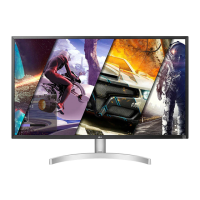
LG 32UL500 - User Manual

LG 32UL500
27 pages
Print Icon
To Next Page IconTo Next Page
Loading...
* LG LED Monitor applies LCD screen with LED backlights.
Please read this manual carefully before operating your set and
retain it for future reference.
32UL500
OWNER’S MANUAL
LED LCD MONITOR
(LED Monitor*)
www.lg.com
Copyright © 2018 LG Electronics Inc. All Rights Reserved.
Questo manuale d’istruzione è fornito da trovaprezzi.it. Scopri tutte le offerte per LG 32UL500 o
cerca il tuo prodotto tra le migliori offerte di Monitor

Questions and Answers

  • R
    Robert HammondAug 15, 2025
    How to fix an LG Monitor when nothing is displayed on the screen?
    • C
      Charles MeltonAug 15, 2025
      If nothing is displayed on your LG Monitor screen, first ensure the power cord is correctly plugged into the power outlet and that the power cable is properly connected. Press the power button. Also, verify that the connected input is enabled in the monitor's settings under the Input menu.
  • J
    Jordan PowersAug 18, 2025
    Why does my LG 32UL500 say no signal?
    • M
      Miss Susan KaufmanAug 18, 2025
      If the signals from your PC (graphics card) are outside the LG Monitor's horizontal or vertical frequency range, please refer to the Product Specification section of this manual to set the appropriate frequency.
  • W
    Wesley WhitakerAug 22, 2025
    Why is my LG 32UL500 Monitor screen flickering?
    • D
      Derrick PattersonAug 22, 2025
      If your LG Monitor screen is flickering when using HDMI 1080i 60/50 Hz (interlaced), change the resolution to 1080p or the recommended resolution. A still image displayed for a long time may damage the screen. To extend the monitor's life, use a screensaver.
  • R
    rachel14Aug 25, 2025
    What to do if the sound isn't working on my LG 32UL500?
    • J
      Jeffrey MitchellAug 26, 2025
      If some features are disabled on your LG Monitor, ensure the headphone port connections are secure. Try increasing the volume using the joystick. Set the audio output of your PC to the monitor you are using. Note that the settings may vary depending on your operating system.
  • S
    Sarah GarciaAug 28, 2025
    What to do if the LG 32UL500 screen has a truncated display area?
    • F
      fernando84Aug 28, 2025
      If the selected resolution is HDMI 1080i 60/50 Hz (interlaced), the screen may be flickering. Change the resolution to 1080p or the recommended resolution. Not setting the graphics card to the recommended (optimal) resolution may result in blurred text, a dimmed screen, a truncated display area or misalignment of the display. The setting methods may be different depending on the computer or operating system, and some resolutions may not be available depending on the performance of the graphics card. If this is the case, contact the manufacturer of the computer or graphics card for assistance.
  • A
    Alexander HowellSep 1, 2025
    What to do if the LG Monitor screen is black but the power is on?
    • E
      Edward BradleySep 1, 2025
      If the signal cable between your PC and the LG Monitor is missing or disconnected, check the cable and reconnect it. If the screen remains blank after reconnecting, and you are using HDMI, set HDMI ULTRA HD Deep Color to off in the monitor's General settings.
  • O
    obarronSep 4, 2025
    How to unlock OSD on LG 32UL500 Monitor?
    • M
      michelle89Sep 4, 2025
      If some features are disabled on your LG Monitor, it might be because the OSD is locked. To resolve this, disable OSD Lock in the General settings.
  • W
    William RodriguezSep 7, 2025
    Why are some features disabled on my LG 32UL500?
    • B
      Bryce SanchezSep 7, 2025
      If some features are disabled on your LG monitor, ensure you install the display driver from the LG website: http://www.lg.com. Also, verify that your graphics card supports the Plug and Play function.
  • D
    Douglas RiversSep 12, 2025
    Why are there colored spots on my LG Monitor?
    • M
      Melissa AllenSep 12, 2025
      When using the LG Monitor, you might notice pixilated spots (red, green, blue, white, or black) on the screen. This is normal for an LCD screen and does not indicate an error or affect the monitor's performance.

Summary

Assembling and Preparing

Moving and Lifting the Monitor

Installing on a Table

Installing the Wall Mount Plate

Using the Monitor

Connecting to a PC

Guides on connecting the monitor to a personal computer using various cables.

USER SETTINGS

Activating the Main Menu

Steps to access and navigate the monitor's On-Screen Display (OSD) menu.

Main Menu and Settings

Quick Settings & Input

Picture Settings

Picture Mode

Configures screen display modes for SDR and HDR signals.

Picture Adjustments

Adjusts key picture parameters like brightness, contrast, sharpness, and color.

Game Adjustments

Optimizes display settings for gaming performance and visual clarity.

General Settings

Troubleshooting

No Screen Display Issues

Troubleshoots problems where the monitor screen remains blank or shows no signal.

Display Instability and Image Issues

Addresses screen flickering, shaking, image sticking, and spot patterns.

PRODUCT SPECIFICATION

LG 32UL500 Specifications

General IconGeneral
Panel typeVA
Color gamut95 %
Pixel pitch0.181 x 0.181 mm
Screen shapeFlat
Display diagonal31.5 \
Display technology-
Native aspect ratio16:9
Maximum refresh rate- Hz
sRGB coverage (typical)98 %
Contrast ratio (typical)3000:1
Display number of colors1.073 billion colors
Display brightness (typical)300 cd/m²
High Dynamic Range (HDR) supportedYes
High Dynamic Range (HDR) technologyHigh Dynamic Range 10 (HDR10)
AC input voltage100 - 240 V
AC input frequency50 - 60 Hz
Energy efficiency scaleA to G
Power consumption (standby)0.5 W
Power consumption (typical)37 W
Package typeBox
Package depth507 mm
Package width825 mm
Package height225 mm
Package weight9800 g
Cables includedAC, DisplayPort, HDMI
Panel mounting interface100 x 100 mm
DisplayPort version1.2
RMS rated power5 W
Product colorBlack, White
Market positioningGaming
Weight and Dimensions IconWeight and Dimensions
Depth (with stand)208.8 mm
Height (with stand)518.2 mm
Weight (with stand)6200 g
Depth (without stand)49.9 mm
Width (without stand)728.1 mm
Height (without stand)424.6 mm
Weight (without stand)5300 g

Related product manuals