EasyManua.ls Logo

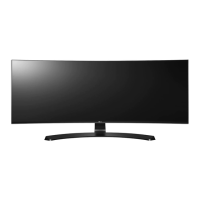
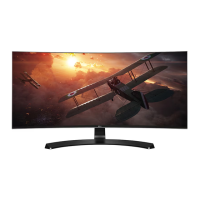
LG 34UC87M - User Manual

LG 34UC87M
36 pages
Print Icon
To Next Page IconTo Next Page
Loading...
www.lg.com
IPS LED MONITOR
LED MONITOR
*
OWNER'S MANUAL
Please read the safety information carefully
before using the product.
34UC87
34UC87M
34UC87C
* LG LED Monitors are LCD Monitors with LED Backlighting.

Questions and Answers

  • Z
    Zoe HughesJul 28, 2025
    How to fix LG 34UC87M Monitor when nothing is displayed on the screen?
    • W
      Wanda PerezJul 28, 2025
      If nothing is displayed on your LG Monitor screen, verify that the power cord is properly connected to the power outlet. Also, check the power cable connection and ensure the power button is pressed. Verify that the connected input source is enabled in the monitor's menu (Menu - Input). If the monitor is in sleep mode, move the mouse or press any key. Finally, confirm that the computer is turned on.
  • P
    parksmarkAug 2, 2025
    What to do if there is no sound from the headphone port on my LG 34UC87M?
    • S
      Scott MasonAug 2, 2025
      If you're getting no sound from the headphone port on your LG Monitor, first, ensure that the headphone connections are properly made. Next, try increasing the volume using the joystick. Finally, set the audio output of your PC to the monitor. On Microsoft Windows, go to Control Panel > Hardware and Sound > Sound and set the monitor as the default device.
  • D
    Dominique AndersonAug 7, 2025
    Why is the screen display unstable and shaky on my LG 34UC87M Monitor?
    • D
      Dana ThomasAug 8, 2025
      If the screen display on your LG Monitor is unstable, shaky, or images leave shadow trails, and the selected resolution is HDMI 1080i 60/50 Hz (interlaced), the screen may be flickering. Try changing the resolution to 1080p or the recommended resolution.
  • H
    hollowayjeremyAug 13, 2025
    Why is the display color abnormal on my LG 34UC87M?
    • R
      Rebecca CarrAug 13, 2025
      If the display color on your LG Monitor appears abnormal, first, ensure that the color is set to 24 bit (true color) or higher. For Windows, navigate to Control Panel > Display > Settings > Color Quality to adjust this setting. Also, check the signal cable for proper connection; try reconnecting it or reinserting the PC's video card. Note that small, colored spots on the screen are not indicative of an error or performance issue.
  • L
    Luis BlackburnAug 17, 2025
    Why does the screen retain an image on my LG 34UC87M?
    • H
      hkrauseAug 17, 2025
      If your LG Monitor screen retains an image, it may be due to displaying a still image for a prolonged period, which can cause damage. To extend the monitor's lifespan, use a screensaver.
  • C
    Cathy GrayAug 22, 2025
    How to turn off OSD lock on LG 34UC87M Monitor?
    • R
      Rodney SmithAug 22, 2025
      If the OSD Lock message is displayed on your LG Monitor, navigate to Menu > Settings and set OSD Lock to Off.

Summary

License and Trademark Information

HDMI Trademarks

Trademarks related to HDMI technology and licensing.

VESA and DisplayPort Trademarks

Trademarks related to VESA and DisplayPort standards.

MaxxAudio Trademarks

Trademarks related to MaxxAudio sound technology.

Assembling and Preparing

Product Composition and Components

Lists all components included in the product packaging.

Monitor Description and Controls

Describes the monitor's physical components, buttons, and joystick usage.

Input Connector Overview

Details the various input ports available on the monitor models.

Moving and Lifting Procedures

Provides instructions for safely moving and lifting the monitor.

Assembling the Monitor Stand

Step-by-step guide to assemble the monitor stand.

Installing on a Table and Adjusting Height

Instructions for table setup and adjusting monitor height.

Adjusting the Monitor Angle

Instructions for adjusting the monitor's tilt angle for optimal viewing.

Cable Management and Security Lock

Guides for organizing cables and using a Kensington lock.

Wall Mounting the Monitor

Provides guidance for wall-mounting the monitor.

Using the Monitor

Connecting to a PC via HDMI

Details how to connect the PC to the monitor via HDMI.

DisplayPort and Thunderbolt Connections

Instructions for connecting via DisplayPort and Thunderbolt.

AV Device and USB Peripheral Connections

Guides for connecting AV devices and USB peripherals.

USB 3.0 and Headphone Connections

Details USB 3.0 and headphone connections.

IR Connection

Instructions for connecting the IR sensor and stereo cable.

User Settings

Activating and Navigating Menus

How to access and navigate the monitor's main menu.

Menu Settings Explained

Detailed explanation of menu options like Easy control, Function, PBP, etc.

Adjusting Display Ratio

Explains how to adjust the aspect ratio of the display.

Function Settings

Details settings for MaxxAudio, Reader Mode, and SMART ENERGY SAVING.

Picture Mode and Energy Saving

Options for picture modes and energy saving features.

Picture-by-Picture (PBP) Mode

Instructions for using Picture-by-Picture mode.

PBP Ratio Adjustment

Adjusts aspect ratio for main and sub screens in PBP mode.

Picture Settings

Settings for Sharpness, Black Level, and Response Time.

Color Settings

Options for Gamma, Color Temp, Red, Green, Blue, Six Color.

System Settings

Configuration for Language, Power LED, Auto Standby, DisplayPort 1.2, OSD Lock, Set ID.

Resetting Settings

How to restore factory default settings.

Troubleshooting

No Screen Display Issues

Troubleshooting steps for no display issues.

OSD Lock and Image Retention

Solutions for OSD lock and explanations of image retention.

Screen Instability and Ghosting

Addresses issues like flickering or shadow trails.

Color and Audio Issues

Troubleshooting steps for color display and audio problems.

Product Specifications

LCD Screen, Resolution, and Signal Specs

Details screen type, resolution, and video signal information.

Input Connectors and Power Specs

Details input ports, power rating, and adapter specifications.

Environmental and Physical Specs

Operating conditions, stand angle, dimensions, weight.

Factory Support Mode and HDMI Timing

Lists preset modes and HDMI timing parameters.

Power LED Indicator

Describes LED colors for different monitor modes.

Proper Posture and Ergonomics

Optimal Monitor Usage Posture

Guidelines for ergonomic setup and posture while using the monitor.

LG 34UC87M Specifications

General IconGeneral
3DNo
DDC/CIYes
Pixel pitch0.23 x 0.23 mm
Aspect ratio21:9
Display diagonal34 \
Display technologyLED
Contrast ratio (dynamic)1000000:1
Contrast ratio (typical)1000:1
Display number of colors-
Display brightness (typical)300 cd/m²
Supported graphics resolutions3440 x 1440
I/O portsIR In, IR Out
VGA (D-Sub) ports quantity0
RMS rated power7 W
Feet colorBlack/Silver
CertificationUL, cUL, FCC-B, TUV-GS, FCC-B, CE, CCC, BSMI, EPA, ErP
Product colorBlack
Tilt angle range-5 - 15 °
Cable lock slot typeKensington
Panel mounting interface100 x 100 mm
AC input voltage100 - 240 V
Power consumption (standby)- W
Sustainability certificatesEPEAT Gold, ENERGY STAR
Package weight13000 g
Cables includedAC, DisplayPort, HDMI
Weight and Dimensions IconWeight and Dimensions
Depth (with stand)241 mm
Height (with stand)460 mm
Weight (with stand)9980 g
Depth (without stand)79 mm
Width (without stand)831 mm
Height (without stand)371 mm
Weight (without stand)7980 g

Related product manuals