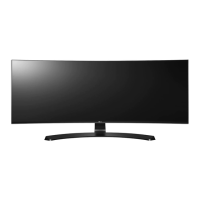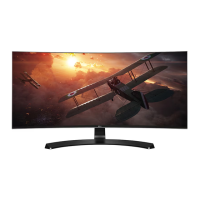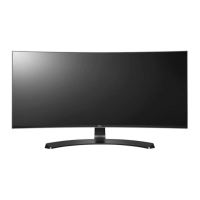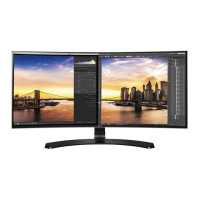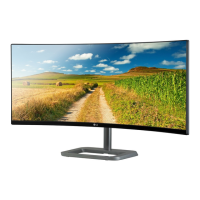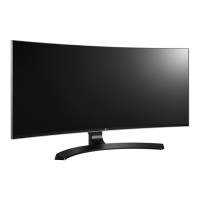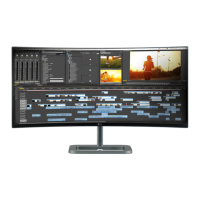

 To Next Page
W
wsnyderSep 18, 2025
How to turn off OSD Lock message on LG Monitor?
- JJose TorresSep 18, 2025
If the OSD Lock message is being displayed on your LG Monitor, the OSD is locked. To unlock it, go to Menu > General and set OSD Lock to Off.

How to turn off OSD Lock message on LG Monitor?
If the OSD Lock message is being displayed on your LG Monitor, the OSD is locked. To unlock it, go to Menu > General and set OSD Lock to Off.
Why is there no sound from my LG Monitor headphone port?
If there is no sound from the headphone port on your LG Monitor, first make sure that the headphone port connections are properly made. Then, try increasing the volume using the joystick. Finally, set the audio output of your PC to the monitor you are using by going to Control Panel > Hardware and Sound > Sound on Microsoft Windows and setting the Monitor as the default device.
How to fix LG 34UC88-B.AAU when nothing is displayed on the screen?
If nothing is displayed on your LG Monitor screen, there are several things you can check: * Ensure the power cord is correctly plugged into the power outlet and that the power cable is properly connected. Then, press the power button. * Make sure the connected input is enabled by going to Menu > Quick Settings > Input. * If the monitor is in sleep mode, move the mouse or press any key on the keyboard. Also, verify that your computer is turned on. * If the signals from your PC are out of the monitor's frequency range, refer to the Product Specification section of this manual to set the appropriate frequency. * Check the signal cable between the PC and the monitor to ensure it is properly connected. Reconnect if necessary.
What to do if there is no sound from the headphone port on LG 34UC88-B.AAU Monitor?
If there is no sound from the headphone port on your LG Monitor: * Ensure that the headphone port connections are properly made. * Try increasing the volume using the joystick. * Set the audio output of your PC to the monitor. On Microsoft Windows, go to Control Panel > Hardware and Sound > Sound and set the Monitor as the default device.
Why is the display color abnormal on my LG 34UC88-B.AAU and how can I fix it?
If the display color on your LG Monitor is abnormal, set the color to 24 bit (true color) or higher. In Windows, go to Control Panel > Display > Settings > Color Quality to adjust this. Check if the signal cable is properly connected, and if not, reconnect it or reinsert the PC's graphic card. Note that sometimes, this is not an error related to the monitor's performance.
Why does my LG 34UC88-B.AAU Monitor screen retain an image, and how can I prevent it?
Displaying a still image for a prolonged time may cause damage to the screen of your LG Monitor, resulting in the retention of the image. To extend the lifetime of the monitor, use a screensaver.
Why does the screen retain an image on my LG 34UC88-B.AAU Monitor?
To extend the lifetime of your LG Monitor and prevent the screen from retaining an image, use a screensaver. Displaying a still image for a prolonged time may cause damage to the screen, resulting in the retention of the image.
What to do if my LG 34UC88-B.AAU Monitor screen display is unstable and shaky?
If your LG monitor's screen display is unstable and shaky, or if images leave shadow trails, try changing the resolution to 1080p or the recommended resolution.
How to troubleshoot no sound from the headphone port on my LG 34UC88-B.AAU?
If there is no sound from the headphone port on your LG Monitor, first make sure that the headphone port connections are properly made. If the connections are correct, try increasing the volume using the joystick. Finally, set the audio output of the PC to the monitor you are using by going to Control Panel > Hardware and Sound > Sound and set the Monitor as the default device.
How to fix an LG 34UC88-B.AAU when nothing is displayed on the screen?
If nothing is displayed on your LG Monitor, ensure the power cord is correctly plugged into the power outlet. Also, check the power cable connection and press the power button. Verify that the connected input is enabled by navigating to Menu > Quick Settings > Input. If the monitor is in sleep mode, move the mouse or press any key on the keyboard. Also, ensure your computer is turned on. If the signals from your PC are out of the monitor's frequency range, consult the Product Specification section of this manual to set the appropriate frequency. Finally, check the cable and reconnect it.
 General
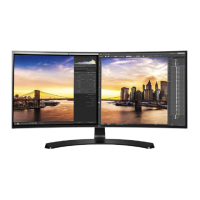
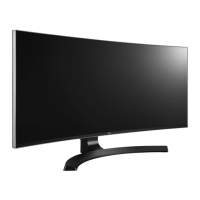
| Color | black |
|---|---|
| Screen Type | led |
| Tiltable | yes |
| Wall Mount | 100mm x 100mm |
| Webcam | no |
| OS Compatibility | windows |
| Screen Size | 34 inches |
| Panel Type | ips |
| Aspect Ratio | 21:9 |
| Resolution | 3440 x 1440 |
| Native Resolution | 3440 x 1440 |
| Refresh Rate | 60hz |
| Horizontal Viewing Angle | 178 degrees |
| Vertical Viewing Angle | 178 degrees |
| Response Time | 5 milliseconds |
| Brightness | 300 candela per square meter |
| Contrast Ratio | 5, 000, 000:1 |
| Synchronization | freesync (amd adaptive sync) |
| HDR | no |
| Built-In Speakers | yes |
| HDMI Ports | 2 |
| Power Consumption | 56.7 watts |
| Depth with Stand | 9.4 inches |
| Width with Stand | 32.2 inches |
| Net Weight without Stand | 18.3 pounds |