EasyManua.ls Logo

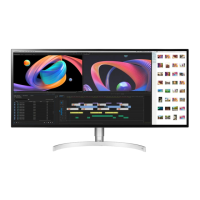
LG 34WK95UP - User Manual

LG 34WK95UP
28 pages
Print Icon
To Next Page IconTo Next Page
Loading...
* LG LED Monitor applies LCD screen with LED backlights.
Please read this manual carefully before operating your set and
retain it for future reference.
34WK95U
34WK95UP
34BK95U
OWNER’S MANUAL
LED LCD MONITOR
(LED Monitor*)
www.lg.com
Copyright © 2018 LG Electronics Inc. All Rights Reserved.

Questions and Answers

  • S
    stephaniepopeJul 30, 2025
    What to do if nothing is displayed on my LG 34WK95UP Monitor screen?
    • J
      Jeffrey HunterJul 30, 2025
      If nothing is displayed on your LG Monitor screen, check the following: Ensure the power cord is correctly plugged into the power outlet. Verify the power cable connection and press the power button. Confirm that the connected input is enabled in the monitor's Settings under Input. If the issue persists, check the signal cable between the PC and the monitor, reconnecting it if necessary. For HDMI input, set HDMI ULTRA HD Deep Color to off in the monitor's General settings. For DisplayPort input, set DisplayPort Version in the monitor's General settings to the same version as the connected external device. If you're using a PC that only supports USB-C output, use the USB-C Cable (sold separately) and contact the manufacturer of the PC to see if the PC supports ThunderboltTM 3.
  • E
    emilyallenAug 21, 2025
    What to do if my LG Monitor has a persistent image?
    • C
      Chad BlankenshipAug 21, 2025
      Displaying a still image for a prolonged time may cause damage to the screen, resulting in the retention of the image. To extend the lifetime of the LG monitor, use a screensaver.
  • T
    tolsonNov 5, 2025
    Why is my LG 34WK95UP Monitor screen blank?
    • S
      Samantha LopezNov 6, 2025
      A blank screen on your LG Monitor might be due to several reasons. Check that the power cord is securely plugged into the power outlet and that the power cable is properly connected; press the power button. Ensure the correct input is selected under Settings > Input. A missing or disconnected signal cable between the PC and the monitor can also cause this; check and reconnect the cable. If using HDMI, try turning off HDMI ULTRA HD Deep Color in the monitor's General settings. For DisplayPort, match the DisplayPort Version in the monitor's General settings to that of the connected device. If the signals from your PC are outside the monitor's frequency range, consult the Product Specification section of this manual to set the appropriate frequency. Also, if the selected resolution is HDMI 10...
  • J
    jasonsheaNov 13, 2025
    How to fix disabled features on my LG 34WK95UP Monitor?
    • H
      Henry SandovalNov 13, 2025
      If some features are disabled on your LG Monitor, here's what you can do: First, check if the OSD is locked and, if so, disable OSD Lock in the General settings. Next, ensure you have installed the display driver from the LG website. Verify that your graphics card supports the Plug and Play function. Also, check that the cable is properly connected, using the accessories supplied with the product is recommended. If you're experiencing issues with audio, make sure the headphone port connections are correctly made and try increasing the volume with the joystick. Set the audio output of the PC to the monitor you are using. If you're trying to use 4K/5K resolution features, check if the connected external device supports 4K/5K resolution. To enable HDMI ULTRA HD Deep Color, go to Settings > Ge...

Summary

Assembling and Preparing

Monitor Installation and Adjustment

Installing on a Table

Details the procedure for placing the monitor on a table and ventilation requirements.

Adjusting Stand Height and Angle

Guides users on how to adjust the monitor's screen height and viewing angle safely.

Security and Mounting Options

Wall Mounting Installation

Covers specifications and procedures for installing the monitor on a wall using a mount plate.

Using the Monitor: Connections

Connecting to a PC

Details how to connect the monitor to a computer using HDMI, DisplayPort, and Thunderbolt 3.

Display Interface Details

Explains signal transmission via HDMI, DisplayPort, and Thunderbolt 3, including cable recommendations.

AV and Peripheral Connectivity

Thunderbolt Input and USB Hub Usage

Illustrates Thunderbolt input and how to use the USB hub functionality with PC connections.

User Settings and Menu Navigation

Activating and Controlling the Main Menu

Explains how to activate the On-Screen Display (OSD) menu and navigate using the joystick button.

Main Menu Features and Configuration

Overview of Main Menu Options

Describes core features like Input, Power Off, Settings, and Picture Mode accessible from the main menu.

Navigating OSD Menu Settings

Provides instructions on how to navigate through the OSD menu options and settings.

Quick Settings and Input Management

Picture-by-Picture (PBP) Functionality

Picture Mode Settings for SDR

Picture Mode Settings for HDR

Picture Adjustment Settings

Color and Response Time Configuration

General System Settings

Advanced General Settings

Troubleshooting Common Issues

No Image or Signal Problems

Addresses common problems like no display, no signal messages, and out-of-range errors.

Display Instability and Image Artifacts

Helps diagnose issues such as screen shaking, shadow trails, and image sticking.

Troubleshooting Specific Problems

Product Specifications

LG 34WK95UP Specifications

General IconGeneral
Screen Size34 inches
Resolution5120 x 2160
Panel TypeNano IPS
Aspect Ratio21:9
Refresh Rate60 Hz
Brightness450 cd/m²
Color GamutDCI-P3 98%
Response Time5ms (GTG)
HDRHDR600
VESA Mount100 x 100 mm
ConnectivityDisplayPort, HDMI
Ports2 x HDMI, 1 x DisplayPort, 2 x USB 3.0

Related product manuals