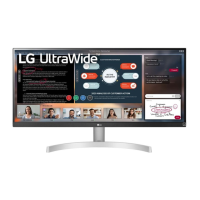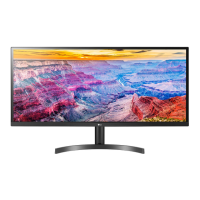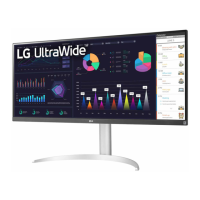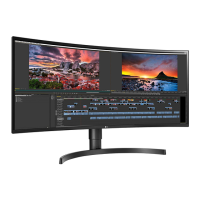
EasyManua.ls Logo

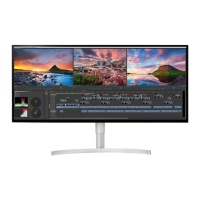
LG 34WK95U-W - User Manual

LG 34WK95U-W
28 pages
Print Icon
To Next Page IconTo Next Page
Loading...
* LG LED Monitor applies LCD screen with LED backlights.
Please read this manual carefully before operating your set and
retain it for future reference.
34WK95U 34BK95U
OWNER’S MANUAL
LED LCD MONITOR
(LED Monitor*)
www.lg.com
Copyright © 2018 LG Electronics Inc. All Rights Reserved.
Questo manuale d’istruzione è fornito da trovaprezzi.it. Scopri tutte le offerte per LG 34WK95U-W o
cerca il tuo prodotto tra le migliori offerte di Monitor

Questions and Answers

  • S
    Shannon FieldsJul 29, 2025
    How to fix an LG 34WK95U-W when nothing is displayed on the screen?
    • A
      Angelica KnightJul 29, 2025
      If nothing is displayed on your LG Monitor screen, ensure the power cord is correctly plugged into the outlet and that the power cable is properly connected. Press the power button. Also, verify the connected input is enabled in the monitor's Settings under Input. Check the signal cable and reconnect it. For HDMI, set HDMI ULTRA HD Deep Color to off in the monitor's General settings. For DisplayPort, set the DisplayPort Version in General settings to match the connected device. If the issue persists, check the Product Specification section of the manual to set the appropriate frequency. If you are using a PC that only supports USB-C output, use a USB-C Cable (sold separately) and contact the PC manufacturer to check if it supports ThunderboltTM 3.
  • K
    kirkpatriciaAug 5, 2025
    Why is my LG 34WK95U-W Monitor screen display unstable and shaky?
    • A
      Alexis DunnAug 5, 2025
      If your LG Monitor's screen display is unstable, shaky, or images leave shadow trails, it might be due to the resolution being set to HDMI 1080i 60/50 Hz (interlaced). Try changing the resolution to 1080p or the recommended resolution. Also, ensure your graphics card is set to the recommended (optimal) resolution to avoid blurred text, a dimmed screen, a truncated display area, or misalignment. If problems persist, contact the manufacturer of your computer or graphics card for assistance.
  • B
    bperezAug 13, 2025
    What to do if some features are disabled on my LG 34WK95U-W Monitor?
    • R
      Richard RodriguezAug 13, 2025
      If some features are disabled on your LG Monitor, you can try the following: Disable OSD Lock in the General settings. Ensure you install the display driver from the provided CD or download it from LG's website (http://www.lg.com). Verify your graphics card supports Plug and Play. Check the headphone port connections, and increase the volume using the joystick. Set the PC's audio output to the monitor and ensure the cable is properly connected. Set the correct resolution and refresh rate in your PC's screen resolution settings or the player's menu. Check if the connected device supports 4K/5K resolution. Enable HDMI ULTRA HD Deep Color in Settings > General, or set the DisplayPort Version to 1.4 in Settings > General.
  • M
    Matthew WalkerAug 21, 2025
    How to prevent image sticking on my LG 34WK95U-W?
    • R
      Richard GonzalezAug 21, 2025
      Displaying a still image for a prolonged time may cause damage to the screen of your LG Monitor. To extend the lifetime of the monitor, use a screensaver.

Summary

License Information

Open Source Software Notice

Assembly and Preparation

Supported Drivers and Software

Information on downloading and installing necessary drivers and software from the LG website or CD.

Monitor Setup and Operation

Product Controls and Handling

Description of monitor controls, joystick operation, and safe handling procedures.

Installation and Mounting Options

Guide to table installation, stand adjustments, wall mounting, and security features.

Connecting Input Sources and Peripherals

Instructions for connecting HDMI, DisplayPort, Thunderbolt, USB devices, and headphones.

User Settings

OSD Menu Navigation and Quick Settings

Steps to activate and navigate the OSD menu and adjust basic settings like input and picture modes.

Picture and Color Adjustments

Detailed guide on picture adjustments, gamma, color temperature, and response time settings.

General and Display Configuration

Configuration for language, energy saving, power LED, standby, and display port versions.

Troubleshooting

Screen Display and Image Issues

Troubleshooting common screen problems like no display, out of range signals, or image distortions.

Feature and Connectivity Problems

Solutions for disabled features, unrecognized monitors, sound issues, and resolution limitations.

Product Specification

Technical Specifications Overview

Details on resolution, color depth, input compatibility, power, dimensions, and environmental conditions.

Supported Video Timing and Modes

Information on supported preset modes and timing specifications for various video connections.

LG 34WK95U-W Specifications

General IconGeneral
Colorblack front with white back/silver (stand), black
Screen Typeled
Tiltableyes
Wall Mount100mm x 100mm
Touch Screenno
Webcamno
OS Compatibilitymac, windows
Screen Size34 inches
Panel Typeips
Aspect Ratio21:9
Resolution5120 x 2160
Refresh Rate60hz
Horizontal Viewing Angle178 degrees
Vertical Viewing Angle178 degrees
Response Time5 milliseconds
Brightness450 candela per square meter
Contrast Ratio1200:1
Horizontal Scan Rate90 kilohertz
HDRyes
HDR Formatvesa certified displayhdr 600
Thunderbolt Ports1
Power Saving Mode0.3 watts
Power Consumption80 watts
Depth with Stand17.7 inches
Height with Stand22 inches
Width with Stand32.2 inches
Depth without Stand17.7 inches
Height without Stand9.2 inches
Net Weight without Stand19.4 pounds

Related product manuals