EasyManua.ls Logo

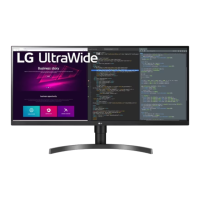
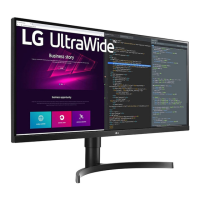
LG 34WN80C - User Manual

LG 34WN80C
26 pages
Print Icon
To Next Page IconTo Next Page
Loading...
* LG LED Monitor applies LCD screen with LED backlights.
Please read this manual carefully before operating your set and
retain it for future reference.
34WN80C
OWNER’S MANUAL
LED LCD MONITOR
(LED Monitor*)
www.lg.com
Copyright © 2018 LG Electronics Inc. All Rights Reserved.

Other manuals for LG 34WN80C

Questions and Answers

  • D
    Deborah BarnettJul 27, 2025
    What to do if nothing is displayed on the LG Monitor screen?
    • J
      Jonathan JohnsonJul 27, 2025
      First, ensure the power cord is correctly plugged into the power outlet. If that's not the issue, check the signal cable between your PC and the monitor to ensure it's properly connected. Also, the issue might be that signals transferred from the PC are out of the horizontal or vertical frequency range of the monitor, so set the appropriate frequency, referring to the Product Specification section of this manual.
  • P
    Paul PattersonJul 31, 2025
    Why is my LG 34WN80C Monitor screen display unstable and shaky?
    • J
      Jessica WilliamsAug 1, 2025
      If you're using HDMI 1080i 60/50 Hz (interlaced) resolution, the screen may flicker. Try changing the resolution to 1080p or the recommended resolution. Also, not setting the graphics card to the recommended (optimal) resolution may result in blurred text, a dimmed screen, a truncated display area or misalignment of the display. If this is the case, contact the manufacturer of the computer or graphics card for assistance.
  • A
    Alison SmithAug 4, 2025
    What to do if there is no sound from the headphone port on my LG 34WN80C Monitor?
    • C
      Charles ThompsonAug 4, 2025
      First, check that the headphone port connections are properly made. If the connections are correct, try increasing the volume using the joystick. Also, ensure that the audio output of your PC is set to the monitor you are using; the settings may vary depending on your operating system.
  • D
    devin38Aug 9, 2025
    Why does image sticking occur on my LG monitor even when it's turned off?
    • K
      Karen FrederickAug 9, 2025
      Displaying a still image for a prolonged time may cause damage to the screen, resulting in the retention of the image. To extend the lifetime of your monitor, use a screensaver.
  • R
    Randall ValdezAug 13, 2025
    What does "Unrecognized monitor, Plug and Play (VESA DDC) monitor found" mean on my LG 34WN80C Monitor?
    • N
      Nancy AndersonAug 13, 2025
      Make sure to install the display driver from the LG website: http://www.lg.com. Also, verify that your graphics card supports the Plug and Play function.
  • M
    Michael BrownAug 17, 2025
    Why are some functions not available when I press the Menu button on my LG 34WN80C Monitor?
    • L
      Larry PerryAug 17, 2025
      The OSD might be locked. You can disable OSD Lock in the General settings.
  • H
    hcameronAug 21, 2025
    Why are there spots on the screen of my LG Monitor?
    • L
      Lisa HaynesAug 22, 2025
      When using the monitor, pixilated spots (red, green, blue, white, or black) may appear on the screen. This is normal for an LCD screen and is not an error, nor is it related to the monitor's performance.

Summary

ASSEMBLING AND PREPARING

Moving and Lifting the Monitor

Installing on a Table

Installing the Wall Mount Plate

Installing on the Wall

Instructions for mounting the monitor on a wall with proper ventilation space.

Wall Mounting Bracket Specifications

USING THE MONITOR

Connecting to a PC

Information on connecting the monitor to a computer via various ports.

Connecting Peripherals

USER SETTINGS

Activating the Main Menu

Instructions on how to access and navigate the monitor's On-Screen Display (OSD) menu.

Main Menu Features

Quick Settings

Input Settings

Picture Settings

Picture Mode (SDR)

Options to set the picture mode for SDR signals, including Custom, Vivid, Reader, Cinema, FPS, RTS, and Color Weakness.

Picture Mode (HDR)

Picture Adjust

Color Adjust

General Settings

TROUBLESHOOTING

Nothing is displayed on the screen

Solutions for screen display issues like no signal or out of range messages.

Screen display is unstable or shaky

Troubleshooting unstable or shaky screen display and image ghosting.

Monitor Recognition and Audio Issues

PRODUCT SPECIFICATION

LG 34WN80C Specifications

General IconGeneral
Pixel pitch0.2325 x 0.2325 mm
Screen shapeFlat
Display diagonal34 \
Display technology-
Native aspect ratio21:9
Maximum refresh rate60 Hz
sRGB coverage (typical)99 %
Display brightness (typical)300 cd/m²
Supported graphics resolutions3440 x 1440
Product colorBlack
Built-in USB hubYes
USB upstream port typeUSB Type-C
USB Type-C downstream ports quantity1
Panel mounting interface100 x 100 mm
AC input voltage100 - 240 V
AC input frequency50 - 60 Hz
Energy efficiency scaleA to G
Power consumption (standby)- W
Package typeBox
Package depth203.2 mm
Package width965.2 mm
Package height508 mm
Package weight11793.4 g
Weight and Dimensions IconWeight and Dimensions
Depth (with stand)228.6 mm
Height (with stand)558.8 mm
Weight (with stand)7711.07 g
Depth (without stand)76.2 mm
Width (without stand)812.8 mm
Height (without stand)355.6 mm
Weight (without stand)5896.7 g

Related product manuals