EasyManua.ls Logo

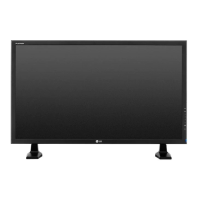
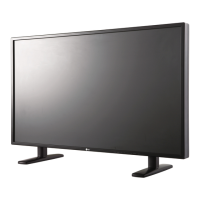
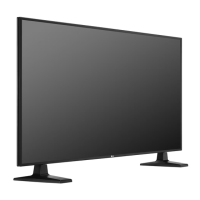
LG 42WS50MS - User Manual

LG 42WS50MS
89 pages
Print Icon
To Next Page IconTo Next Page
Loading...
www.lg.com
OWNER’S MANUAL
MONITOR SIGNAGE
42WS50BS
47WS50BS
55WS50BS
Please read this manual carefully before operating the your set and
retain it for future reference.
MONITOR SIGNAGE MODELS
42WS50MS
47WS50MS
55WS50MS

Table of Contents

Questions and Answers

  • J
    jessica91Aug 19, 2025
    Why is there no image displayed on my LG 42WS50MS Monitor?
    • Z
      zcarterAug 19, 2025
      There might be several reasons why your LG Monitor isn't displaying an image. First, ensure that the power cord is correctly plugged into the outlet. Next, verify that the signal cable is properly connected. You can also press the 'INPUT' menu on the remote control to check the input signal. Also, if the signal from your PC's video card is outside the monitor's supported frequency range, adjust the frequency settings, referring to the specifications in the manual. The maximum resolution for RGB, HDMI, DVI-D, and Display Port is 1920 x 1080 @ 60 Hz.
  • J
    Jamie HernandezAug 22, 2025
    What to do if the audio function does not work on LG 42WS50MS?
    • A
      angelamooreAug 22, 2025
      If the audio function on your LG monitor isn't working, first check that the audio cable is properly connected. Then, make sure the volume is adequately adjusted and that the sound settings are correctly configured. You may also want to adjust the Clear Voice ll, Treble, and Bass settings appropriately to optimize the sound.
  • S
    Sarah TateAug 25, 2025
    How to fix no image on LG 42WS50MS Monitor?
    • M
      Melissa BishopAug 25, 2025
      First, ensure the power cord is properly connected to the outlet. If that's not the issue, check the signal cable between your PC and the monitor, and make sure it's securely connected. You may also need to press the 'INPUT' menu on the remote control to select the correct input signal. Also, the signal from the PC (video card) may be out of the vertical or horizontal frequency range of the product, in that case adjust the frequency range by referring to the Specifications in this manual. The maximum resolution for RGB, HDMI, DVI-D, and Display Port is 1920 x 1080 @ 60 Hz.
  • B
    Brian McdonaldAug 26, 2025
    How to troubleshoot audio not working on LG 42WS50MS?
    • J
      joseph88Aug 26, 2025
      Check if the audio cable is connected properly. Also, adjust the volume and ensure the sound is set correctly in the settings. You may also want to adjust the Clear Voice ll, Treble, and Bass settings appropriately.
  • T
    Terrance HaleAug 28, 2025
    Why is the screen color abnormal on my LG Monitor?
    • R
      Robert StevensAug 28, 2025
      Abnormal screen color on your LG Monitor can be due to several factors. First, ensure that the color depth is set to more than 24 bits (true color) in your operating system's display settings (Control Panel - Display - Settings - Color Table in Windows). Also, check the connection of the signal cable and try re-inserting the PC video card. Note that the appearance of a few red, green, white, or black pixels is normal and due to the characteristics of the LCD panel, not a malfunction.
  • W
    williamslarryAug 30, 2025
    What to do if the screen image looks abnormal on LG 42WS50MS?
    • S
      Sara HendrixAug 30, 2025
      If the screen image looks abnormal on your LG Monitor, press the "AUTO" button on the remote control to automatically select the optimal screen status for the current mode. If the image is still not satisfactory, use the Position, Clock, or Phase OSD menus to fine-tune the display settings. Also, ensure you are using the correct signal cable that matches the source input signal.
  • C
    Christopher RossSep 1, 2025
    What to do if the operation does not work normally on my LG Monitor?
    • J
      jennifer13Sep 1, 2025
      If your LG Monitor isn't operating normally, check if the sleep timer is set. Also, verify the power control settings and ensure there hasn't been a power interruption.
  • K
    kimberlyowensSep 3, 2025
    Why does after-image appear on the LG 42WS50MS Monitor?
    • P
      Patrick SinghSep 3, 2025
      If an after-image appears on your LG Monitor, it might be because a fixed image has been displayed for an extended period, potentially damaging the pixels. To prevent this, use the screen-saver function.
  • J
    Jesse MorrisSep 5, 2025
    What to do if the screen image looks abnormal on my LG 42WS50MS Monitor?
    • R
      Richard RossSep 5, 2025
      If you're using a D-Sub analog signal, press the "AUTO" button on the remote control to automatically optimize the screen. If it doesn't help, use the Position, Clock, or Phase OSD menus to fine-tune the image. Also, ensure that the video card resolution and frequency are supported by the monitor. If the frequency is out of range, set the recommended resolution in the Control Panel "Display" settings. Finally, ensure the proper input signal is connected to the signal port by using the correct signal cable.
  • G
    garzajonathanSep 8, 2025
    Why does 'Unknown Product' message appear when LG 42WS50MS Monitor is connected?
    • A
      Andrea ZimmermanSep 8, 2025
      When an 'Unknown Product' message appears after connecting your LG Monitor, install the product driver provided with the monitor or download it from the LG website (http://www.lg.com). Also, check your video card user manual to see if the plug&play function is supported.

Summary

Assembling and Preparing

Included Accessories

Lists and describes included accessories like remote, cables, and CD.

Wall Mounting Guidelines

Guidelines and precautions for mounting the monitor on a wall.

Securing Product to Wall

Details on anchoring the product to a wall for safety.

Remote Control Functions

Remote Control Overview

Identifies buttons and their basic functions on the remote.

Basic Remote Control Functions

Explains power, input selection, volume, and aspect ratio controls.

Menu Navigation and Special Functions

Details menu access, navigation, and special function buttons.

Using the Monitor

Connecting to a PC

Guide on connecting the monitor to a computer.

Video Input Connections

Guide on connecting using RGB, DVI-D, HDMI, and DisplayPort cables.

Screen Image Mode and Customization

Instructions for selecting image modes and customizing picture options.

PC Display Options and Sound Modes

Customizing PC display options and selecting sound modes.

Sound Options and Aspect Ratio Adjustment

Customizing sound options and adjusting aspect ratio.

Customizing Settings

Navigating Main Menus

How to navigate and access the main menu options.

Picture Settings Overview and Energy Saving

Lists available picture settings like aspect ratio and energy saving.

Picture Modes and Screen Adjustments

Details picture modes, resolution, and screen adjustments.

Audio Settings and Sound Mode Options

Explains audio settings, sound modes, and speaker options.

Time and Power Management Configuration

How to set clock, timers, and power management features.

Making Connections

Connecting External Devices Overview

Overview of connecting various external devices like HD receivers, PCs, and speakers.

HDMI and Component Cable Connections

How to connect devices using HDMI and Component cables.

Troubleshooting Guide

DVI Cable and Image Display Troubleshooting

Troubleshooting DVI cable connections and no image display problems.

Screen Image and Lock Function Troubleshooting

Troubleshooting for screen position, lines, noise, and key lock.

Audio and Color Display Troubleshooting

Troubleshooting for audio function issues and screen color abnormalities.

Controlling Multiple Products

LG 42WS50MS Specifications

General IconGeneral
Panel life60000 h
Pixel pitch- mm
Touchscreen-
Response time12 ms
Display diagonal42 \
Display brightness700 cd/m²
Display technologyLED
Native aspect ratio16:9
Contrast ratio (dynamic)500000:1
Contrast ratio (typical)1300:1
Display number of colors16.78 million colors
DVI-D ports quantity1
DVI-I ports quantity0
Ethernet LAN data rates10, 100, 1000 Mbit/s
Product colorBlack
Product designDigital signage flat panel
Panel mounting interface400 x 400 mm
TV tuner integratedNo
Sustainability certificatesENERGY STAR
RMS rated power10 W
AC input voltage100 - 240 V
AC input frequency50 - 60 Hz
Power consumption (sleep)- W
Power consumption (standby)0.5 W
Power consumption (typical)115 W
Operating temperature (T-T)10 - 40 °C
Operating relative humidity (H-H)10 - 80 %
Weight and Dimensions IconWeight and Dimensions
Depth33 mm
Width1071.8 mm
Height617.2 mm
Weight13698 g

Related product manuals