EasyManua.ls Logo

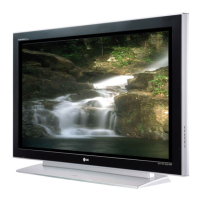
LG 42WL10MS - User Manual

LG 42WL10MS
83 pages
Print Icon
To Next Page IconTo Next Page
Loading...
www.lg.com
OWNER’S MANUAL
MONITOR SIGNAGE
42WL10MS
47WL10MS
Please read this manual carefully before operating the your set and
retain it for future reference.
MONITOR SIGNAGE MODELS
ENG
ENGLISH

Other manuals for LG 42WL10MS

Questions and Answers

  • S
    Scott ChapmanAug 18, 2025
    What to do if the 'Check signal cable' message appears on my LG 42WL10MS Monitor?
    • K
      Kelly KingAug 18, 2025
      If you see a 'Check signal cable' message, it means the connection between your PC and the monitor is not working. First, check the signal cable to ensure it's properly connected. If the issue persists, press the 'INPUT' menu on the remote control to verify the input signal.
  • A
    Anthony OneillAug 20, 2025
    Why does the 'Out of range' message appear on my LG 42WL10MS?
    • C
      Christopher VincentAug 20, 2025
      The 'Out of range' message appears because the signal from your PC (video card) is outside the monitor's supported vertical or horizontal frequency range. Adjust the frequency range according to the Specifications in this manual. The maximum resolution is RGB: 1920 x 1080 @ 60 Hz; HDMI/DVI: 1920 x 1080 @ 60 Hz.
  • D
    Dr. Tonya HarperAug 23, 2025
    What to do if there is no sound on my LG Monitor?
    • S
      smithsherryAug 23, 2025
      If there is no sound, check if the audio cable is connected properly. Also, adjust the volume and make sure the sound settings are properly configured.
  • C
    claudia25Aug 26, 2025
    How to fix a screen with poor color resolution (16 colors) on my LG Monitor?
    • J
      Jessica BellAug 26, 2025
      To resolve poor color resolution, set the number of colors to more than 24 bits (true color). In Windows, go to Control Panel - Display - Settings - Color Table menu to adjust this setting.
  • C
    Craig JensenAug 27, 2025
    What to do if the screen is displayed abnormally on my LG Monitor?
    • C
      christina84Aug 27, 2025
      If your screen is displaying abnormally, the input signal may not be properly connected. Ensure that you connect the signal cable that corresponds to the source input signal.
  • M
    Matthew ButlerAug 29, 2025
    What to do if the power suddenly turned off on my LG 42WL10MS Monitor?
    • O
      obrienkristinAug 29, 2025
      If the monitor suddenly turns off, check if the sleep timer is set. Also, verify the power control settings. Finally, make sure there wasn't a power interruption.
  • C
    chelsea44Sep 1, 2025
    Why is the screen color unstable or mono-colored on my LG Monitor?
    • J
      Jennifer PhillipsSep 1, 2025
      If the screen color is unstable or mono-colored, check the connection status of the signal cable. You can also try re-inserting the PC video card.
  • M
    Michael DavisSep 3, 2025
    How to fix horizontal noise or blurred characters on my LG 42WL10MS?
    • J
      jared23Sep 3, 2025
      If you're experiencing horizontal noise or blurred characters and using a D-Sub analog signal, press the "AUTO" button on the remote control to automatically optimize the screen. If the issue persists, use the Phase OSD menu.
  • C
    Charles LewisSep 6, 2025
    Why is the sound too dull on my LG 42WL10MS?
    • T
      tammylopezSep 6, 2025
      If the sound is too dull, select the appropriate equalize sound setting.
  • R
    Rachel SmithSep 8, 2025
    What to do if the screen position is wrong on my LG 42WL10MS Monitor?
    • D
      David OlsenSep 8, 2025
      If the screen position is incorrect, and you're using a D-Sub analog signal, press the "AUTO" button on the remote control. This will automatically select the optimal screen status. If it's still not right, use the Position OSD menu. Also, ensure that the video card resolution and frequency are supported by the monitor. If the frequency is out of range, set the recommended resolution in the Control Panel "Display" settings.

Summary

Assembling and Preparing

Accessories

Lists the included accessories in the product box.

Parts and Buttons

Identifies and describes the monitor's ports and on-device buttons.

Remote Control

Remote Control Overview

Explains the functions of various buttons on the remote control.

Using the Monitor Set

Connecting to a PC

Connects the monitor to a PC via various cable types.

Adjusting the Screen

Guides on selecting and customizing image modes for optimal display quality.

Customizing Image Options

Explains how to adjust advanced picture settings like brightness and contrast.

Adjusting the Sound

Instructions for selecting and customizing sound modes for optimal audio.

Entertainment

Connecting to a Wired Network

Steps to connect the monitor to a local area network via Ethernet.

Connecting USB Storage Devices

Instructions for connecting USB devices like flash drives and hard drives.

DivX VOD Guide

Information and procedures for DivX VOD registration and deregistration.

Using PIP;PBP

How to use Picture-in-Picture (PIP) and Picture-by-Picture (PBP) modes.

Customizing Settings

Picture Settings

Adjusts the image size, quality, or effect.

Audio Settings

Adjusts the sound quality, effect, or volume level.

Option Settings

Customizes the general settings of the monitor.

Network Settings

Sets up the network configuration for connectivity.

Making Connections

Connecting to External Devices

Guides on connecting various external devices like receivers, PCs, and USB storage.

Troubleshooting

No Image Displayed

Solutions for problems where no image appears on the screen.

Abnormal Screen Image

Addresses issues with screen position, lines, noise, or general display abnormalities.

Specifications

Child Safety

General Usage Safety Tips

General safety recommendations for flat panel display usage.

Wall Mounting Safety Guidelines

Safety guidelines and requirements for wall-mounting flat panel displays.

LG 42WL10MS Specifications

General IconGeneral
Screen Size42 inches
Panel TypeIPS
Aspect Ratio16:9
Refresh Rate60 Hz
Contrast Ratio1000:1
ConnectivityHDMI, USB
Viewing Angle178° (H) / 178° (V)
PortsHDMI, USB
Speakers10W x 2
VESA Mount200 x 200 mm

Related product manuals