EasyManua.ls Logo

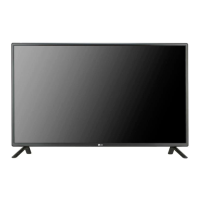
LG 47LV35A - User Manual

LG 47LV35A
67 pages
Print Icon
To Next Page IconTo Next Page
Loading...
www.lg.com
OWNER’S MANUAL
MONITOR SIGNAGE
47LV35A
55LV35A
Please read this manual carefully before operating your set and retain it
for future reference.
MONITOR SIGNAGE MODELS

Other manuals for LG 47LV35A

Questions and Answers

  • J
    Joshua WillisSep 14, 2025
    Why do black spots appear on my LG 47LV35A Digital Signage screen?
    • B
      brownamandaSep 14, 2025
      The appearance of several pixels (red, green, white, or black color) on the screen can be attributable to the unique characteristics of the LCD panel and does not indicate a malfunction of the LCD in your LG Digital Signage.
  • S
    Shawna JohnsonAug 25, 2025
    Why is my LG Monitor screen so dark?
    • H
      hbrownAug 25, 2025
      If your LG monitor screen appears extremely dark, try adjusting the brightness and contrast settings. If the issue persists, the backlight may require repair.
  • M
    Matthew WilsonAug 25, 2025
    Why does my LG Monitor keep turning off?
    • J
      John SwansonAug 26, 2025
      If your LG Monitor suddenly turned off, check if the sleep timer is enabled. Also, verify the power control settings and ensure there are no power interruptions.
  • M
    michael36Aug 26, 2025
    Why is the screen on my LG Monitor displayed abnormally?
    • T
      Travis MooreAug 26, 2025
      If your LG Monitor is displaying an abnormal screen, ensure that the correct input signal is connected to the appropriate signal port using the corresponding signal cable.
  • T
    Terry DominguezSep 15, 2025
    What to do if the 'No signal' message appears on my LG 47LV35A Digital Signage?
    • R
      ryan00Sep 15, 2025
      If the 'No signal' message appears on your LG Digital Signage, first check the signal cable connecting your PC and the signage to ensure it's properly connected. If the connection is correct, press the INPUT menu on the remote control to verify the input signal.
  • T
    Tammy KellySep 23, 2025
    Why are there black spots on my LG 47LV35A screen?
    • J
      jdelgadoSep 23, 2025
      Several pixels (red, green, white, or black color) may appear on the screen, which can be attributable to the unique characteristics of the LCD panel. It is not a malfunction of the LCD.
  • E
    Elizabeth PerkinsSep 7, 2025
    What to do if the 'Invalid Format' message appears on LG 47LV35A Digital Signage?
    • A
      Angela DanielsSep 7, 2025
      If you see an 'Invalid Format' message on your LG Digital Signage, it means the signal from your PC's video card is outside the product's vertical or horizontal frequency range. Adjust the frequency range according to the specifications in the manual. The maximum resolution for RGB, HDMI, and DVI is 1920 x 1080 @ 60 Hz.
  • A
    Andrew WrightSep 8, 2025
    Why is the screen color unstable on my LG Digital Signage?
    • D
      Douglas BallSep 8, 2025
      If the screen color on your LG Digital Signage is unstable or mono-colored, check the connection status of the signal cable. If the connection is good, try re-inserting the PC video card.
  • R
    Rachel MartinezSep 2, 2025
    How to fix poor color resolution on LG Monitor?
    • A
      amy83Sep 2, 2025
      If your LG Monitor screen has poor color resolution (16 colors), adjust the color settings in Windows. Go to Control Panel - Display - Settings - Color Table menu and set the number of colors to more than 24 bits (true color).
  • K
    krista14Aug 31, 2025
    How to fix thin lines on LG Monitor?
    • B
      Brianna MitchellAug 31, 2025
      If you see thin lines on the background of your LG Monitor screen when using a D-Sub analog signal, press the AUTO button on the remote control to automatically optimize the screen. If the issue persists, navigate to [PICTURE] - [Screen] - [Size] in the OSD menu and make adjustments.

Summary

ASSEMBLING AND PREPARING

Wall Mounting Instructions

Provides instructions and precautions for wall mounting the monitor.

Securing Monitor to Wall

Details how to securely attach the monitor to a wall using eye-bolts and brackets.

REMOTE CONTROL

MAKING CONNECTIONS

Connecting to a PC

Details how to connect a PC to the monitor.

ENTERTAINMENT

Connecting to a Wired Network

Instructions for connecting the display to a local area network (LAN).

Connecting USB Storage Devices

How to connect USB storage devices for multimedia features.

CUSTOMIZING SETTINGS

Picture Settings

Details on adjusting picture quality, brightness, and contrast.

Network Settings

Configuration options for network connectivity and status.

Daisy Chain Monitors

Information on connecting multiple monitors in a chain.

TROUBLESHOOTING

No Image Displayed Issues

Solutions for problems where no image appears on the screen.

Unknown Product Connection Error

Troubleshooting steps for the 'Unknown Product' message.

Abnormal Screen Image Issues

Solutions for screen position, noise, and blurring problems.

After-Image on Product

How to prevent or resolve after-image issues after the product is turned off.

Screen Color Abnormalities

Troubleshooting steps for poor or unstable screen color.

Operation Not Working Normally

Solutions for issues like sudden power-off or general operation failures.

CONTROLLING THE MULTIPLE PRODUCT

Connecting for Multi-Product Control

How to connect multiple products to a single PC for control.

LG 47LV35A Specifications

General IconGeneral
Screen Size47 inches
Display TypeLCD
Viewing Angle (H x V)178° x 178°
Response Time8 ms
Speaker10W x 2
VESA Mount CompatibleYes (400 x 400 mm)
Operating Hours24/7
Operating Temperature0°C to 40°C
Resolution1920 x 1080
InputHDMI, DVI-D, Composite
OutputAudio
External ControlRS-232C, RJ45

Related product manuals