EasyManua.ls Logo

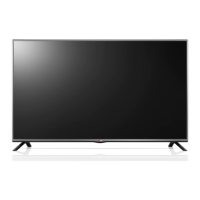
LG 49LB552V-ZA - User Manual

LG 49LB552V-ZA
132 pages
Print Icon
To Next Page IconTo Next Page
Loading...
www.lg.com
Please read this manual carefully before operating
your set and retain it for future reference.
OWNER’S MANUAL
LED TV*
* LG LED TVs are LCD TVs with LED backlighting.
LB55**
LB56**
LB62**
P/NO : MFL68003814 (1502-REV01)
Printed in Korea
*MFL68003814*

Questions and Answers

  • B
    benjaminriddleAug 13, 2025
    Why does my LG TV turn off suddenly?
    • V
      Victoria RileyAug 13, 2025
      If your LG TV turns off suddenly, it might be due to a few reasons. First, the power supply could be interrupted, so check the power control settings. Secondly, the Automatic Standby, Sleep Timer, or Off Time feature might be activated in the TIME settings. Finally, if the TV doesn't receive a signal while it's on, it will automatically turn off after 15 minutes of inactivity.
  • H
    Hannah GarciaAug 17, 2025
    How to fix LG TV remote not working?
    • B
      Bruce ConnerAug 17, 2025
      If you're unable to control your LG TV with the remote, there are a few things to try. First, make sure there isn't anything blocking the remote control sensor on the TV. Then, check for any obstacles between the remote and the TV. Lastly, ensure that the batteries in the remote are working and correctly installed.
  • T
    Timothy JacksonAug 20, 2025
    What to do if LG TV says no signal when connected to PC?
    • K
      Kathryn GonzalezAug 21, 2025
      If you see ‘No signal’ or ‘Invalid Format’ when connecting your PC to your LG TV via HDMI, try the following steps. First, turn the TV off and then on again using the remote control. If that doesn't work, try reconnecting the HDMI cable. As a final step, restart your PC while the TV is turned on.
  • T
    Theresa ProctorAug 25, 2025
    Why is my LG LED TV remote not working?
    • S
      Samuel BradfordAug 25, 2025
      If you cannot control your LG LED TV with the remote, first check the remote control sensor on the TV and try again. Also, ensure there are no obstacles between the remote and the TV. Finally, check that the batteries are working and properly installed.
  • L
    Lisa RamirezAug 28, 2025
    Why is there no picture or sound on my LG TV?
    • L
      Lisa HallAug 28, 2025
      If your LG TV has no image and no sound, start by checking if the TV is turned on. Next, verify that the power cord is properly connected to a wall outlet. Lastly, test the wall outlet by plugging in other products to see if it's working correctly.
  • J
    John OlsonAug 31, 2025
    What to do if my LG LED TV has no image and sound?
    • J
      Joshua GlennAug 31, 2025
      If your LG LED TV shows no image and produces no sound, start by checking if the TV is turned on. Then, verify that the power cord is securely connected to a working wall outlet. You can test the outlet by connecting other products to see if it's functioning correctly.
  • S
    Stacy ContrerasSep 4, 2025
    Why does my LG 49LB552V-ZA turn off suddenly?
    • B
      barnesnicholasSep 4, 2025
      If your LG LED TV turns off suddenly, check the power control settings to ensure the power supply isn't interrupted. Also, verify if the Automatic Standby, Sleep Timer, or Off Time feature is activated in the TIME settings. Note that the TV will automatically turn off after 15 minutes of inactivity if there is no signal.
  • M
    Monica MorrisSep 8, 2025
    How to fix 'No signal' or 'Invalid Format' on LG 49LB552V-ZA LED TV when connecting to PC (HDMI)?
    • C
      Craig GilbertSep 8, 2025
      If you see a ‘No signal’ or ‘Invalid Format’ message on your LG LED TV when connecting to a PC via HDMI, try the following: 1. Turn the TV off and then on again using the remote control. 2. Reconnect the HDMI cable. 3. Restart your PC while the TV is on.

Summary

SOFTWARE NOTICES AND SAFETY

General Safety Instructions

Read safety precautions carefully before using the product.

SAFETY INSTRUCTIONS

Electrical Safety and Cable Handling

Precautions for power plugs, cords, outlets, and cable management.

Child Safety and Battery Disposal

Keep packing materials from children; dispose of batteries safely.

Environmental and Electrical Hazards

Precautions against thunderstorms, gas leaks, and liquid exposure.

Installation and Mounting Safety

Safety advice for product installation, shelves, stands, and wall mounts.

Battery Usage and Care

Guidelines for battery types, mixing, heat exposure, and charging.

Ventilation and Cord Safety

Care for ventilation openings and power cord protection against abuse.

Installation and Placement Safety

Guidelines for safe installation, antenna cabling, and wall mounting.

Electrical and Foreign Object Hazards

Warnings against inserting objects and handling flammable substances near the product.

Product Modification and Malfunction

Do not disassemble/modify. Contact service for malfunctions.

Remote Control and Device Safety

Precautions for remote sensor, cable length for devices, and using power plug.

ASSEMBLING AND PREPARING

PARTS AND BUTTONS

USING THE JOYSTICK BUTTON

ADJUSTING THE MENU

LIFTING AND MOVING THE TV

SETTING UP THE TV

MOUNTING THE TV

VESA STANDARD MOUNTING

MAKING CONNECTIONS

OTHER CONNECTIONS

REMOTE CONTROL

Remote Control Overview and Usage

General information on using the remote control and its buttons.

Remote Control Battery Replacement

Step-by-step guide for replacing batteries in the remote control.

REMOTE CONTROL BUTTONS

Power, Input, and Selection Buttons

Functions of Power, Input, Number, and Selection buttons.

Teletext and Menu Buttons

Functions of Teletext, Info, Settings, and Quick Menu buttons.

Power, Input, and Mode Buttons

Functions of Power, Input, and AV Mode buttons for LB62** models.

Teletext and Menu Navigation Buttons

Functions of Teletext, Info, Settings, and Menu navigation buttons.

Navigation and Control Buttons

Functions of Navigation, Volume, List, Guide, and Mute buttons.

Media and Special Function Buttons

Functions of AV Mode, Record, Control, and Coloured buttons.

Navigation and Function Buttons

Functions of Navigation, List, Guide, 3D, and Mute buttons for LB62** models.

Media Control and Special Function Buttons

Functions of AV Mode, Record, Control, and Coloured buttons.

SETTINGS

Automatic Programme Setup

How to automatically tune TV programmes and related notes.

Advanced Picture Control Options

Adjusting contrast, color, skin tone, sky color, and grass color.

Additional Picture Options

Fine-tuning picture settings like noise reduction and cinema mode.

Energy Saving Features

Options to reduce power consumption via screen brightness and modes.

LG Audio Device and Headphone Connection

Connecting LG audio devices and headphones for sound output.

Picture Wizard Adjustment

Using the Picture Wizard to calibrate and optimize picture quality.

Expert Picture Control Settings

Detailed expert settings including Gamma, Colour Gamut, and Edge Enhancer.

TruMotion for Smooth Motion

Using TruMotion to enhance motion clarity and reduce judder/blur.

Audio Output Options

Selecting TV speakers, external speakers, or digital sound out.

Synchronizing Audio and Video

Adjusting AV Sync to match audio and video timing.

TV Password and Factory Reset

Setting TV passwords and performing a factory reset.

Picture Mode Selection

Choosing picture modes like Vivid, Standard, Cinema, Sports, Expert.

SIMPLINK Feature Usage

Controlling multimedia devices conveniently via the SIMPLINK menu.

SETTINGS

MAINTENANCE

TROUBLESHOOTING

Remote Control Problems

Solutions for issues with the TV remote control not working.

Image and Sound Issues

Troubleshooting steps for when no image or sound is produced.

TV Power and PC Connection Issues

Solutions for the TV turning off suddenly or displaying PC connection errors.

LG 49LB552V-ZA Specifications

General IconGeneral
BrandLG
Model49LB552V-ZA
CategoryLED TV
LanguageEnglish

Related product manuals