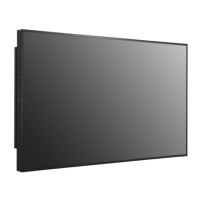
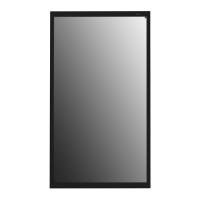
This document is an Owner's Manual for LG Digital Signage (Monitor Signage) models 49XF3E and 55XF3E. It provides comprehensive information on the device's installation, operation, and maintenance, emphasizing safety precautions throughout.
Function Description
The LG Digital Signage is a display monitor designed for various applications, including commercial and public spaces. It functions as a visual output device, capable of displaying images and videos from connected external sources. The monitor supports multiple input modes, including HDMI, DVI-D, and DisplayPort, allowing for flexible connectivity with PCs and other multimedia devices like HD receivers, DVDs, or VCR players. It also features an embedded battery, indicating potential for operation in scenarios where continuous external power might be interrupted or for specific functionalities. The device is designed to be integrated into an enclosure, with specific guidelines provided for optimal performance and longevity.
Usage Features
The digital signage offers several features to enhance its usability and display capabilities:
- Input Mode Selection: Users can easily switch between different input sources (HDMI1, HDMI2, DVI-D, DisplayPort) using the remote control or the input list function.
- Picture Mode (PSM): This feature allows users to select various picture modes, optimizing the display for different content types or viewing preferences.
- White Balance Adjustment (W.BAL): Users can access the White Balance menu to fine-tune the color balance of the display.
- Settings Menu: A comprehensive settings menu, accessible via the remote control, allows for configuration of various display parameters and system settings.
- SuperSign Menu (S.MENU): This dedicated menu key suggests integration with LG's SuperSign software, which is typically used for content management and scheduling in digital signage applications. The manual indicates that SuperSign Software & Manual can be downloaded from the LG Electronics website.
- Aspect Ratio Control (ARC): This function enables users to select different aspect ratio modes, ensuring content is displayed correctly without distortion.
- Automatic Picture Adjustment (AUTO): For RGB input, the monitor can automatically adjust picture position and minimize image instability.
- Volume Control: The remote control includes buttons for adjusting the volume of the monitor's audio output.
- Mute Function: A dedicated button allows for muting all sounds.
- Brightness Adjustment: Users can adjust the overall brightness of the display.
- Energy Saving Mode: The monitor includes an "ENERGY SAVING" function to adjust picture brightness and reduce energy consumption.
- 3D Viewing: The manual mentions a "3D" button for viewing 3D videos, indicating that some models may support 3D content.
- Numerical and Alphabetical Input: The remote control provides buttons for entering numerical or alphabetical characters, likely for setting up network configurations, passwords, or other text-based inputs.
- Clear Function: A "CLEAR" button is available to delete entered characters.
- Home Launcher: A "HOME" button activates a launcher interface, suggesting a smart or integrated operating system for managing applications and content.
- Navigation Buttons: Standard navigation buttons (up, down, left, right, OK) are provided for navigating menus and confirming selections.
- Back and Exit Functions: "BACK" allows moving back one step in user interaction, while "EXIT" quits OSD tasks and applications.
- SimpLink: This feature enables control of various multimedia devices through the SimpLink menu using the monitor's remote control.
- TILE Mode: A "TILE" button selects the TILE mode, suggesting functionality for creating video walls or multi-display configurations.
- Picture ID ON/OFF: This function allows for controlling specific monitors in a multi-display format when the Picture ID number matches the Set ID number.
- USB Menu Control Buttons: Buttons for controlling media playback via USB are included, indicating USB media playback capabilities.
- Illuminance Sensor: An illuminance sensor automatically adjusts screen brightness based on ambient light, contributing to optimal viewing and energy efficiency.
- IR Receiver: The monitor has an IR receiver for receiving signals from the remote control.
- Power Indicator: An indicator light shows the display's operational status (red for on, amber for sleep/power saving). The status of this indicator can be configured in the Installation -> Signage Setup menu.
- Portrait Layout Support: The monitor can be installed in a portrait layout by rotating it clockwise 90 degrees (when facing the screen).
- Multi-Monitor Connectivity: The manual details how to connect multiple monitors in a daisy-chain configuration using DP Out and DP In connectors, enabling the creation of video walls or extended displays.
Maintenance Features
The manual provides crucial information for maintaining the device's performance and longevity:
- Cleaning: Emphasizes the importance of cleaning the product gently with a soft, dry cloth, warning against wet cloths, sprays, or harsh chemicals like benzene, paint thinners, or alcohol, which can cause electric shock or deformation.
- Ventilation: Stresses the need to ensure ventilation holes are not blocked and to install the product in a suitably wide place (more than 100 mm from the wall) to prevent overheating and potential fire.
- Image Sticking Prevention: Provides detailed recommendations to prevent image sticking (burn-in), including using screen savers, utilizing residual image prevention functions, turning off the power when not in use, changing background and character colors at regular intervals, using complementary colors, and changing images at regular intervals. It also explains the phenomenon of image sticking.
- Power Cord and AC Adapter Care: Advises on proper handling of the power cord and AC adapter, including keeping them clean and dry, ensuring secure connections, using approved components, avoiding excessive force, and not disassembling or modifying them to prevent electric shock or fire.
- Environmental Considerations: Recommends installing the product in a neat, dry place, away from heat sources, direct sunlight, and areas with poor ventilation, excessive dust, oil mist, or chemical substances. It also warns against exposing the device to dripping or splashing liquids.
- Battery Handling: Provides precautions for remote control batteries, including not mixing old and new batteries and not exposing them to excessive heat.
- Professional Installation: For wall mounting, it strongly advises against self-installation and recommends contacting service personnel authorized by the manufacturer to prevent injury or product damage.
- Troubleshooting Guide: Includes a troubleshooting section to help users diagnose and resolve common issues such as no image display, abnormal screen images (position, color), and audio problems, offering practical actions like checking cable connections, adjusting settings, and verifying driver installations.
- Warranty Information: Notes that damage or injury from using counterfeit components or operating in an excessively dusty environment will not be covered by the product warranty. It also states that burn-in and related problems are not covered by the warranty if the product is used for long periods with fixed images.



 To Next Page
 General