EasyManua.ls Logo

LG 60PA5500 - User Manual

LG 60PA5500
247 pages
Print Icon
To Next Page IconTo Next Page
Loading...
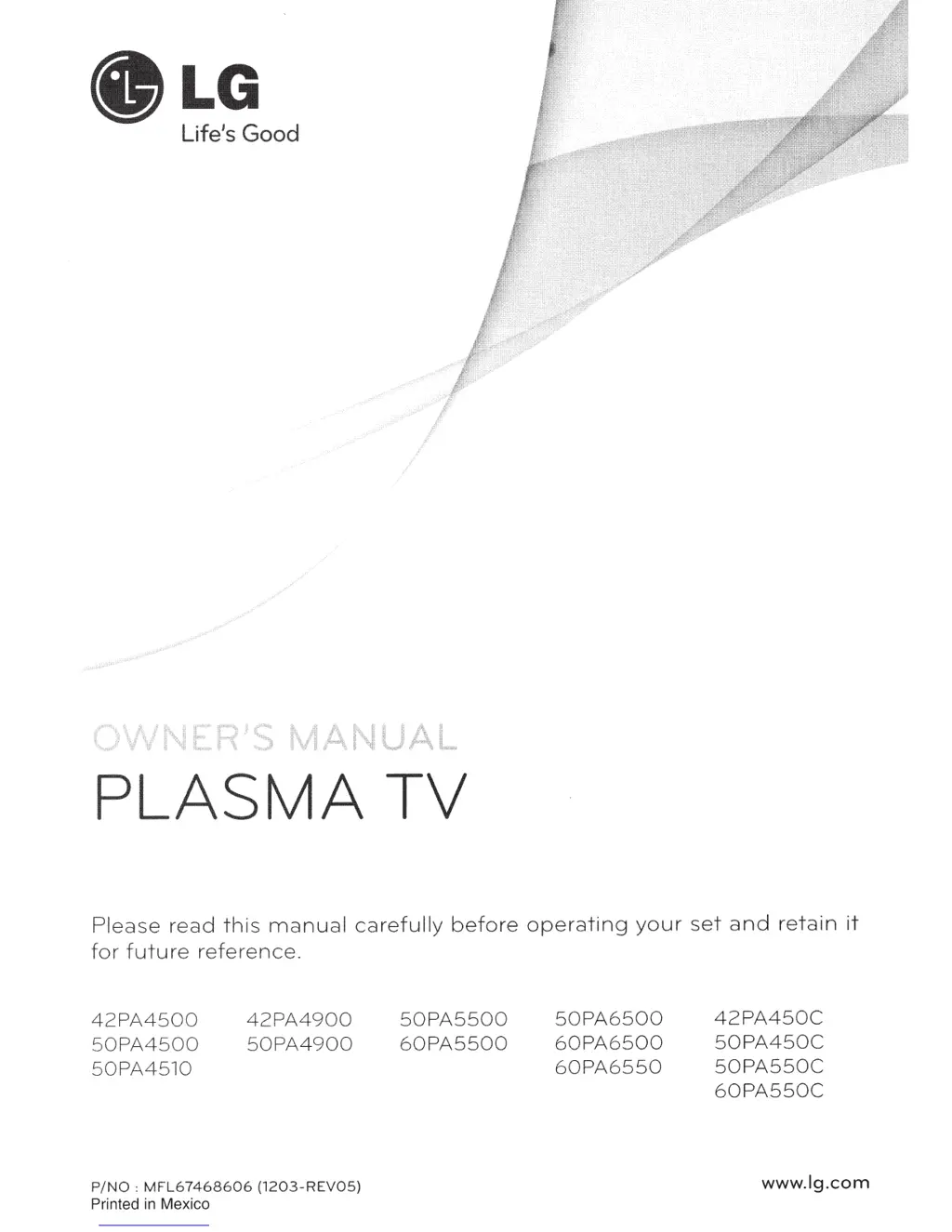
PLASMA
TV
Please
read
this
manual
carefu
lly
before
operating
your
set
and
retain
it
fo
r
future
refer
e
nc
e.
42PA4
500
50PA4500
50
PA4510
42PA4900
5
0PA4900
P/NO
:
MF
L6
746
8606
(1
2
03
-RE
VO
S)
Printed
in
Mexico
50
PA55
00
60PA5500
50
PA
6500
60PA6500
60PA
6550
42PA450C
50
PA450
C
50PA550C
60PA550C
www.lg.com

Table of Contents

Questions and Answers

  • L
    Lisa AdamsSep 9, 2025
    Why does the image appear slowly when my LG Plasma TV turns on?
    • C
      Carly RivasSep 9, 2025
      If your LG Plasma TV displays an image slowly when it turns on, note that the image is muted during the product startup process, which is normal. If the image does not appear in a few minutes, unplug the TV for 30 seconds and try again. If it still doesn't appear, contact an authorized service center.
  • F
    fnelsonAug 23, 2025
    What to do if my LG 60PA5500 has no image and sound?
    • M
      Mackenzie HarrisAug 23, 2025
      If your LG Plasma TV shows no image and produces no sound, first ensure that the TV is powered on. Next, check that the power cord is securely connected to a functioning wall outlet. To confirm the outlet's functionality, try plugging in other devices.
  • J
    John BryantAug 25, 2025
    Why does my LG Plasma TV keep turning off?
    • J
      Jasmine ArnoldAug 25, 2025
      If your LG Plasma TV turns off suddenly, check the power control settings to ensure the power supply isn't interrupted. Also, see if the Auto sleep feature is activated in the Time settings. If there's no signal while the TV is on, it will turn off automatically after 15 minutes of inactivity.
  • M
    Michael AustinAug 27, 2025
    How to fix LG 60PA5500 Plasma TV screen when using Pentouch?
    • O
      ohuntAug 27, 2025
      To address a non-normal screen appearance when using Pentouch on your LG Plasma TV, first, verify that the computer is properly connected to the TV. Next, ensure that you are using the optimal resolution. Finally, set the aspect ratio on the TV to Just Scan.
  • K
    ktylerAug 27, 2025
    How to fix LG Plasma TV remote control not working?
    • M
      Mr. John MoodyAug 28, 2025
      If you cannot control your LG Plasma TV with the remote, start by checking the remote control sensor on the TV and try again. Ensure there are no obstacles blocking the path between the remote and the TV. Finally, verify that the batteries in the remote are working correctly and are properly installed, paying attention to the correct polarity (+ to -, + to -).
  • A
    Anthony HillAug 29, 2025
    How to calibrate touch pen on LG 60PA5500 Plasma TV?
    • J
      Joseph YoungAug 29, 2025
      If the touch pen is touched on wrong positions on your LG Plasma TV, first, set the computer screen to display only on the TV. If you're using a PC signal (RGB) cable and the touch point on the TV screen doesn't match the point indicated on the computer screen, use the TV remote to navigate to [SETTINGS] ? [Picture] ? [Screen] (RGB-PC), then select [Auto Config.] to adjust the screen.
  • D
    Dominic ConwaySep 18, 2025
    How to adjust display offset on LG 60PA5500?
    • A
      Angela DavisSep 18, 2025
      To fix the display offset on your LG Plasma TV, adjust the position setting in the Picture menu. Check if the video card resolution and frequency are supported by the TV. If the frequency is out of range, set to the recommended resolution using the display settings on the external device.
  • J
    Jason NelsonSep 19, 2025
    How to adjust speaker balance on LG 60PA5500 Plasma TV?
    • B
      billy32Sep 19, 2025
      If there is no output from one of the speakers on your LG Plasma TV, adjust the Balance in the menu option.
  • M
    Michael GibbsSep 8, 2025
    How to brighten a dark screen on my LG 60PA5500 Plasma TV?
    • R
      Robin CisnerosSep 8, 2025
      If your LG Plasma TV screen appears extremely dark even though the power is on, adjust the brightness and contrast in the menu option.
  • P
    paul35Sep 4, 2025
    Why is there no sound on my LG 60PA5500 Plasma TV?
    • S
      Sarah MortonSep 4, 2025
      If your LG Plasma TV has no sound but the images are displaying, try the following: * Press the VOL + or - button. * Check if the sound is muted by pressing MUTE. * Try other channels to rule out a broadcast problem. * Check the audio cables are connected properly. * Ensure the TV Speaker feature is activated in the menu.

Summary

IMPORTANT SAFETY INSTRUCTIONS

TO REDUCE THE RISK OF ELECTRIC SHOCK

Warnings and precautions for preventing electric shock.

WARNING;CAUTION

Specific safety warnings regarding fire and electric shock.

IMPORTANT SAFETY INSTRUCTIONS

Grounding

Instructions and precautions for proper electrical grounding.

IMPORTANT SAFETY INSTRUCTIONS

Cleaning

Guidelines for safely cleaning the TV screen and body.

IMPORTANT SAFETY INSTRUCTIONS

For USA and Canada

Specific safety and regulatory information for US and Canadian users.

INSTALLATION PROCEDURE

ASSEMBLING AND PREPARING

Steps for unpacking and preparing the TV for setup.

ASSEMBLING AND PREPARING

Unpacking

Checking the contents of the product box.

ASSEMBLING AND PREPARING

Optional Extras

Information on optional accessories and their compatibility.

ASSEMBLING AND PREPARING

Parts and buttons

Identification of TV parts and buttons.

ASSEMBLING AND PREPARING

Lifting and moving the TV

Safe procedures for lifting and moving the television.

ASSEMBLING AND PREPARING

Setting up the TV

Instructions for setting up the TV on a stand or wall.

ASSEMBLING AND PREPARING

Tidying cables

Guidelines for organizing and securing cables.

ASSEMBLING AND PREPARING

Mounting on a table

Steps for placing the TV on a table securely.

ASSEMBLING AND PREPARING

Mounting on a wall

Instructions for attaching the TV to a wall mount.

MAKING CONNECTIONS

Connecting to an antenna or cable

Guide to connecting TV to antenna or cable sources.

MAKING CONNECTIONS

Connecting to a HD receiver, DVD, or VCR player

Instructions for connecting external audio/video equipment.

MAKING CONNECTIONS

Connecting to a PC

Guide for connecting the TV to a computer.

MAKING CONNECTIONS

Connecting to an Audio System

Instructions for connecting external audio systems.

MAKING CONNECTIONS

Connecting to a USB

Guide for connecting USB storage devices.

REMOTE CONTROL

Button Functions Overview

Explanation of buttons on the remote control.

WATCHING TV

Turning the TV on for the first time

Steps for initial TV setup and basic configuration.

WATCHING TV

Managing channels

How to set up and manage TV channels.

PENTOUCH

Using Pentouch Features

Overview of the Pentouch functionality and applications.

ENTERTAINMENT

Connecting USB storage devices

Guide to connecting and using USB devices for media playback.

CUSTOMIZING TV SETTINGS

The Main Menus

Overview of accessing and navigating main TV settings menus.

MAINTENANCE

Cleaning Your TV

Instructions for cleaning the TV's exterior and screen.

TROUBLESHOOTING

General Problems

Common issues and troubleshooting steps for the TV.

SPECIFICATIONS

Model Dimensions and Weight

Technical specifications for TV models.

IR CODES

Remote Control IR Codes

Details on infrared codes for remote control communication.

EXTERNAL CONTROL DEVICE SETUP

RS-232 C Setup

Guide for connecting external control devices via RS-232C.

OPEN SOURCE LICENSE

Open source software notice

Information regarding open-source software used in the product.

CUSTOMIZING TV SETTINGS

The Main Menus

Overview of accessing and navigating main TV settings menus.

CUSTOMIZING TV SETTINGS

PICTURE Settings

Options for adjusting image quality and display.

CUSTOMIZING TV SETTINGS

AUDIO Settings

Options for adjusting sound quality and output.

CUSTOMIZING TV SETTINGS

CHANNEL Settings

Options for setting up and editing TV channels.

CUSTOMIZING TV SETTINGS

TIME Settings

Options for setting the TV's time, date, and timers.

CUSTOMIZING TV SETTINGS

LOCK Settings

Options for locking channels, inputs, and controls.

CUSTOMIZING TV SETTINGS

OPTION Settings

Options for customizing general TV settings like language and captions.

LG 60PA5500 Specifications

General IconGeneral
3DNo
Depth53.34 mm
Width1386.84 mm
Height817.88 mm
Weight36423 g
Tuner typeAnalog & digital
24p supportYes
Pixel pitch- mm
Smart modesCinema, Game, Sports, Standard
HDMI version1.4
Package depth284.48 mm
Package width1544.32 mm
Product colorBlack
LED indicatorsPower, Stand-by
Package height949.96 mm
Package weight48080 g
Playback modesZoom
RMS rated power20 W
AC input voltage100 - 240 V
Display diagonal59.8 \
AC input frequency50 - 60 Hz
Composite video in0
Depth (with stand)355.6 mm
Dimensions (WxDxH)1386.84 x 53.34 x 817.88 mm
Display brightness- cd/m²
Display technologyPlasma
Number of speakers2
HDMI ports quantity3
Height (with stand)883.92 mm
High frequency rate600 Hz
Weight (with stand)40600 g
Supported video modes1080i, 1080p, 720p
USB 2.0 ports quantity1
Audio formats supportedAAC, HE-AAC, LPCM, MP2, MP3, MS-ADPCM, WMA
Image formats supportedJPG
Number of OSD languages32
Video formats supportedAVI, DAT, DIVX, MKV, MPEG, MPEG1, MPEG2, MPG, TRP, TS, VOB
Contrast ratio (dynamic)3000000:1
Contrast ratio (typical)-
Panel mounting interface600 x 400 mm
Annual energy consumption267 kWh
Display diagonal (metric)152 cm
Analog signal format systemNTSC
Power consumption (standby)0.2 W
Sustainability certificatesENERGY STAR
Digital signal format systemATSC, DVB-C, DVB-T
Supported graphics resolutions1920 x 1080 (HD 1080)
Dimensions (W x D x H) with stand1386.84 x 355.6 x 883.92 mm
On Screen Display (OSD) languagesENG, ESP, FRE, KOR
Consumer Electronics Control (CEC)Anynet+

Related product manuals