EasyManua.ls Logo

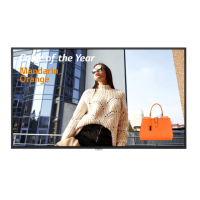
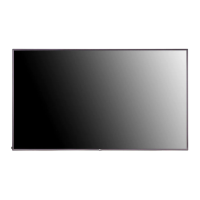
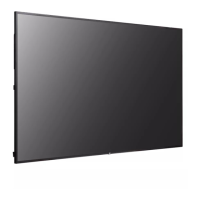
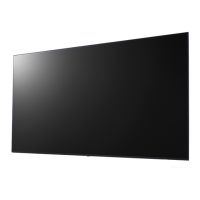
LG 75UL3J-E - User Manual

LG 75UL3J-E
120 pages
Print Icon
To Next Page IconTo Next Page
Loading...
USER GUIDE
LG Digital Signage
(MONITOR SIGNAGE)
www.lg.com
webOS 6.0
Please read the user manual before using this product to ensure safe and
convenient use.

Table of Contents

Questions and Answers

  • A
    amberjimenezSep 23, 2025
    Why do black spots appear on my LG 75UL3J-E Digital Signage?
    • G
      Garrett TurnerSep 23, 2025
      Some pixels (red, green, blue, black) are visible on the screen of your LG Digital Signage due to the unique characteristics of the display panel. This is not a malfunction of the product.
  • J
    Joseph RobinsonAug 23, 2025
    Why is the screen brightness dark on my LG 75UL3J-E Digital Signage?
    • R
      Rachel MartinezAug 23, 2025
      If the screen’s brightness seems dark on your LG Digital Signage, try adjusting the brightness and contrast settings. If this doesn't help, the backlight may need repair. Also, if the internal temperature of the enclosure rises, the screen’s brightness may darken, so clean the heat exchanger or filter in the enclosure periodically.
  • J
    Jesse SampsonAug 25, 2025
    What to do if touch does not respond on LG Digital Signage?
    • I
      Isaac ReedAug 26, 2025
      If the touch function does not respond on your LG Digital Signage, remove the USB cable and reconnect it after 10 seconds. Ensure your PC’s power cord is firmly plugged into a power outlet and restart your PC. If the system is down due to an unstable network, reconnect the LAN cable or restart your PC. Check the signal cable connection between your PC and the product, and make sure the product is powered on. Always connect the power cord to a grounded outlet to avoid breaks or touch errors. Also, check if the screen is currently on.
  • K
    Krystal BanksAug 27, 2025
    How to resolve 'No signal' or 'Invalid Format' message on LG 75UL3J-E?
    • P
      Patrick HernandezAug 27, 2025
      If your LG Digital Signage displays a message saying ‘No signal’ or ‘Invalid Format’, check that the signal cable is securely connected between the PC and the product. Also, make sure the input signal is correctly selected in the input menu. If the signal from the PC is out of the product's vertical or horizontal frequency range, adjust the frequency range by referring to the specifications in the manual.
  • S
    stephaniebaileyAug 27, 2025
    Why did my LG 75UL3J-E power suddenly turn off?
    • G
      gonzaleschristopherAug 27, 2025
      If the power suddenly turned off on your LG Digital Signage, check if the auto-off function is activated in the time-related settings. Ensure the product power cord is properly connected to a power source. Review the power control settings. If the internal temperature of the enclosure rises, the power may shut down; clean the heat exchanger or filter periodically. Also, check if the fan is working properly.
  • B
    Bobby EdwardsSep 17, 2025
    How to increase low sound on LG 75UL3J-E Digital Signage?
    • N
      Nicole MorrisSep 18, 2025
      If the sound is too low on your LG Digital Signage, adjust the volume of the product or any external device connected to it.
  • R
    rflemingSep 14, 2025
    How to fix dull sound on LG Digital Signage?
    • S
      Sarah MclaughlinSep 14, 2025
      If the sound is too dull on your LG Digital Signage, select the appropriate equalizer sound setting.
  • N
    nicholsonrodneySep 15, 2025
    How to improve color resolution on LG 75UL3J-E?
    • N
      nsanchezSep 16, 2025
      If your LG Digital Signage screen has poor color resolution (16 colors), use PC settings to set the color to 24 bits (True Color) or above.
  • N
    nicole72Sep 6, 2025
    Why is multi-touch not responding on my LG 75UL3J-E Digital Signage?
    • S
      snyderrogerSep 6, 2025
      If multi-touch does not respond on your LG Digital Signage, the content played (e.g., Flash Player, Paint, etc.) may not support multi-touch points. Ensure you are using content that supports multi-touch. Remove the USB cable and reconnect it after 10 seconds. Try running the content again or restarting your PC. Note that multi-touch may work unstably on the edge of the touch screen, and touch errors may occur if the interval between two touches is too short.
  • C
    chad53Sep 3, 2025
    Why are images flickering on my LG 75UL3J-E Digital Signage?
    • J
      Jason BradleySep 3, 2025
      If images are flickering or fluttering on the screen of your LG Digital Signage, it may be normal if you turned the monitor on when it was cold. Also, ensure that the current resolution and frequency settings of the graphics card are supported by the monitor.

Summary

SAFETY PRECAUTIONS

AC Adapter and Power Precautions

Safety guidelines for using the AC adapter and power cord to prevent hazards.

Moving Product Safety

Instructions and warnings related to safely moving the display unit.

Product Installation Safety

Guidelines for proper and safe installation of the product to prevent damage or injury.

Product Cleaning Safety

Recommended methods for cleaning the product safely to avoid damage or electrical shock.

General Product Usage Safety

Essential safety measures and warnings for the general operation of the product.

Remote Control Usage Safety

Safety advice for handling and using the remote control, including battery precautions.

Image Retention Precautions

Advice on preventing image retention and screen damage from static images.

Product Disposal Guidelines

Guidelines for the proper and environmentally responsible disposal of the product.

USING THE REMOTE CONTROL

Remote Control Operation Guide

Explanation of how to use the remote control, including battery installation.

MAKING CONNECTIONS

PC Connection Guide

Instructions on how to connect the monitor to a PC via USB or USB-C.

External Device Connectivity

Guidance on connecting external devices like HD receivers, DVDs, or VCRs.

Multi-Monitor Setup

Steps and methods for connecting multiple monitors in a daisy-chain configuration.

SETTINGS & CONFIGURATION

Home Screen Configuration

Overview of the Home screen and its main functions like Global Buttons and Dashboard.

Ez Setting Options

Detailed explanation of various configuration options within the Ez Setting menu.

General System Settings

Configuration options related to language, system info, Set ID, and time settings.

Content Management System

Features for managing and playing content, including player, continuous play, and export options.

Management Tools Overview

Tools for controlling the display and managing Picture ID settings.

EXTERNAL PC CONTROL VIA TOUCH SCREEN

PC Connectivity for Touch Control

Connecting a PC via USB or USB-C for touch screen control of the product.

Touch Screen Task Priority

Understanding the prioritized tasks performed when touching the screen with a PC connected.

SMART CALIBRATION

Smart Calibration Guide

Step-by-step guide to executing smart calibration for color and brightness adjustment.

IR CODE REFERENCE

Remote Control IR Codes

Table listing IR codes for various remote control functions and their hex values.

CONTROLLING MULTIPLE PRODUCTS

Multi-Product Connection Cables

Instructions and diagrams for connecting multiple products using RS-232C cables.

LG 75UL3J-E Specifications

General IconGeneral
Display Size75 inches
Resolution3840 x 2160 (UHD)
Panel TypeIPS
Aspect Ratio16:9
Viewing Angle (H x V)178° x 178°
Response Time8 ms (G to G)
Operating SystemwebOS
Contrast Ratio1200:1
ConnectivityHDMI, USB, RS232C, RJ45
Bezel Width11.9mm
Color Gamut72%

Related product manuals