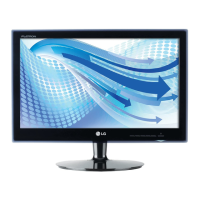
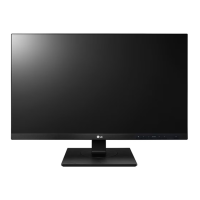
This document serves as an owner's manual for the LG IPS LED Monitor, specifically models 24BK750Y and 27BK750Y. The manual provides comprehensive instructions for assembling, preparing, using, customizing settings, and troubleshooting the monitor.
Function Description
The LG IPS LED Monitor is designed to display digital video and audio signals from various sources, including PCs and AV devices. It utilizes an IPS (In-Plane Switching) LCD panel with LED backlighting, offering a wide viewing experience and accurate color reproduction. The monitor supports multiple input types, including DVI-D, HDMI, and DisplayPort, allowing for flexible connectivity with different devices. It also features USB ports for connecting peripherals and a headphone jack for audio output.
Usage Features
Assembly and Preparation:
The manual details the steps for attaching the stand base, which includes securing the stand body to the base. It emphasizes caution during assembly to prevent injury and damage to the screen. The monitor can be mounted on a table, with specific instructions to ensure proper ventilation by leaving a 3.94-inch space from the wall. For wall mounting, the manual provides instructions for detaching the stand body and attaching a VESA-compatible wall mount plate, highlighting the importance of using appropriate screws and avoiding excessive force.
Cable Management:
A cable holder is integrated into the stand design, allowing users to neatly arrange and manage cables, contributing to a clutter-free workspace. The manual illustrates how to route cables through the holder, especially when utilizing the pivot feature.
Adjustability:
The monitor offers significant ergonomic flexibility:
- Height Adjustment: The stand allows for height adjustment up to 5.9 inches, enabling users to position the screen at an optimal eye level.
- Angle Adjustment (Tilt): The screen's angle can be tilted forwards or backwards (from -5° to 25°) to achieve a comfortable viewing experience.
- Pivot Feature: The monitor can be rotated 90° clockwise and -90° counter-clockwise, which is particularly useful for viewing documents or web pages in portrait mode. The manual provides Windows operating system shortcut keys for screen pivot.
- Swivel Stand: The stand allows the monitor head to swivel clockwise and counter-clockwise by 45°, offering flexibility in screen orientation without moving the entire base.
- Horizontal Level Adjustment: The monitor head can be slightly rotated up or down (up to 3°) to adjust its horizontal level.
Connectivity:
- PC Connection: The monitor supports DVI-D, HDMI, and DisplayPort connections for PCs. It is Plug & Play compatible, meaning a PC will automatically recognize the connected device without extensive configuration.
- AV Device Connection: HDMI is used to transmit digital video and audio signals from AV devices to the monitor.
- Peripheral Connection: USB Type A ports are available for connecting peripheral devices like keyboards, mice, or USB storage. One USB port supports Quick Charge for mobile phones, though charging speed may vary. A USB Type B port connects the monitor to the PC to enable the downstream USB ports.
- Headphone Connection: A headphone port allows users to connect headphones for audio output. The manual recommends using straight headphones to avoid interference with other external devices.
Multi-Stream Transport (MST):
The monitor supports DisplayPort Multi-Stream Transport (MST), allowing up to four monitors to be connected in a daisy-chain configuration. To enable MST, the PC graphics card must be DP1.2 certified, and the DisplayPort 1.2 setting in the monitor's OSD menu must be enabled.
The On-Screen Display (OSD) menu is accessed via buttons on the monitor. Key customizable settings include:
- Quick Settings: Brightness, Contrast, and Ratio (Wide, Original).
- SMART ENERGY SAVING: Offers High, Low, and Off options to conserve energy by adjusting luminance.
- Picture Mode: Includes Custom, Reader 1, Reader 2, Photo, Cinema, Color Weakness, and Game modes, each optimized for different viewing scenarios.
- Picture Adjust:
- SUPER RESOLUTION+: Enhances picture quality for various content types.
- Sharpness: Adjusts the sharpness of the screen.
- Black Level: Sets the offset level for HDMI input, affecting the darkest color displayed.
- Response Time: Adjusts the screen's response time (High, Middle, Low, Off) for different types of moving pictures.
- DFC (Digital Fine Contrast): Automatically adjusts brightness based on screen content.
- Black Stabilizer: Controls black contrast to improve visibility in dark scenes, particularly useful for gaming.
- Color Adjust: Gamma, Color Temp (Warm, Medium, Cool, Custom), Red/Green/Blue, and Six Color adjustments for fine-tuning color output.
- Sound: Volume control and main audio source selection.
- General: Language selection, Power LED control (On/Off), Automatic Standby settings, DisplayPort 1.2 enable/disable, Quick Charge enable/disable, and OSD Lock to prevent accidental key input.
- Reset: Returns all settings to their default values.
Maintenance Features
Kensington Security System:
The monitor includes a Kensington security system connector, allowing users to secure the monitor to a table using a Kensington lock, which is an optional accessory.
Troubleshooting:
The manual provides a troubleshooting guide for common issues:
- No image: Checks power cord connection, power indicator status, and "Out of Range" or "NO SIGNAL" messages.
- OSD control issues: Instructions for unlocking OSD controls if they are disabled.
- Incorrect display image: Advice on checking signal cable connections, video card insertion, color settings, and interlace mode.
- "Unrecognized monitor, Plug&Play" message: Recommends installing the display driver and verifying Plug&Play support.
- Flickering screen: Suggests changing resolution if using HDMI 1080i 60/50 Hz to the recommended 1080P.
The manual emphasizes using genuine components and supplied cables to ensure safety and product performance, and warns against using counterfeit or uncertified generic cables that may lead to display issues or image noise. It also advises against touching the monitor screen during movement to prevent damage.


 To Next Page
 General