21
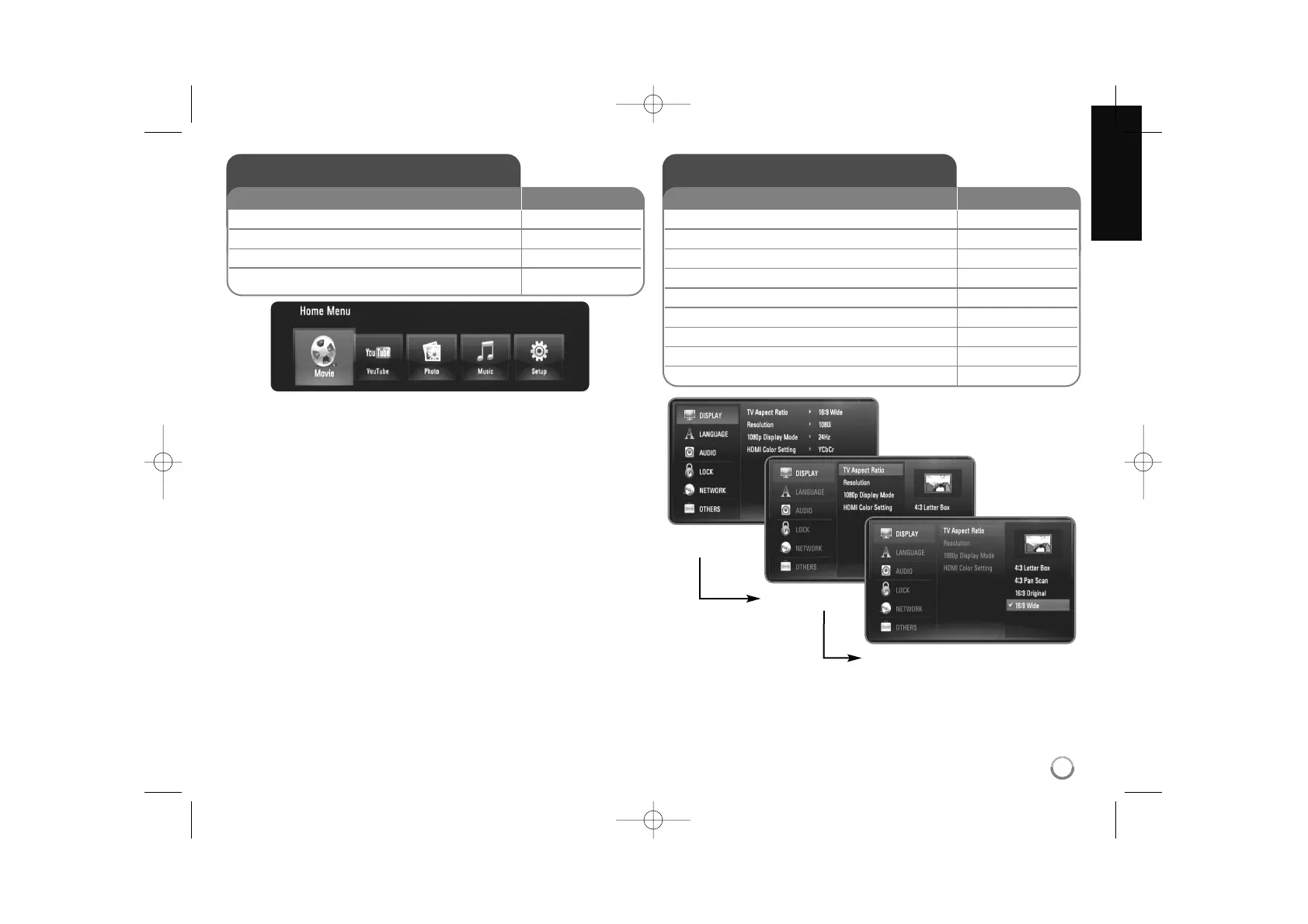
[Movie] – Start video media’s playback or displays the [MOVIE] menu.
[YouTube] – Watch YouTube videos streamed from the Youtube server via
the internet to your TV. (page 38-40)
[Photo] – Displays [PHOTO] menu. (page 36-37)
[Music] – Displays [MUSIC ]menu. (page 35-36)
[Setup] – Displays the [Setup] menu. (page 21-27)
Tips:
• If you select the [Movie], [Photo] or [Music] option when a USB Flash
Drive is connected and a disc is inserted simultaneously, the menu for
selecting a media will appear. Select a media then press ENTER.
• If “Software Update” appears on the [Home Menu], it means there is a
software update available via network. To update the unit, press blue
button. For details, see page 41.
Note:
The unit will be in stop mode then the [Home Menu] will appear if you
press HOME during playback.
Using the Home Menu
1 Displays the [Home Menu]: HOME
2 Select an option:
bb BB
3 Displays the selected option menu: ENTER
4 Exit the [Home Menu]: HOME
ON REMOTE
Adjust the Setup settings
1 Displays the [Home Menu]: HOME
2 Select the [Setup] option:
bb BB
, ENTER
3 Select a desired option on the first level:
vv VV
4 Move to second level:
BB
5 Select a desired option on the second level:
vv VV
6 Move to third level:
BB
7 Adjust or confirm the setting:
vv VV
, ENTER
8 Go back to the previous level:
bb
9 Exit the [Setup] menu: HOME
ON REMOTE
First level
Second level
Third level



 To Next Page