E-9
Device Drivers
When using Windows 95/98/2000 or Window NT Workstation Ver. 4.0, the
installation of any software driver or special device is not required.
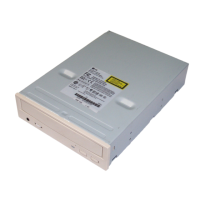
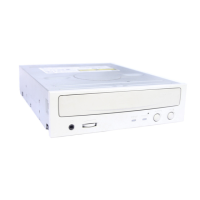
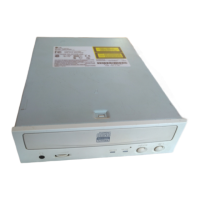
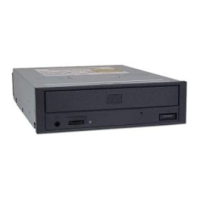
This CD-ROM drive is supplied with MS-DOS drivers on a 3
1
/2-inch floppy disk.
These drivers are required to use the CD-ROM drive in DOS and Windows 3.1.
Drivers for other Operating Systems are not normally required or available as
they usually have an generic IDE, E-IDE/ATAPI CD-ROM driver built in; Windows
95, 98, 2000, NT 3.51 and higher and OS/2 Warp 3.0 are such examples.
If it is necessary to edit any file manually, first make a backup copy on a floppy
disk, then edit the original file, save it to your hard drive, exit, and re-boot the
PC to ensure the change will be implemented.
Running the Install Program (MS-DOS Installation)
1. Boot to the DOS prompt.
2. Insert the driver diskette into the appropriate drive.
3. Go to the floppy drive by typing A: or B: at the DOS prompt, as appropriate.
4. Type the word INSTALL and [Enter].
5. The Install program will begin loading and you will prompted to accept the default direc-
tory of C:\DVDROM press [Enter] to accept (suggested) or edit the path then press [Enter].
6. When installation is complete, remove the diskette and reboot your PC.
(Note: You must have a Config.sys and an Autoexec.bat file on your hard drive
for the install program to add the necessary command lines.)
For Windows 98/95 Users
[
In order to ensure normal drive operation, please check the following:
• The drive is displayed in
[control panels]-[system]-[device manager]-[CD-ROM]
• 32-bit is displayed in
[control panels]-[system]-[performance]
[
If the drive is not recognized by your computer, please check the following
items.
• If a indicator is displayed on the IDE controller in [control panels]-
[system]-[device manager]-[harddisk controller], you will need to contact
your PC’s manufacturer or the motherboard’s manufacturer and get the appropriate
IDE controller driver.
[
Run ADD NEW HARDWARE in Control Panel to let PC search again for new
device.


 To Next Page