13
Communicate Visually with VuTalk
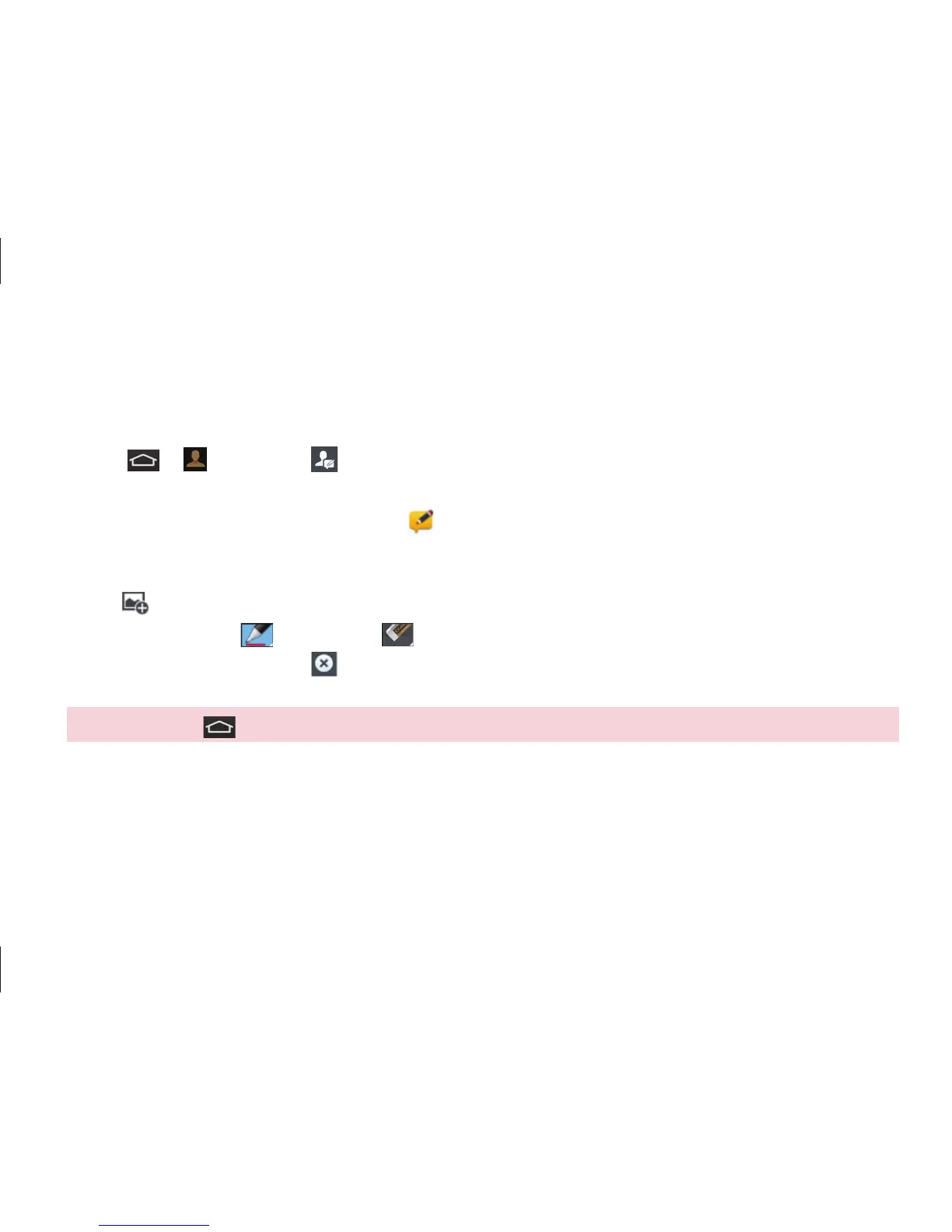
1. Tap
>
Contacts > . Only the contacts who use the VuTalk feature will be displayed.
2. Tap a contact to start VuTalk with.
3. In the contact's details screen, tap
. After the other party accepts your VuTalk request,
you can start VuTalk with him/her.
4. Use the VuTalk screen to chat and visually communicate with your friend.
• Tap
to attach a photo, take a new photo, map view, or a sticker.
• Tap the Pen icon
and Eraser icon to write on the images you attached.
5. When you finish VuTalk, tap or to exit the VuTalk feature. The created VuTalk screen is stored in the
Notebook app.
NOTE: If you tap and go back to the Home screen, the VuTalk feature still runs in the background.



 To Next Page