11
• This player does not support the file that are recorded with GMC*
1
or Qpel*
2
.
Those are video encoding techniques in MPEG4 standard, like DivX have.
*1 GMC - Global Motion Compensation
*2 Qpel - Quarter pixel
Listening to Music Disc or files - more you
can do
Creating your own program
You can play the contents of a disc in the order you want by arranging the order
of the musics on the disc. To add a music(s) on the program list, press
PROGRAM to enter the program edit mode ( mark appears on the menu).
Select a desired music on the [List] then press ENTER to add the music to the
program list. Select a music from the program list then press ENTER to start
programmed playback. To clear a music from the program list, select the music
you want to clear then press CLEAR in program edit mode. To clear all music
from the program list, select [Clear All] then press ENTER in program edit mode.
The program is cleared when the disc is removed or the unit is turned off.
Playing a CD-G disc
Once you insert an CD-G disc, a menu appears on the screen. Use vV to
select a track then press PLAY (
NN
). To display the CD-G menu during
playback, press STOP (
xx
) twice. You can display the setup menu by pressing
SETUP only when CD-G menu appears on the TV screen.
Displaying file information (ID3 TAG)
While playing a MP3 file containing file information, you can display the
information by pressing DISPLAY repeatedly.
MP3/WMA music file requirement
MP3/WMA compatibility with this unit is limited as follows:
• File extensions: “.mp3”, “.wma”
• Sampling frequency: within 8 to 48 kHz (MP3), within 32 to 48 kHz (WMA)
• Bit rate: within 8 to 320 kbps (MP3), within 32 to 192 kbps (WMA)
• CD-R/RW, DVD±R/RW Format: ISO 9660
• Maximum Files/Folders: Less than 600 (total number of files and folders)
Tip:
Press and hold
vv VV
to move previous or the next page.
Viewing photo files - more you can do
Viewing photo files as a slide show
Use vV b B to highlight ( ) icon then press ENTER to start slide show.
You can change slide show speed using bBwhen ( ) icon is highlighted.
Skip to the next/previous photo
Press SKIP (. or >) to view the previous/next photo.
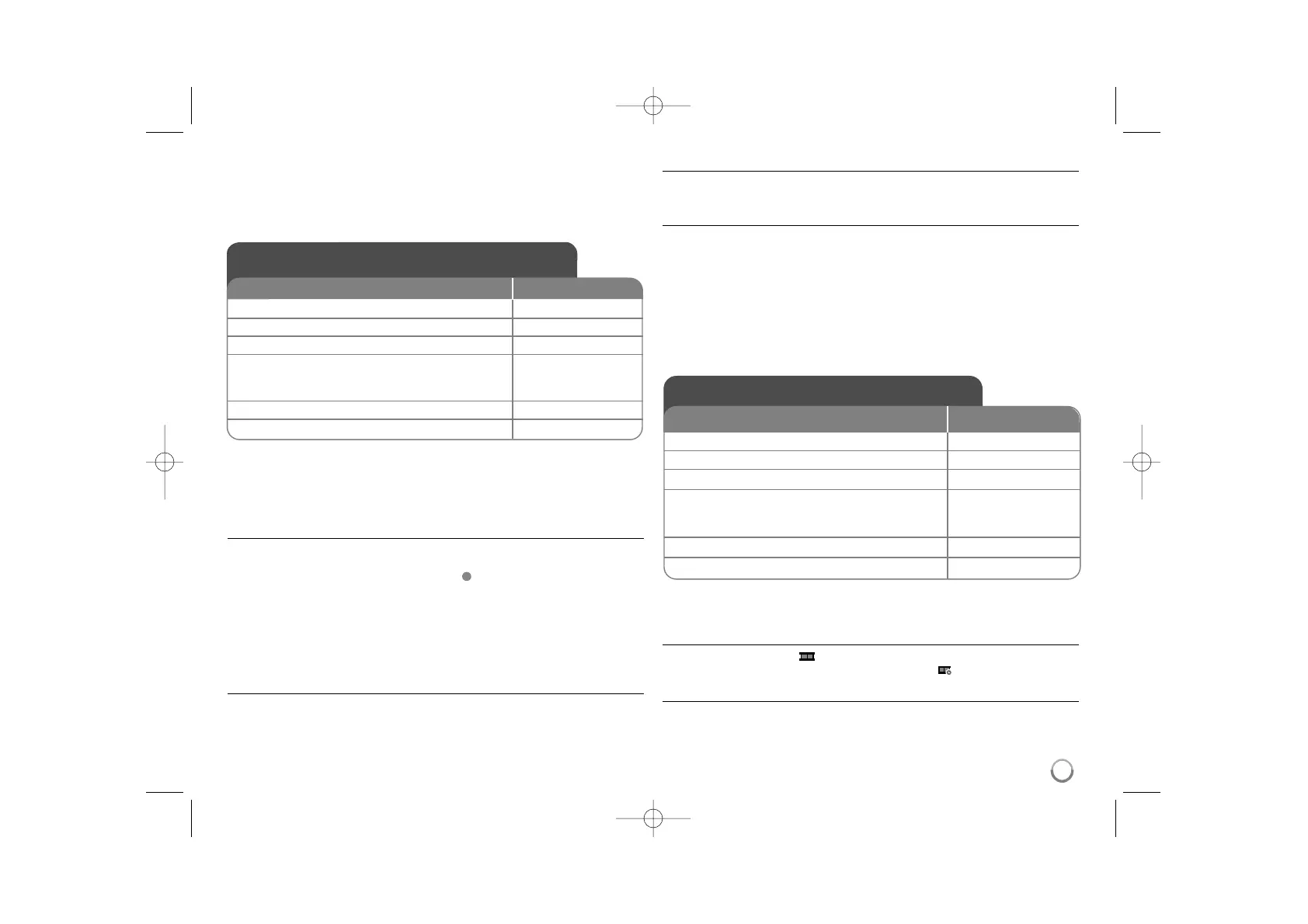
Listening to Music Disc or files
ON REMOTE
1 Open the disc tray:
ZZ
OPEN/CLOSE
2 Insert a disc: -
3 Close the disc tray:
ZZ
OPEN/CLOSE
4 Select a music from the menu:
vv VV
, DVD MENU
To go directly to track/file and play, enter the
track/file number using the numbered buttons (0-9).
5 Start playback:
NN
PLAY
6 To stop playback:
xx
STOP
Viewing photo files
1 Open the disc tray:
ZZ
OPEN/CLOSE
2 Insert a disc: -
3 Close the disc tray:
ZZ
OPEN/CLOSE
4 Select a photo file on the menu:
vv VV
, DVD MENU
To go directly to file and play, enter the file number
using the numbered buttons (0-9).
5 Display the selected file in full screen:
NN
PLAY
6 To return to the menu:
xx
STOP
ON REMOTE


 To Next Page