Operating26
Operating
4
Resume playback
ryut
The unit records the point where you pressed the
Z
STOP depending on the disc.
If “
MZ
(Resume Stop)” appears on the screen brie y,
press
d
PLAY, MONO/STEREO to resume playback
(from the scene point).
If you press
Z
STOP twice or unload the disc,
“
Z
”(Complete Stop) appears on the screen. The
unit will clear the stopped point.
The resume point may be cleared when a
button is pressed (for example;
1
(POWER),
B
OPEN/CLOSE, etc).
,
Note
Changing subtitle code page
y
If the subtitle is not displayed properly, you can
change the subtitle code page to view the subtitle
le properly.
1. During playback, press
m
INFO/DISPLAY to
display the On-Screen display.
2. Use
WS
to select the [Code Page] option.
3. Use
AD
to select desired code option.
4. Press
x
RETURN to exit the On-Screen display.
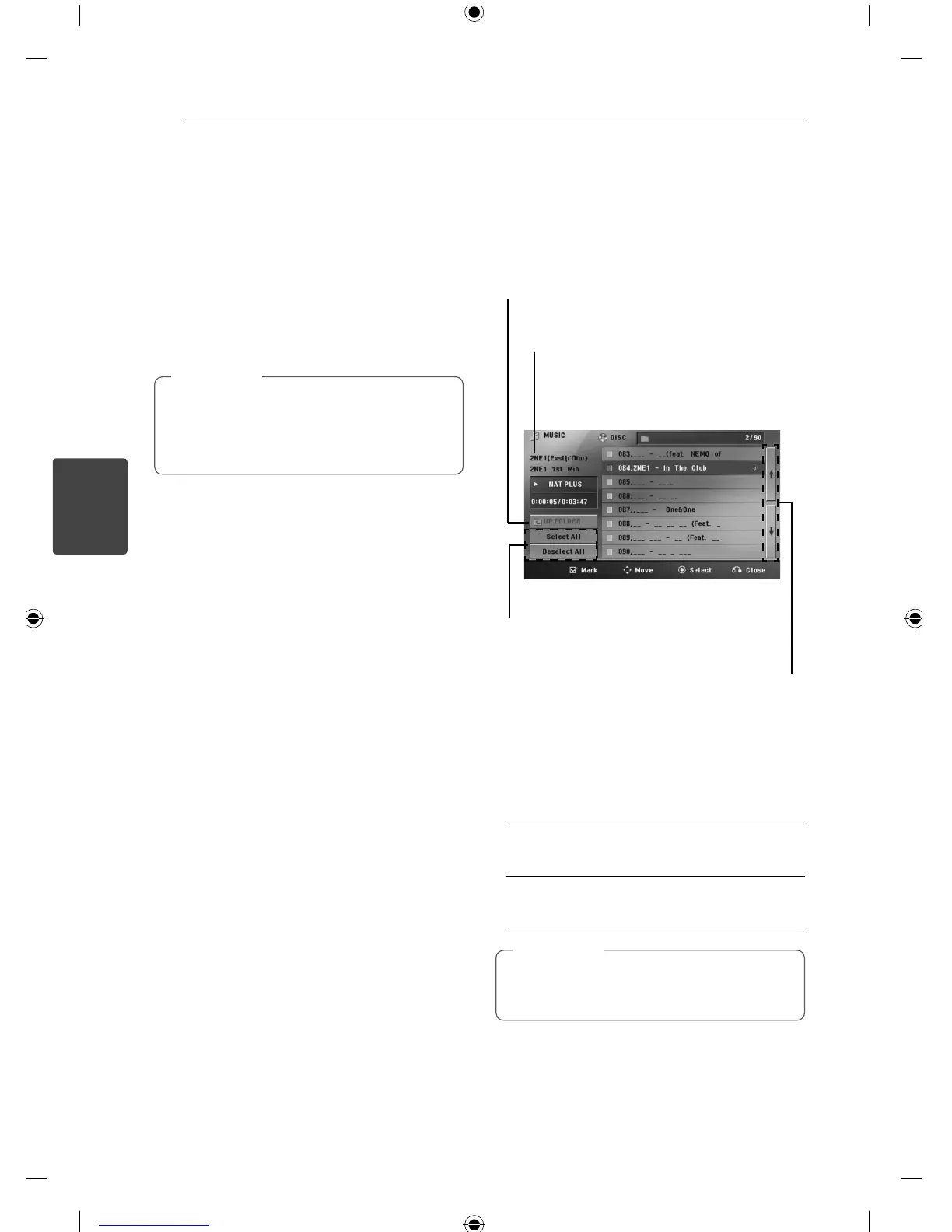
Marked Playback
ut
The mark function enables you to store your
favourite les from any disc or USB device in the
unit memory.
1. Select [Music] on the [Home Menu].
Returning to the upper folder.
(MP3/ WMA only)
Moving to the previous or
next le list.
Selecting all tracks/ les.
Deselecting all tracks/ les.
File information will be displayed
according to the ID3TAG information
on the appropriate music le. (MP3
only)
2. Select a desired music on the [List] by using the
WS
then press MARKER to appears the mark on
the list.
3. Press
b
ENTER or
d
PLAY, MONO/STEREO.
Displays the play mode.
4. Select the play mode by using the
WS
and press
b
ENTER.
[Mark Play]
Marked playback.
[Current Play]
Normal playback.
If you want to select all les on the list, select
[Select All] and press
b
ENTER.
,
Note



 To Next Page