51
Operation
4
Operation
Audio CD Recording
You can record one desired track or all of the
tracks in Audio CD to a USB storage device.
1. Insert a USB storage device to the USB port
on the front panel.
2. Press
Z
(OPEN/CLOSE), and place an Audio
CD on the disc tray.
Press
Z
(OPEN/CLOSE) to close the disc
tray. The playback starts automatically.
3. Press INFO/DISPLAY (
) to display the
option menu.
Or
Press
z
REC button on the remote control.
You can record all musics in the audio CD.
4. Use
U
/
u
to select [CD Recording] option,
and press ENTER (
) to display the [CD
Recording] menu.
Repeat this step to select tracks as many as
you can.
5. Use
U
/
u
to select a track you wish to copy
on the menu, and press ENTER (
).
Repeat this step to select tracks as many as
you can.
Select all the tracks on an Audio
CD.
Selects an encoding option from
the pop-up menu (128 kbps,
192 kbps, 320 kbps or Lossless).
Cancels the recording and
returns to the previous screen.
6. Use
U
/
u
/
I
/
i
to select [Start], and press
ENTER (
).
7. Use
U
/
u
/
I
/
i
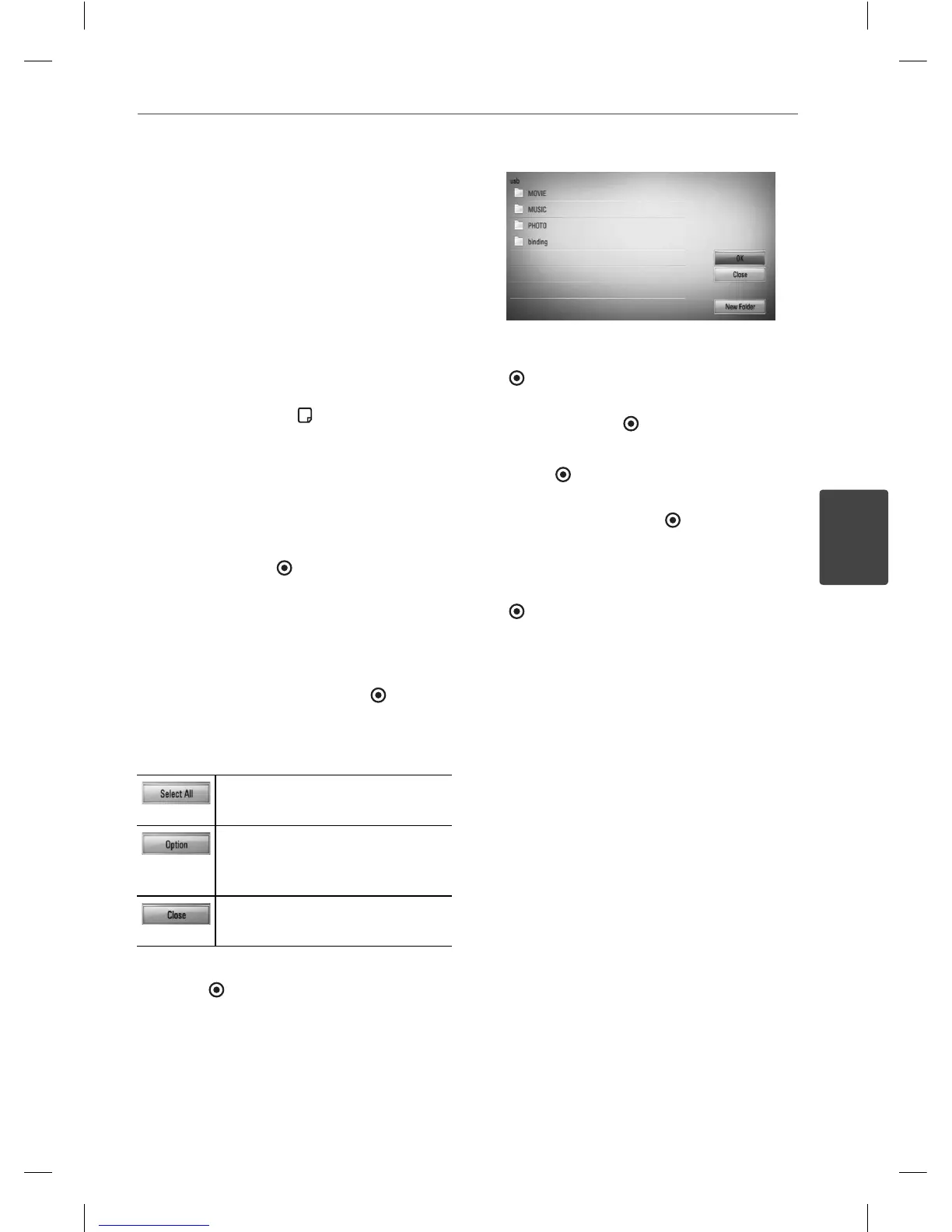
to select the destination
folder to be copied.
If you want to create a new folder, use
U
/
u
/
I
/
i
to select [New Folder] and press ENTER
( ).
Enter a folder name using virtual keyboard,
and press ENTER ( ) while [OK] is selected.
8. Use
U
/
u
/
I
/
i
to select [OK], and press
ENTER (
) to start Audio CD recording.
If you want to stop in progressing Audio CD
recording, press ENTER ( ) while [Cancel] is
highlighted.
9. A message appears when Audio CD
recording is completed. Press ENTER
(
) to check the music le created in the
destination folder.
HB405SU_D0.BGBRLL_ENG_4261.indd 51HB405SU_D0.BGBRLL_ENG_4261.indd 51 2010.2.11 2:22:52 PM2010.2.11 2:22:52 PM


 To Next Page