28 Installation
Installation
3
Wired Network Setup
Before setting the wired network, you need to
connect the broadband internet to your home
network.
If there is a DHCP server on the local area
network (LAN) via wired connection, this player
will automatically be allocated an IP address.
After making the physical connection, a small
number of home networks may require the
player’s network setting to be adjusted. Adjust
the [NETWORK] setting as follow.
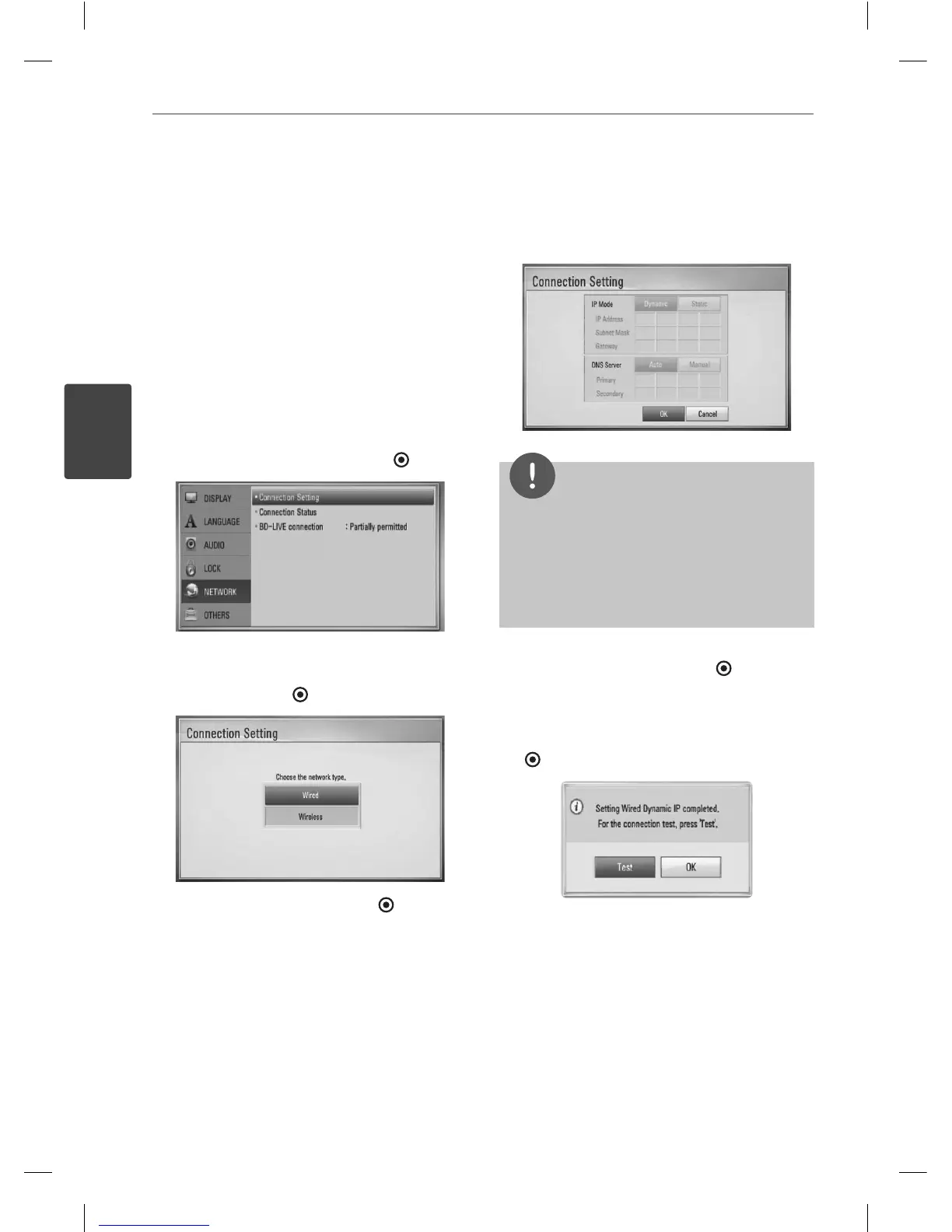
1. Select [Connection Setting] option in the
[Setup] menu then press ENTER (
).
2. The [Connection Setting] menu appear on
the screen. Use
U
/
u
to select the [Wired]
and press ENTER ( ).
3. Selects [Yes] and press ENTER ( ) to
continue. The new connection setting
resets the current network settings.
4. Use
U
/
u
/
I
/
i
to select the IP mode
between [Dynamic] and [Static].
Normally, select [Dynamic] to allocate an IP
address automatically.
NOTE
If there is no DHCP server on the network and you
want to set the IP address manually, select [Static]
then set the [IP Address], [Subnet Mask], [Gateway]
and [DNS Server] using
U
/
u
/
I
/
i
and numerical
buttons. If you make a mistake while entering a
number, press CLEAR to clear the highlighted part.
5. Select [OK] and press ENTER ( ) to apply
network settings.
6. The player will ask you to test the network
connection. Select [OK] and press ENTER
(
) to complete the network connection.
HB965DF-DD.BGBRLL_ENG_0466.indd 28HB965DF-DD.BGBRLL_ENG_0466.indd 28 2010.2.26 1:24:50 PM2010.2.26 1:24:50 PM



 To Next Page