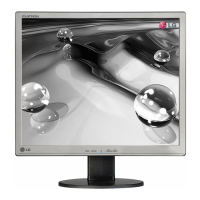
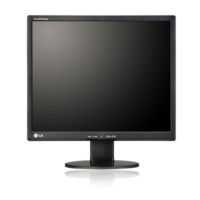
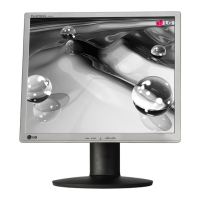
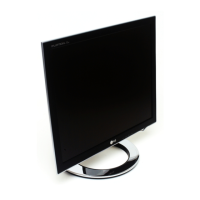
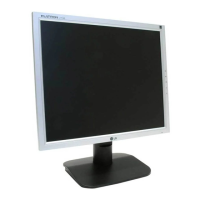
This document is a user's guide for several LG monitor models: L1742P, L1942P, L1742PP, L1942PP, L1742PQ, and L1942PQ. It provides essential information regarding the safe installation, operation, and maintenance of these displays.
Function Description
The LG monitors are designed to display visual information from a computer system. They feature an On Screen Display (OSD) control system that allows users to adjust various image parameters and operating settings for optimal viewing. The monitors support both analog (D-Sub) and digital (DVI) input signals, making them compatible with a wide range of computer systems. A key feature is the "Self Image Setting Function," which automatically adjusts the display to optimal settings for individual input signals when the monitor is connected for the first time or when the AUTO/SET button is pressed. This function is particularly useful for resolving issues like blurry screens, blurred letters, screen flicker, or tilted screens.
The OSD menu provides comprehensive control over the display's image, position, and operating parameters. Users can adjust brightness, contrast, and gamma under the "PICTURE" menu. Color customization is available through the "COLOR" menu, allowing adjustments to red, green, and blue levels, or selection of preset color temperatures like sRGB, 6500K (slightly reddish white), and 9300K (slightly bluish white). For image positioning and clarity, the "TRACKING" menu offers controls for horizontal and vertical position, clock (to minimize vertical bars or stripes), phase (to adjust focus and remove horizontal noise), and sharpness.
The "SETUP" menu allows users to customize the screen status for their operating environment, including language selection for OSD control names, OSD position adjustment, and white balance calibration. The white balance function is particularly useful if the video card output differs from required specifications, potentially causing color level deterioration due to signal distortion. It adjusts the signal level to fit the standard output level of the video card for optimal image quality, especially when white and black colors are present on the screen. The power indicator on the front of the monitor can also be set to ON or OFF. A "FACTORY RESET" option is available to restore all factory default settings, except for the language.
A unique feature is the "FLATRON f-ENGINE" menu, which offers various image settings optimized for different content types and environments. This includes "MOVIE" for animation images in videos, "INTERNET" for text images (like word processing), "USER" for manual adjustment of brightness, ACE (Adaptive Clarity Enhancer), and RCM (Real Color Management), "NORMAL" for standard operating conditions, and "DEMO" for advertising purposes, which divides the screen in half to showcase the Movie mode.
The monitors are designed with ergonomic considerations, allowing for tilt adjustment (-6° to 17°) and height adjustment (up to 110.0 mm). Some models also feature a "Landscape & Portrait" function, enabling the panel to rotate 90° clockwise, with detailed information provided on a separate Pivot Software CD.
Usage Features
The user's guide emphasizes safe installation and operation. Users are instructed to use only the supplied power cord and ensure the socket-outlet is easily accessible. The display should be operated from a power source indicated in the specifications. Overloaded AC outlets, extension cords, frayed power cords, and broken plugs are highlighted as potential hazards.
Connecting the stand involves placing the monitor face down on a soft cloth, assembling the stand base into the stand body, and then pulling out a stop pin. A warning is given about potential injury if the tape and locking pin are removed incorrectly on models with a standing base. The guide also advises against carrying the product upside down by only holding the stand base to prevent damage or injury.
For connecting to a computer, the guide details connecting DVI and D-Sub cables. It notes that shielded signal interface cables with ferrite cores are necessary for standard compliance. For Apple Macintosh users, a separate plug adapter may be needed for the D-sub VGA connector.
The front panel controls include a MENU button for OSD access, AUTO/SET button for automatic image adjustment and selecting OSD icons, f-ENGINE button for quick access to image modes, SOURCE button to switch between D-Sub and DVI inputs, and power buttons/indicators. The OSD can be locked to prevent inadvertent changes, displaying "OSD LOCKED" or "OSD UNLOCKED" messages.
Troubleshooting tips are provided for common issues such as no image, "OUT OF RANGE" messages, "CHECK SIGNAL CABLE" messages, "OSD LOCKED" messages, incorrect display position, vertical bars or stripes, horizontal noise, and incorrect screen color. It also addresses issues related to display driver installation.
Maintenance Features
The guide includes specific instructions for maintaining the display. For cleaning, it advises unplugging the display before cleaning the screen and using a slightly damp (not wet) cloth. Aerosols should not be sprayed directly on the screen to avoid electrical shock.
For repacking, users are advised to keep the original carton and packing materials for transporting the unit.
Regarding disposal, the guide notes that the fluorescent lamp contains mercury and the product should not be disposed of with general household waste. Disposal must comply with local authority regulations.
The document also highlights several precautions:
- Do not allow anything to rest on or roll over the power cord.
- Avoid placing the display near water sources.
- Ensure ventilation openings are not blocked to prevent overheating and fire hazards.
- Do not rub or strike the Active Matrix LCD with hard objects to prevent scratches or damage.
- Avoid pressing the LCD screen with a finger for extended periods to prevent afterimages.
- Be aware that some dot defects (red, green, or blue spots) may appear but do not affect display performance.
- Use the recommended resolution for the best image quality, as other modes may result in scaled or processed images.
- Use a screen saver to prevent image burn-in from fixed images, as this phenomenon is not covered by warranty.
The guide also mentions a Kensington Security Slot for connecting a locking cable, which can be purchased separately, to secure the monitor.


 To Next Page
 General