EasyManua.ls Logo

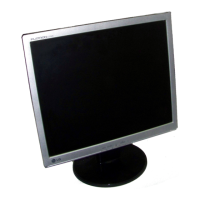
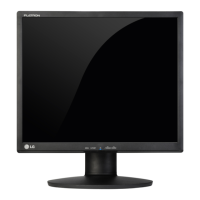
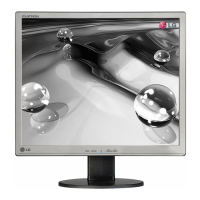
LG L1742P - User Manual

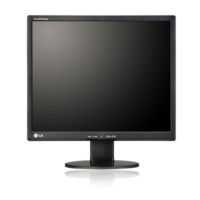
LG L1742P
27 pages
Print Icon
To Next Page IconTo Next Page
Loading...
Make sure to read the Important Precautions before using the product.
Keep the User's Guide(CD) in an accessible place for future reference.
See the label attached on the product and give the information to your
dealer when you ask for service.
L1742P
L1942P
L1742PP
L1942PP
L1742PQ
L1942PQ
Users Guide

Questions and Answers

  • T
    Timothy CaldwellAug 11, 2025
    How to fix LG Monitor when no image appears?
    • S
      Susan MoranAug 12, 2025
      If no image appears on your LG Monitor, there are several potential solutions: * Ensure the power cord is properly connected to the power outlet. * Press the Power button on the monitor. * Adjust the brightness and contrast settings. * If the display is in power saving mode, try moving the mouse or pressing any key on the keyboard. * Make sure your PC is turned on. Additionally, if you see a message indicating that the signal from the PC (video card) is out of the display's frequency range, consult the 'Specifications' section of the manual to configure your display accordingly. If the signal cable between the PC and the display is not connected, double-check the connection and try again.
  • T
    Taylor JimenezAug 18, 2025
    What to do if display image is incorrect on LG Monitor?
    • E
      Elizabeth KimAug 18, 2025
      If the display image on your LG Monitor is incorrect, try the following: 1. Press the AUTO/SET button to automatically adjust the display image to the ideal setting. 2. If the results are unsatisfactory, adjust the image position using the H position and V position icons in the on-screen display. 3. If the results are still unsatisfactory, decrease vertical bars or stripes using the CLOCK icon in the on-screen display. 4. Alternatively, decrease horizontal bars using the PHASE icon in the on-screen display. 5. Check Control Panel --> Display --> Settings and adjust the display to the recommended resolution or adjust the display image to the ideal setting. 6. Ensure the color setting is higher than 24 bits (true color).
  • V
    Virginia DoyleAug 25, 2025
    What to do if no image appears on my LG Monitor?
    • C
      cristina31Aug 25, 2025
      If no image appears on your LG Monitor, start by ensuring the power cord is securely connected to the power outlet. Then, press the Power button on the monitor. Also, adjust the brightness and contrast settings to see if the image appears. If the monitor is in power saving mode, try moving the mouse or pressing any key on the keyboard. Finally, ensure your PC is turned on. If the issue persists, the signal cable between your PC and your monitor might not be connected properly, so check the signal cable and try again. If you see a message indicating that the signal from the PC (video card) is out of horizontal or vertical frequency range of the display, consult the 'Specifications' section of this manual and configure your display again.
  • K
    Kathy RandallAug 30, 2025
    Why does my LG Monitor say 'OSD LOCKED'?
    • T
      Tyler LeAug 30, 2025
      If you see an "OSD LOCKED" message on your LG Monitor screen, you can unlock the OSD controls by pushing the MENU button for several seconds until the message “OSD UNLOCKED” appears.
  • Z
    Zachary DrakeSep 5, 2025
    How to unlock OSD on LG Monitor?
    • C
      Christopher ArellanoSep 5, 2025
      If you see an 'OSD LOCKED' message on your LG Monitor, you can unlock the OSD controls by pushing the MENU button for several seconds until the message 'OSD UNLOCKED' appears.

LG L1742P Specifications

General IconGeneral
Screen Size17 inches
Resolution1280 x 1024
Panel TypeTN
Aspect Ratio5:4
Brightness250 cd/m²
Response Time8 ms
ConnectivityAnalog
Input ConnectorsVGA
Viewing Angle160° (H) / 160° (V)

Related product manuals