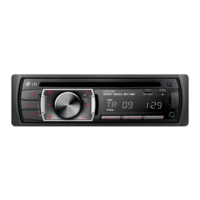
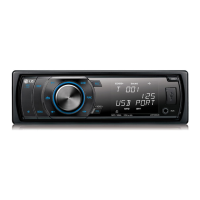
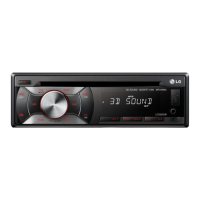
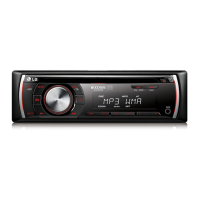
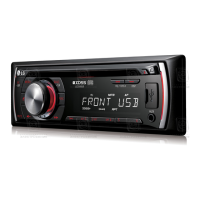
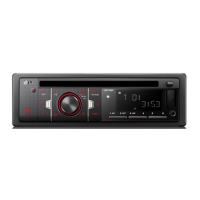
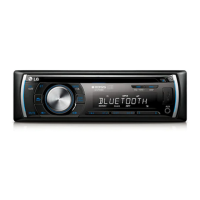
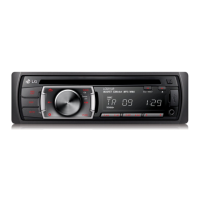
This document describes the LG Car CD/MP3/WMA Receiver, models LCS311UR, LCS310UR, and LCS110AR. It serves as an owner's manual, providing safety information, installation instructions, operational guidance, troubleshooting tips, and specifications.
Function Description
The LG Car CD/MP3/WMA Receiver is an in-car audio system designed to play CDs, MP3, and WMA files, as well as receive radio broadcasts. It features a detachable control panel for security and includes an optional USB port for playing music from external USB devices. The unit offers various sound enhancement features like an equalizer (EQ) and XDSS+ (Extreme Dynamic Sound System) to improve audio quality. It also supports auxiliary input for connecting other portable players.
Usage Features
The device offers a range of features for an enhanced in-car audio experience:
- Power On/Off and Source Selection: The unit can be powered on or off by pressing and holding the SRC/OFF button. Short presses of the SRC/OFF button allow selection of different function sources (CD, Tuner, AUX, USB).
- Volume Control: The volume knob on the unit or the VOLUME A/V buttons on the remote control adjust the sound level.
- Sound Enhancement (EQ/XDSS+):
- EQ (Equalizer): Pressing the EQ/XDSS+ button cycles through various preset equalizer modes such as POP, CLASSIC, ROCK, JAZZ, VOCAL, SALSA, SAMBA, REGGAE, RUSSY, USER 1, USER 2, and Off. In USER 1/2 modes, users can customize sound levels for BASS, MID, TRB, BAL, FAD, and S-W (Sub-woofer, if optional). When XDSS+ is off, EQ settings can be adjusted.
- XDSS+ (Extreme Dynamic Sound System): Pressing and holding the EQ/XDSS+ button activates or deactivates XDSS+, which enhances treble and bass.
- Display Control: The DISP button allows checking the clock time. Pressing and holding DISP turns the display light on or off. The display light automatically turns off after a few seconds if no keys are pressed while in light-off mode.
- Mute Function: The MUTE button temporarily stops the sound. Pressing it again resumes playback.
- Settings Menu: The button activates the setting menu, allowing adjustments for [SOUND], [LIGHT], and [OTHER] settings.
- [SOUND] Settings: Customize BASS, MID, TRB, BAL, FAD, and S-W levels.
- [LIGHT] Settings: Adjust display brightness (DIM ON/OFF/AUTO) and dimmer level (DIM L).
- [OTHER] Settings:
- AUX (Auxiliary) ON/OFF: Activates or deactivates auxiliary input.
- BEEP 2ND/ALL: Controls beep sounds for key presses.
- A-EQ (Auto EQ) ON/OFF: Automatically selects EQ mode based on music genre.
- SW (Subwoofer) OFF/55 Hz/85 Hz/120 Hz: Enables and sets the subwoofer frequency.
- DEMO OFF/ON: Changes initial display indication.
- CLK (Clock): Allows manual clock adjustment or synchronization with RDS CT information.
- CD/MP3/WMA Playback:
- Disc Insertion: Insert a CD into the slot.
- Pause/Resume: The button pauses or resumes playback.
- Search: Press and hold the -/+ buttons to search within a track/file.
- Skip: The -/+ buttons skip to the previous or next track/file.
- Track/File/Folder Selection: Use the volume knob or ENTER/LIST button to navigate and select desired ROOT, folders, tracks, or files.
- Playback Modes (FUNC button):
- INT (Intro Scan): Plays the first 10 seconds of all tracks/files or files in the current folder.
- RPT (Repeat): Repeats the current track/file or folder.
- SHF (Shuffle): Plays tracks/files in the current folder or all tracks/files on the disc randomly.
- Information Display: The DISP button shows information like Title, Artist, or Album from MP3/WMA tags.
- External Device Playback (AUX): Connect an external device to the AUX jack. Select AUX as the source and adjust volume. The GAIN LOW/HIGH setting can prevent radical volume changes when switching sources.
- Radio Tuner:
- Source Selection: Select TUNER using the SRC button.
- Band Selection: The BAND button cycles through available radio bands.
- Manual/Auto Search: Use the -/+ buttons for manual or auto searching of frequencies.
- Storing Frequencies: Press and hold -/+ until a beep is heard, then select a frequency and press a numeric preset button (1-6) to store it.
- Preset Stations: Select a band, then use the volume knob or numeric buttons (1-6) to select a preset station.
- TUNER Settings (FUNC button):
- A/S (Auto Store): Automatically stores the six strongest broadcasting frequencies.
- P/S (Preset Scan): Scans through preset stations.
- SENS (Tuner Sensitivity) MID/HI/LOW: Adjusts tuner sensitivity for weak reception areas.
- RDS (OPTIONAL):
- PTY (Program Type): Searches for stations by program type (e.g., NEWS, JAZZ, ROCK M).
- AF (Alternative Frequency) ON/OFF: Automatically switches to a stronger station within the same network if reception quality drops.
- REG (Region) ON/OFF: Controls switching to stations with the same program within the network.
- TA (Traffic Announcement) ALARM/SEEK: Provides traffic announcements or retunes if no TP information is found.
- PI (Programme Identification) SOUND/MUTE: Manages sound during AF switching with unidentified PI.
- CT (Clock Time) ON/OFF: Updates time using RDS CT information.
- USB Device (OPTIONAL):
- Connection: Open the USB cover and connect the USB device.
- Source Selection: Select USB using the SRC button.
- Drive Navigation: If using a multi-reader, the BAND (or DRV on remote) button moves to the next drive.
- Quick Search: Use the volume knob or ENTER/LIST to navigate and select desired ROOT, folders, tracks, or files.
Maintenance Features
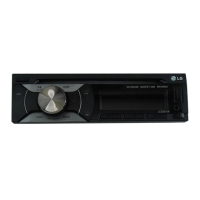
- Detachable Control Panel: The control panel can be detached for security. To detach, press the button to open the panel, then push it to the right and pull it out. Store it in the protective case.
- Control Panel Cleaning: Periodically wipe the contacts on the back of the control panel with a cotton swab moistened with alcohol. Ensure the ignition is off and the key is removed before cleaning.
- Battery Replacement (Remote Control): The remote control uses a CR2025 (3V) lithium battery. Pull out the battery holder, insert the new battery with correct polarity, and push the holder back in. Remove the battery if the remote is not used for a long period.
- Resetting the Unit: If the unit malfunctions, detach the control panel and press the RESET hole with a sharp object.
- Troubleshooting Guide: The manual includes a troubleshooting section to help diagnose and resolve common issues such as power problems, no sound, audio skipping, disc playback issues, and radio tuning difficulties.


 To Next Page
 General