EasyManua.ls Logo

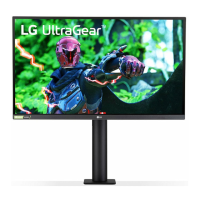
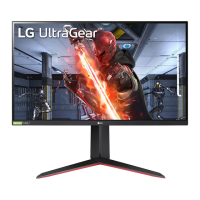
LG UltraGear 27GN880 - User Manual

LG UltraGear 27GN880
39 pages
Print Icon
To Next Page IconTo Next Page
Loading...
* LG LED Monitor applies LCD screen with LED
backlights.
Please read this manual carefully before operating
your set and retain it for future reference.
27GN880
www.lg.com
Copyright © 2020 LG Electronics Inc. All Rights Reserved.
OWNER’S MANUAL
(LED Monitor*)

Questions and Answers

  • J
    Justin HicksJul 29, 2025
    What to do if nothing is displayed on my LG UltraGear 27GN880 screen?
    • G
      Guy PhillipsJul 29, 2025
      If nothing is displayed on your LG Monitor screen, ensure the power cord is correctly plugged into the outlet. Also, check the power cable connection and press the power button. Verify that the connected input is enabled in the monitor's settings under Input. If the monitor is in sleep mode, move the mouse or press any key on the keyboard. Also, ensure that your computer is turned on. Check the signal cable and reconnect it if it's missing or disconnected. Finally, install the display driver from the LG website and make sure your graphics card supports Plug and Play.
  • J
    James ShepardAug 5, 2025
    What to do if there is no sound from the headphone port on my LG UltraGear 27GN880 Monitor?
    • D
      Donald SellersAug 5, 2025
      If there is no sound from the headphone port on your LG Monitor, first ensure that the headphone port connections are properly made. Then, try increasing the volume using the joystick. Also, set the audio output of the PC to the monitor: in Windows, go to Control Panel > Hardware and Sound > Sound and set the Monitor as the default device.
  • J
    julie42Aug 13, 2025
    Why is the display color abnormal on my LG UltraGear 27GN880 Monitor?
    • P
      Peter WalkerAug 13, 2025
      If the display color on your LG Monitor is abnormal, set the color to 24 bit (true color) or higher via Control Panel > Display > Settings > Color Quality in Windows. Also, check if the signal cable is properly connected; reconnect it or reinsert the PC's graphics card. Note that pixilated spots (red, green, blue, white, or black) may appear, which is normal for an LCD screen and not an error.
  • M
    Michael SanchezAug 20, 2025
    Why does my LG UltraGear 27GN880 Monitor screen retain an image?
    • T
      Tina BlakeAug 20, 2025
      If your LG Monitor screen retains an image, it is because displaying a still image for a prolonged time may cause damage to the screen, resulting in the retention of the image. To extend the monitor's lifetime, use a screensaver.

Summary

LICENSE

OPEN SOURCE SOFTWARE NOTICE INFORMATION

ASSEMBLING AND PREPARING

Supported Drivers and Software

Product and Button Description

How to Use the Joystick Button

Moving and Lifting the Monitor

Installing on a Table

How to fix a clamp

How to install on tables with different thickness levels

Swivel stand

Pivot Feature

Adjusting the Stand Height

Adjusting the Angle

Using the Kensington Lock

Installing on the Wall

Installing the Wall Mount Plate

USING THE MONITOR

Connecting to a PC

HDMI Connection

Transmits digital video and audio signals from your PC to the monitor via HDMI.

DisplayPort Connection

Transmits digital video and audio signals from your PC to the monitor via DisplayPort.

Connecting AV Devices

HDMI Connection

HDMI transmits digital video and audio signals from your AV device to the monitor.

Connecting Peripherals

Connecting Headphones

Connect peripherals to the monitor via the headphones port.

USER SETTINGS

Activating the Main Menu

Step-by-step guide on how to access and navigate the monitor's main menu.

Main Menu Features

User Settings

Menu Settings

Details on how to access and adjust specific settings in the OSD menu.

Game Mode and Adjustments

Picture and Input Settings

General Settings

Game Mode on SDR(Non-HDR)signal.

Game Mode on HDR signal.

Settings > Game Adjust

Adaptive-Sync

Provides seamless and natural images by synchronizing vertical frequency of input and output signals.

Black Stabilizer

Controls black contrast for better visibility in dark scenes, aiding object distinction.

Game Adjust

Response Time

Sets display response time based on screen speed for normal or fast-moving images.

Cross Hair

Provides a center mark for FPS games, with selectable cross hair styles.

Game Reset

Returns game settings to their default factory configurations.

Settings > Picture Adjust

Brightness, Contrast, Sharpness

Adjusts key visual parameters like brightness, contrast, and sharpness.

Gamma and Color Settings

Controls image gamma and color temperature for optimal viewing experience.

Advanced Color and Contrast

Fine-tunes RGB colors, black levels, and DFC for precise image control.

Picture Reset

Resets all picture settings to their factory defaults.

Settings > Input

Input List

Selects the video and audio input source for the monitor.

Aspect Ratio

Adjusts the display aspect ratio for widescreen or original video signals.

Settings > General

Language and SMART ENERGY SAVING

Configures display language and power saving modes for efficiency.

Power LED and Automatic Standby

Manages monitor power LED status and automatic standby functions.

HDMI Compatibility Mode

Enables compatibility with legacy HDMI equipment.

DisplayPort 1.4

Enables or disables DisplayPort 1.4 support based on graphics card compatibility.

General

OSD Lock

Disables or enables the configuration and adjustment of menus for security.

Information and Reset

Displays system information and restores default settings.

TROUBLESHOOTING

The screen retains an image.

Screen display is unstable and shaky.

The display color is abnormal.

No sound from the headphone port.

PRODUCT SPECIFICATION

LCD Screen and Color Depth

Specifies the monitor's screen type and supported color depth for HDMI and DisplayPort.

Resolution

Details the maximum and recommended resolutions supported via HDMI and DisplayPort.

Power Sources and Consumption

Lists power rating, typical consumption, and sleep/off mode power usage.

AC;DC Adapter

Provides details about the AC/DC adapter, including manufacturer and output specifications.

Environmental Conditions

Dimensions

Weight (Without Packaging)

Factory Support Mode

HDMI Timing (Video)

Power LED

LG UltraGear 27GN880 Specifications

General IconGeneral
BrandLG
ModelUltraGear 27GN880
CategoryMonitor
LanguageEnglish

Related product manuals