EasyManua.ls Logo

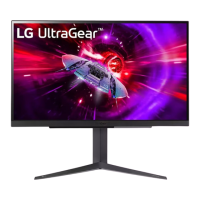
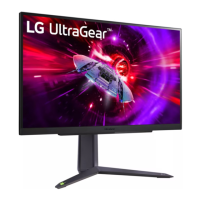
LG UltraGear 27GR75Q-B.AUS - User Manual

LG UltraGear 27GR75Q-B.AUS
12 pages
Print Icon
To Next Page IconTo Next Page
Loading...
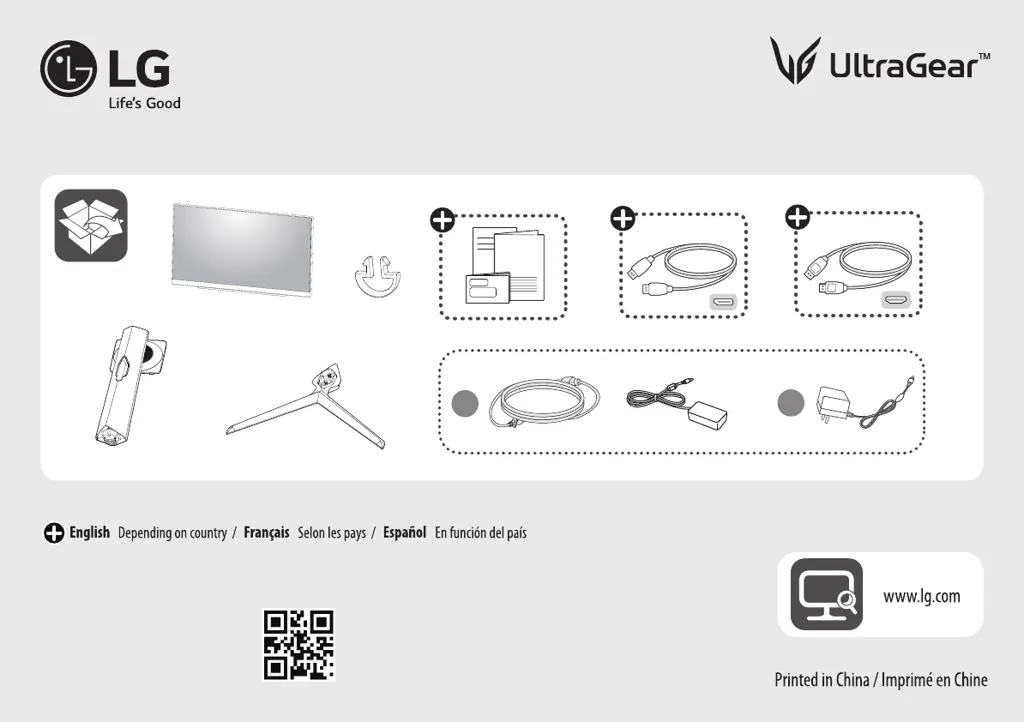
*MBM67540202*
(2311-REV02)
27GR75Q 27GR75QB
or
ou
o
a
+
b

Questions and Answers

  • C
    courtney64Aug 7, 2025
    How to fix LG UltraGear 27GR75Q-B.AUS when nothing is displayed on the screen?
    • D
      Deborah ContrerasAug 7, 2025
      If nothing is displayed on your LG Monitor, try these steps: * Ensure the power cord is correctly plugged into the power outlet. * Check the power cable connection and press the power button. * Verify that the connected input is enabled in the monitor's settings (Settings > Input). * If the monitor is in sleep mode, move the mouse or press any key on the keyboard. Also, check if the computer is turned on. * If signals from the PC are out of the monitor's recommended range, see the Product Specification section of this manual to set the appropriate frequency. * Check and reconnect the cable. * Install the display driver from the LG website (http://www.lg.com) and ensure the graphics card supports Plug and Play.
  • K
    Kenneth LeonAug 11, 2025
    What to do if there is no sound from the headphone port on LG UltraGear 27GR75Q-B.AUS Monitor?
    • J
      Jason MunozAug 11, 2025
      If you're not getting any sound from the headphone port on your LG Monitor: * Ensure that the headphone port connections are properly made. * Try increasing the volume using the joystick. * Set the audio output of the PC to the monitor you are using. In Microsoft Windows, go to Control Panel > Hardware and Sound > Sound and set the Monitor as the default device.
  • J
    jeremyramosAug 16, 2025
    Why is my LG Monitor screen display unstable and shaky?
    • M
      Michele MillerAug 16, 2025
      If your LG Monitor's screen display is unstable, shaky, or images leave shadow trails, and if the selected resolution is HDMI 1080i 60/50 Hz (interlaced), the screen may be flickering. Try changing the resolution to 1080p or the recommended resolution.
  • J
    Joshua GomezAug 20, 2025
    How to troubleshoot no sound from headphone port on LG UltraGear 27GR75Q-B.AUS?
    • G
      Gabriel OlsenAug 20, 2025
      If there's no sound from the headphone port on your LG Monitor, first, ensure the headphone port connections are correctly made. Then, try increasing the volume using the joystick. Lastly, set the audio output of your PC to the monitor. On Microsoft Windows, go to Control Panel > Hardware and Sound > Sound and set the Monitor as the default device.
  • K
    Kevin AvilaAug 25, 2025
    Why is the display color abnormal on my LG Monitor?
    • E
      egreenAug 26, 2025
      If the display color on your LG Monitor is abnormal, here are a few things to try: * Set the color to 24 bit (true color) or higher by going to Control Panel > Display > Settings > Color Quality in Windows. * Check if the signal cable is properly connected. Try reconnecting the cable or reinserting the PC's graphics card. * Note that sometimes, this is not an error and is not related to the monitor's performance.
  • O
    olindseyAug 28, 2025
    How to enable disabled features on LG UltraGear 27GR75Q-B.AUS Monitor?
    • O
      olsoncathyAug 29, 2025
      If some features are disabled on your LG Monitor, go to Settings > General and set OSD Lock to Off.
  • N
    Nathan MonroeSep 2, 2025
    Why does my LG UltraGear 27GR75Q-B.AUS Monitor screen retain an image?
    • J
      jeremybowenSep 2, 2025
      Displaying a still image for a prolonged time may cause damage to the screen, resulting in the retention of the image. To extend the lifetime of your LG monitor, use a screensaver.

LG UltraGear 27GR75Q-B.AUS Specifications

General IconGeneral
Screen Size27 inches
Resolution2560 x 1440 (QHD)
Panel TypeIPS
Refresh Rate165 Hz
Response Time1 ms (GtG)
Contrast Ratio1000:1
HDR SupportHDR10
Aspect Ratio16:9
VESA Mount100 x 100 mm
ConnectivityHDMI, DisplayPort
Color GamutsRGB 99%
Viewing Angle178°
Ports2 x HDMI, 1 x DisplayPort, 1 x Headphone Out
Dimensions (W x H x D)24.2 x 17.9 x 10.5 inches
Brightness300 cd/m² (Typ.)
Adaptive SyncAMD FreeSync Premium, NVIDIA G-SYNC Compatible

Related product manuals