EasyManua.ls Logo

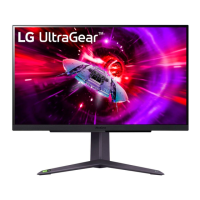
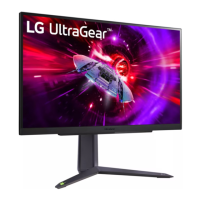
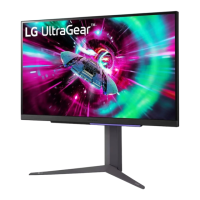
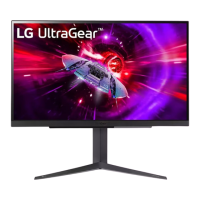
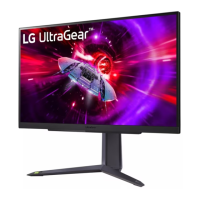
LG UltraGear 27GR75Q - User Manual

LG UltraGear 27GR75Q
47 pages
Print Icon
To Next Page IconTo Next Page
Loading...
(LED Monitor)
User Manual
Please read this manual carefully before operating your set and retain it for future reference.
27GR75Q
27GR75QB
www.lg.com
Copyright © 2023 LG Electronics Inc. All Rights Reserved.

Other manuals for LG UltraGear 27GR75Q

Questions and Answers

  • D
    dsnowJul 28, 2025
    How to fix LG UltraGear 27GR75Q when nothing is displayed on the screen?
    • W
      wmossJul 28, 2025
      If nothing is displayed on your LG Monitor, try these steps: * Ensure the power cord is correctly plugged into the power outlet. * Check the power cable connection and press the power button. * Verify that the connected input is enabled in the monitor's settings (Settings > Input). * If the monitor is in sleep mode, move the mouse or press any key on the keyboard. Also, check if the computer is turned on. * If signals from the PC are out of the monitor's recommended range, see the Product Specification section of this manual to set the appropriate frequency. * Check and reconnect the cable. * Install the display driver from the LG website (http://www.lg.com) and ensure the graphics card supports Plug and Play.
  • D
    Douglas BakerAug 1, 2025
    What to do if there is no sound from the headphone port on LG UltraGear 27GR75Q Monitor?
    • A
      Amy LongAug 1, 2025
      If you're not getting any sound from the headphone port on your LG Monitor: * Ensure that the headphone port connections are properly made. * Try increasing the volume using the joystick. * Set the audio output of the PC to the monitor you are using. In Microsoft Windows, go to Control Panel > Hardware and Sound > Sound and set the Monitor as the default device.
  • S
    Stephen JonesAug 5, 2025
    Why is my LG UltraGear 27GR75Q Monitor screen display unstable and shaky?
    • L
      lisa10Aug 5, 2025
      If your LG Monitor's screen display is unstable, shaky, or images leave shadow trails, and if the selected resolution is HDMI 1080i 60/50 Hz (interlaced), the screen may be flickering. Try changing the resolution to 1080p or the recommended resolution.
  • V
    vrodriguezAug 9, 2025
    How to troubleshoot no sound from headphone port on LG UltraGear 27GR75Q?
    • T
      Thomas JacksonAug 9, 2025
      If there's no sound from the headphone port on your LG Monitor, first, ensure the headphone port connections are correctly made. Then, try increasing the volume using the joystick. Lastly, set the audio output of your PC to the monitor. On Microsoft Windows, go to Control Panel > Hardware and Sound > Sound and set the Monitor as the default device.
  • L
    Lindsey SanchezAug 14, 2025
    Why is the display color abnormal on my LG UltraGear 27GR75Q Monitor?
    • L
      Larry McdowellAug 14, 2025
      If the display color on your LG Monitor is abnormal, here are a few things to try: * Set the color to 24 bit (true color) or higher by going to Control Panel > Display > Settings > Color Quality in Windows. * Check if the signal cable is properly connected. Try reconnecting the cable or reinserting the PC's graphics card. * Note that sometimes, this is not an error and is not related to the monitor's performance.
  • C
    Christopher LewisAug 18, 2025
    How to enable disabled features on LG UltraGear 27GR75Q Monitor?
    • M
      Michele MoraAug 18, 2025
      If some features are disabled on your LG Monitor, go to Settings > General and set OSD Lock to Off.
  • A
    acrawfordAug 23, 2025
    Why does my LG UltraGear 27GR75Q screen retain an image?
    • S
      Sarah YoungAug 23, 2025
      Displaying a still image for a prolonged time may cause damage to the screen, resulting in the retention of the image. To extend the lifetime of your LG monitor, use a screensaver.

Summary

Initial Setup and Usage

Monitor Operation and Adjustments

Using the Joystick Button

Explains basic functions like power on/off and volume control using the joystick.

Installation Procedures

Adjusting the Stand Height

Steps to adjust the monitor's vertical height using the stand.

Adjusting the Screen Angle

Instructions for tilting the monitor screen for optimal viewing angle.

Pivot Feature Operation

How to rotate the monitor 90 degrees clockwise using the pivot feature.

Installing the Wall Mount Plate

Instructions for installing the wall mount plate and mounting the monitor on a wall.

Installing on the Wall

Detailed instructions for mounting the monitor on a wall using a bracket.

Connecting Devices

Connecting to a PC

Information on connecting the monitor to a PC using Plug and Play features.

HDMI and DisplayPort Connections

Details on connecting PCs and AV devices using HDMI and DisplayPort, including cable recommendations.

User Settings and Menu Navigation

Activating the Main Menu

Step-by-step guide to access the main menu using the joystick button.

Menu Settings Categories

Explains navigation through OSD menus and lists main categories: Game Mode, Adjustments, Input, and General.

Game Mode Configuration and Adjustments

Picture and Input Settings

General System Configuration

Troubleshooting Common Issues

Screen Display Problems

Solutions for no display, flickering, resolution errors, and "No Signal" messages.

Product Specifications

LCD Screen and Resolution Details

Specifies screen size, color depth, and resolutions for HDMI and DisplayPort.

LG UltraGear 27GR75Q Specifications

General IconGeneral
Screen Size27 inches
Resolution2560 x 1440 (QHD)
Panel TypeIPS
Refresh Rate165Hz
Response Time1ms (GtG)
Aspect Ratio16:9
Brightness300 cd/m²
Contrast Ratio1000:1
HDRHDR10
Adaptive SyncAMD FreeSync Premium
Ports2x HDMI, 1x DisplayPort, 1x Headphone Out
Viewing Angle178°(H)/178°(V)
VESA Mount100 x 100 mm
Color GamutsRGB 99%
Weight5.9 kg (with stand)

Related product manuals