EasyManua.ls Logo

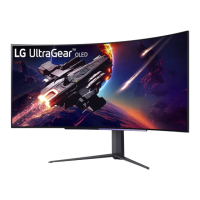
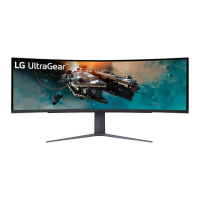
LG UltraGear 45GR75DC - User Manual

LG UltraGear 45GR75DC
45 pages
Print Icon
To Next Page IconTo Next Page
Loading...
45GR75DC
45GR65DC
www.lg.com
Copyright © 2023 LG Electronics Inc. All Rights Reserved.
* LG LED Monitor applies LCD screen with LED backlights.
Please read this manual carefully before operating your set and retain it for future reference.
Owner’s Manual
(LED Monitor*)

Questions and Answers

  • K
    Kevin HillAug 6, 2025
    What to do if nothing is displayed on my LG UltraGear 45GR75DC Monitor screen?
    • A
      Anthony KramerAug 6, 2025
      If nothing is displayed on your LG Monitor, start by checking if the power cord is correctly plugged into the power outlet. Also, verify the power cable connection and press the power button. Ensure that the connected input is enabled by navigating to Settings > Input. If the monitor is in sleep mode, try moving the mouse or pressing any key on the keyboard. Confirm that your computer is turned on. If the signal cable between the PC and the monitor is missing or disconnected, check the cable and reconnect it. Finally, make sure to install the display driver from the LG website and verify that the graphics card supports Plug and Play function.
  • K
    Kathy PhillipsAug 10, 2025
    Why is there no sound from the headphone port of my LG UltraGear 45GR75DC Monitor?
    • M
      Marilyn GarciaAug 11, 2025
      If there is no sound from the headphone port of your LG Monitor, ensure that the headphone port connections are properly made. Try increasing the volume using the joystick. Also, set the audio output of the PC to the monitor you are using by going to Control Panel > Hardware and Sound > Sound on Microsoft Windows and setting the Monitor as the default device.
  • L
    lori25Aug 16, 2025
    How to prevent image retention on my LG Monitor?
    • X
      xwarrenAug 16, 2025
      Displaying a still image for a prolonged time may cause damage to the screen, resulting in image retention on your LG Monitor. To extend the monitor's lifetime, use a screensaver.
  • C
    Crystal GarnerAug 20, 2025
    Why is the display color abnormal on my LG Monitor?
    • E
      Elizabeth MarshAug 20, 2025
      If the display color on your LG Monitor is abnormal, first set the color to 24 bit (true color) or higher by going to Control Panel > Display > Settings > Color Quality in Windows. Check if the signal cable is connected properly; reconnect the cable or reinsert the PC's graphics card. Note that pixilated spots (red, green, blue, white, or black) may appear on the screen, which is normal for an LCD screen and not related to the monitor's performance.
  • G
    Gregory ThorntonAug 26, 2025
    How to fix unstable and shaky screen display or shadow trails on LG Monitor?
    • K
      Kelly SaundersAug 26, 2025
      If your LG Monitor's screen display is unstable, shaky, or images leave shadow trails, and the selected resolution is HDMI 1080i 60/50 Hz (interlaced), the screen may be flickering. Change the resolution to 1080p or the recommended resolution.
  • O
    owatsonAug 31, 2025
    What to do if some features are disabled on my LG UltraGear 45GR75DC?
    • R
      Robert LopezAug 31, 2025
      If some features are disabled on your LG Monitor, the OSD might be locked. To unlock it, go to Settings > General and set OSD Lock to Off.

Summary

License and Trademarks

HDMI Licensing Terms

Describes HDMI trademarks and registered trademarks.

USB Implementers Forum Trademark

Details the SuperSpeed USB Trident logo's registration.

VESA and DisplayPort Standards

Outlines VESA and DisplayPort logos as registered trademarks.

DTS Audio Licensing

Explains DTS patents and licensed trademarks for audio features.

Open Source Software Information

Obtaining Source Code

Instructions on how to obtain product source code under open-source licenses.

Assembling and Preparing

Supported Drivers and Software

Information on available drivers and software for the monitor.

Product and Button Description

Details the physical components and button functions of the monitor.

How to Use the Joystick Button

Instructions on operating the monitor using the joystick button.

Moving and Lifting the Monitor

Safety guidelines for safely moving and handling the monitor.

Installing on a Table

Steps and precautions for placing the monitor on a table.

Adjusting the Stand Height

Guide on how to adjust the monitor's screen height.

Adjusting the Angle

Instructions for tilting the monitor screen for optimal viewing.

Using the Kensington Lock

Guide on how to install and use the Kensington security lock.

Installing the Wall Mount Plate

Steps for attaching a wall mount plate to the monitor.

Installing on the Wall

Guidelines for securely mounting the monitor on a wall.

Using the Monitor

Connecting to a PC

Instructions for connecting the monitor to a computer.

HDMI Connection

Details on transmitting video and audio via HDMI from a PC.

DisplayPort Connection

Guide for connecting the monitor using DisplayPort.

USB-C Connection

Instructions for connecting the monitor via USB-C port.

Connecting AV Devices

How to connect audio-visual devices to the monitor.

Connecting Peripherals

Information on connecting external devices like USB devices and headphones.

USB Device Connection

Details on using the monitor's USB ports as a hub.

Connecting Headphones

Steps for connecting headphones to the monitor's audio port.

User Settings

Activating the Main Menu

How to access and navigate the monitor's main menu.

Main Menu Features

Overview of the main menu options available on the monitor.

Navigating User Settings

Guide to accessing and configuring various user settings menus.

Game Mode Settings

Customization options for different game modes (FPS, RTS, Vivid, etc.).

Game Adjust Settings

Configuration options for game-specific adjustments like Adaptive-Sync and Black Stabilizer.

Picture Adjust Settings

Controls for adjusting brightness, contrast, gamma, color, and other picture quality aspects.

Input Settings

Options for selecting input sources, aspect ratio, and PBP/PIP configurations.

General Settings

System-wide configurations including language, USB options, and power saving.

Troubleshooting Guide

No Display or Screen Issues

Solutions for common display problems like no image or resolution errors.

Feature Availability Issues

Troubleshooting steps when monitor features are unavailable or locked.

Image Retention and Shaky Display

Addresses issues like image sticking and unstable screen display.

Display Color and Audio Problems

Troubleshooting for abnormal display colors and lack of sound from the headphone port.

Product Specifications

LCD Screen and Resolution Details

Technical specifications for the LCD screen, color depth, and resolutions.

Power and Adapter Specifications

Details on power rating, consumption, and AC/DC adapter requirements.

Environmental Operating Conditions

Specifies the recommended operating and storing conditions for the monitor.

Monitor Dimensions and Weight

Physical dimensions and weight of the monitor with and without stand.

Factory Support Mode (DisplayPort;USB-C)

Supported resolutions and frequencies for DisplayPort and USB-C.

Factory Support Mode (HDMI)

Supported resolutions and frequencies for HDMI connections.

HDMI Timing and Power LED Status

Specifies HDMI video timings and the behavior of the power LED.

Beep Guide

A reference guide for menu items and their locations.

LG UltraGear 45GR75DC Specifications

General IconGeneral
Screen Size45 inches
Resolution3440 x 1440 (UWQHD)
Refresh Rate200Hz
Panel TypeOLED
Aspect Ratio21:9
Curvature800R
HDRHDR10
VESA Mount100 x 100 mm
Response Time0.03ms
Connectivity2 x HDMI 2.1, 1 x DisplayPort 1.4, 1 x Headphone Out
Adaptive SyncNVIDIA G-SYNC Compatible
Viewing Angle178º
Color GamutDCI-P3

Related product manuals