EasyManua.ls Logo

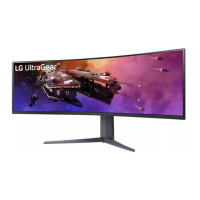
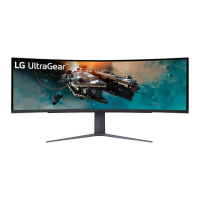
LG UltraGear 49GR85DC - User Manual

LG UltraGear 49GR85DC
40 pages
Print Icon
To Next Page IconTo Next Page
Loading...
49GR85DC
www.lg.com
Copyright © 2022 LG Electronics Inc. All Rights Reserved.
* LG LED Monitor applies LCD screen with LED backlights.
Please read this manual carefully before operating your set and retain it for future reference.
Owner’s Manual
(LED Monitor*)

Other manuals for LG UltraGear 49GR85DC

Questions and Answers

  • A
    Amy SimsJul 29, 2025
    What to do if nothing is displayed on my LG UltraGear 49GR85DC Monitor screen?
    • M
      Matthew GreenJul 29, 2025
      If nothing is displayed on your LG Monitor screen, first ensure the power cord is correctly plugged into the power outlet. Then, check the power cable connection and press the power button. Also, verify that the connected input is enabled in the monitor's settings (Settings > Input). If the monitor is in sleep mode, move the mouse or press any key on the keyboard. Confirm that your computer is turned on. If the issue persists, check the signal cable between the PC and the monitor to ensure it is properly connected. Finally, install the display driver from the LG website and verify that your graphics card supports Plug and Play.
  • A
    alexmillerAug 4, 2025
    Why is my LG UltraGear 49GR85DC Monitor screen display unstable and shaky?
    • N
      Nathaniel MasonAug 4, 2025
      If you are experiencing unstable and shaky screen display or shadow trails on your LG Monitor, and the selected resolution is HDMI 1080i 60/50 Hz (interlaced), the screen may be flickering. Try changing the resolution to 1080p or the recommended resolution.
  • H
    hmckeeAug 10, 2025
    How to fix no sound from the headphone port on LG Monitor?
    • D
      Drew GrayAug 10, 2025
      If you're not getting any sound from the headphone port on your LG Monitor, ensure that the headphone port connections are properly made. Then, try increasing the volume using the joystick. Finally, set the audio output of your PC to the monitor by going to Control Panel > Hardware and Sound > Sound and setting the Monitor as the default device.
  • D
    Donna HarperAug 16, 2025
    Why is the display color abnormal on my LG UltraGear 49GR85DC?
    • S
      Stephen SchaeferAug 16, 2025
      If the display color on your LG Monitor appears abnormal, try the following: First, set the color to 24 bit (true color) or higher by navigating to Control Panel > Display > Settings > Color Quality in Windows. Next, check the signal cable connection and reconnect it, or reinsert the PC's graphics card. Note that pixilated spots (red, green, blue, white, or black) may appear on the screen, which is normal for an LCD screen and not related to the monitor's performance.
  • B
    brittany01Aug 22, 2025
    Why does my LG UltraGear 49GR85DC Monitor screen retain an image?
    • R
      Robert SmithAug 22, 2025
      Displaying a still image for a prolonged time may cause damage to the screen of your LG Monitor, resulting in the retention of the image. To extend the lifetime of the monitor, use a screensaver.

Summary

Assembling and Preparing the Monitor

How to Use the Joystick Button

Explains the functions and operation of the monitor's joystick control.

Using the Monitor

Connecting to a PC

How to connect the monitor to a computer for display output.

User Settings

Game Mode Settings

Configures various game-specific display modes for optimal performance.

Game Adjust Settings

Adjusts adaptive sync, response time, crosshair, and other game-related features.

Picture Adjust Settings

Controls brightness, contrast, sharpness, gamma, color, and more for image quality.

Input Settings

Manages input sources, aspect ratio, and automatic input switching.

General Settings

Configures language, lighting, power saving, LED, and standby modes.

Troubleshooting

Nothing is displayed on the screen

Solutions for issues where the monitor shows no image or a blank screen.

Screen retains an image

Addresses image sticking or retention issues on the monitor.

Product Specifications

LG UltraGear 49GR85DC Specifications

General IconGeneral
Panel typeVA
Color depth10 bit
Pixel pitch0.2328 x 0.2328 mm
Display diagonal49 \
Anti-glare screenYes
Display resolution5120 x 1440 pixels
Display technologyLED
Native aspect ratio32:9
Maximum refresh rate240 Hz
Contrast ratio (typical)2500:1
Display number of colors1.07 billion colors
Display brightness (peak)1000 cd/m²
Display brightness (typical)450 cd/m²
High Dynamic Range (HDR) technologyHigh Dynamic Range (HDR) 1000, High Dynamic Range 10 (HDR10)
AMD FreeSync typeFreeSync Premium Pro
Audio decodersDTS Headphone:X, DTS Virtual:X
USB hub version3.2 Gen 1 (3.1 Gen 1)
Headphone outputs1
Headphone connectivity3.5 mm
USB upstream port typeUSB Type-B
Input current2.5 A
AC input voltage100 - 240 V
Power supply typeInternal
AC input frequency50 - 60 Hz
Power consumption (max)240 W
Power consumption (standby)0.3 W
Power consumption (typical)90 W
Storage temperature (T-T)-20 - 60 °C
Operating temperature (T-T)0 - 40 °C
Storage relative humidity (H-H)0 - 85 %
Operating relative humidity (H-H)0 - 80 %
Cables includedDisplayPort, HDMI, USB Type-A to USB Type-B
Cable lock slot-
Tilt angle range-5 - 15 °
Panel mounting interface100 x 100 mm
Package typeBox
Package depth337.82 mm
Package width1277.62 mm
Package height530.86 mm
Package weight20003 g
Product colorBlack
Country of originChina
Market positioningGaming
Weight and Dimensions IconWeight and Dimensions
Depth (with stand)393.1 mm
Width (with stand)1170 mm
Height (with stand)473.3 mm
Weight (with stand)15100 g
Depth (without stand)236.4 mm
Height (without stand)373.1 mm
Weight (without stand)12100 g

Related product manuals