Get to Know
Your Phone
Welcome to Verizon Wireless. You’re now part
of a growing movement that’s about speed,
signal and strength. This guide will show you
how to set up and use your phone, access
special features, and find help.
Step 1. Remove the Back Cover
With the phone facing down, insert your
fingernail into the slot located on the lower
left of the back cover and lift the cover up
gently.
Optional: Replace the SIM Card
The SIM card is pre-installed in your phone. If
you need to replace your SIM card, gently slide
the old SIM card out of the lower slot. Then
slide the new SIM card into the lower slot with
the Verizon logo facing up and the cut corner
pointed in.
Optional: Insert the microSD Card
If you ha ve a microSD card, slide it into the
microSD card slot (th e upper of the two
slots) wi th the gold contac ts facing down.
NOTE: The microSD card is sold separately.
Step 2. Insert the Battery
Insert the battery, making sure to align the
gold contacts. Press down gently to secure
the battery.
Step 3. Replace the Back Cover
Place the back cover over the back of the
phone, and then press down along the edges
to secure the cover.
Step 4. Charge the Phone
Your phone comes with a USB/Charger
Adapter and a USB cable that connect
together to charge your phone. Before turning
on your phone, charge it fully.
WARNING! Please use only an approved charging accessory
to charge your phone. Improper handling of the USB/
Charger Port, as well as the use of an incompatible charger,
may cause damage to your device and void the warranty.
Turning Your Phone On/Off
To turn your phon e on, press and hold the
Power/Lock Key for a couple of s econds until
the sc reen lights up.
To turn your phon e off, press an d hold the
Power/Lock Key until the P hone options are
displayed. Tap Power off > OK.
Setup Wizard
When you turn on your phone for the first
time, you have the option to quickly set
up email accounts, sync contacts that you
have backed up with Verizon Cloud, turn on
location services, and more. Simply follow the
onscreen instructions to complete the initial
setup of your phone.
Locking and Unlocking your Phone
To turn the screen on, press the Power/Lock
Key once and the screen will light up. Then
swipe in any direction to unlock it. You can
also drag a shortcut icon at the bottom of the
screen in any direction to open the app.
OR
To turn the screen on using the KnockOn
feature, quickly double-tap the center of the
screen.
To turn off your screen and prevent accidental
key presses, press the Power/Lock Key.
Setting Up Your Phone
NOTE: Devices and software are constantly evolving—the
screen images and icons you see here are for reference
only.
Using Your Phone
For added security, you can set up a screen
lock such as a Knock Code or numeric PIN.
A knock code lets you unlock the screen when
the screen is off by tapping the correct area
and sequence.
To set up a knock code:
1.
> > From th e Home screen,
tap Apps > Settings > Lock screen.
2. Tap Select screen lock > Knock Code.
3. Follow the ins tructio ns to create your
Knock Code, as well as a backu p PIN in
case yo u forget you r Knock Code.
Selecting the Home screen mode
You can select one of the two modes: Home
and EasyHome. When you first turn on your
phone, it will be set to Home mode. The
instructions in this guide are written based on
the Home mode.
> >
To change mode, tap
Apps > Settings > Home screen > Select Home
.
Home mode
—
Standard experience for users
who are familiar with Android. If selected, your
Home screen will look like this:
EasyHome mode
—
Simplified and easier
experience for the first time smartphone
user. If selected, your Home screen will look
like this:
Front Camera
Notification
LED
Proximity
Sensor
Back
Button
Microphone
Speaker
Home Button
Recent
Apps
Button
Earpiece
Power/
Lock
Key
Laser Detection
Auto-focus
Rear Camera
LED
Flash
Volume
Keys
NFC
Touch
Point
USB/Charger Port

 Need help?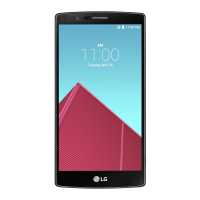

 To Next Page
 General