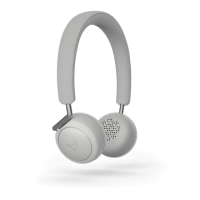
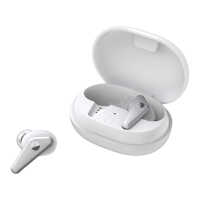
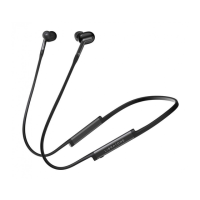
3. Tap one of your headphones in SoundSpaces
4. Tap the PLUS 1 button placed at the bottom of the page
5. Activate setup mode on your second pair of headphones and press the NEXT button
6. Your second pair of headphones will show up on the next page - tap your second pair of
headphones
7. When PLUS 1 is completed, an audio cue is presented and a SoundSpace Link will show up in
SoundSpaces
Note:
If your headphone doesn't show up in SoundSpaces, the headphone is most likely not Bluetooth
connected with your smartphone. Read how to create a Bluetooth pairing here.
When your On-Ear is powered off it will automatically leave the SoundSpace Group.
How to Play a PLUS 1 SoundSpace group
Simply start the music on your smartphone.
How to dissolve a PLUS 1 SoundSpace group
1. Start Libratone App
2. Tap on the SoundSpace LINK in SoundSpaces
3. Tap on GROUP SETTINGS
4. Choose UNLINK
Note: When headphones are powered off they will automatically leave the SoundSpace Group.
If the PLUS 1 setup fails
This is our recommended procedure if setup fails:
1. Perform a Factory Reset of both your headphones (Setup mode is automatically activated)
2. Delete existing Bluetooth connections on your smartphone
3. Perform a new PLUS 1 setup
1. iOS users (iPhone, iPad) > Libratone App Drag-and-drop
2. Android users > Libratone App PLUS 1 button
On-Ear - Factory Reset


 To Next Page
 Loading...