E
B
Cellular Gateway
Back View
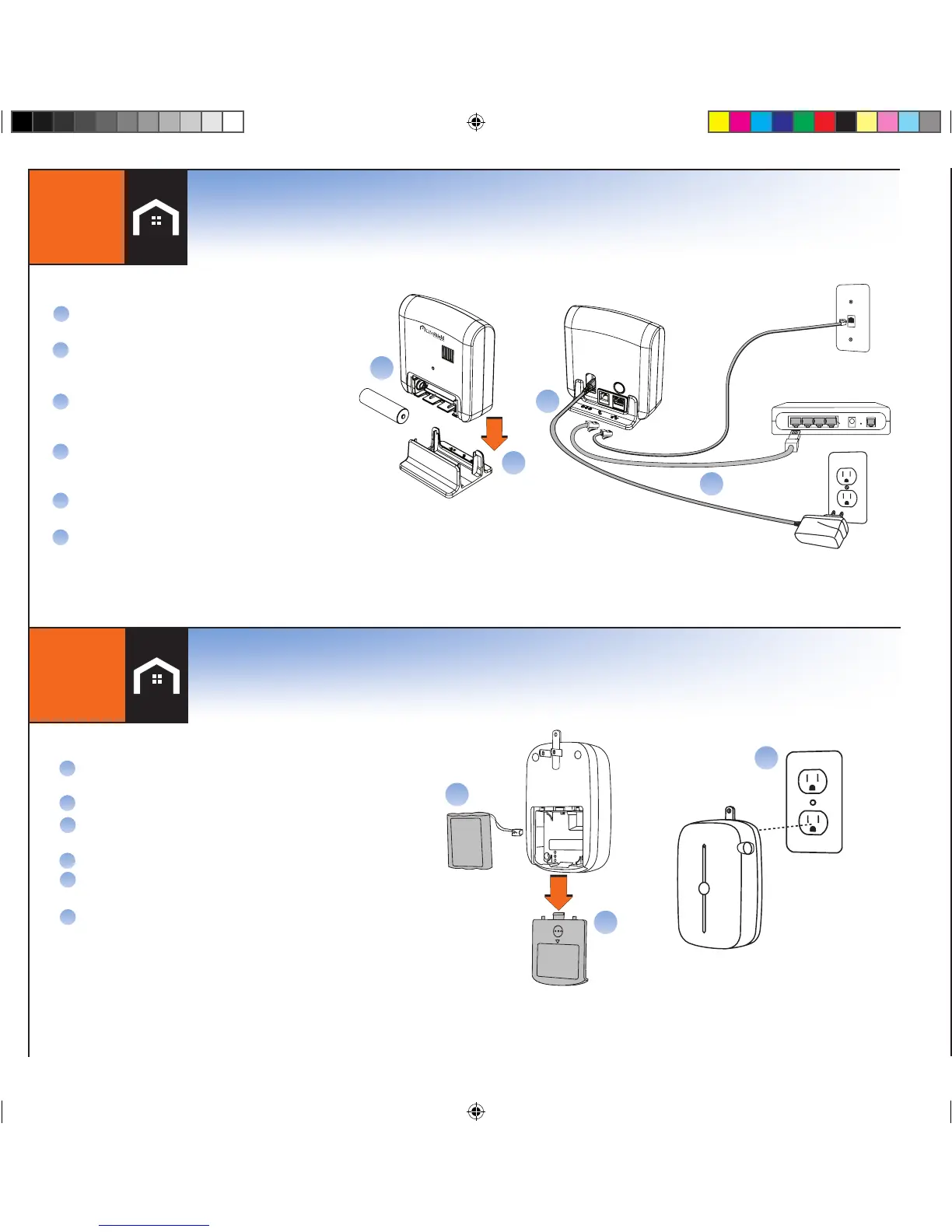
For ideal reception, put the Cellular Gateway near
an outside wall outlet on a high floor in your home
Remove the back cover of the Cellular Gateway
Plug the battery pack into the plug receptacle and
insert the battery into the battery compartment
Replace the back cover
Plug the Cellular Gateway into the lower electrical
outlet with the tab facing upward
Continue to Step 2
A
B
C
1B
Connect Cellular Gateway
(Home Essential Kit-Celluar Ready
)
Battery
Pack
D
E
C
F
IMPORTANT: FOLLOW STEPS IN EXACT ORDER. DO NOT SKIP AHEAD.
Connect Base (Home Essential Kit)
1A
Put the Base near your Modem/Router
Remove the stand by sliding the Table
Stand downward from the main body of
the Base
Insert the battery, then replace the Table
Stand by sliding upward onto the main
body of the Base
Insert the power adapter, plug fully into the
jack on the back of the Base. Then plug the
power adapter into the wall outlet.
Connect the Ethernet Cable between an
available port on your router and the back
of the Base
Continue to Step 2
A
B
C
E
E
(Optional)
Phone Cord
Base Back View
D
Ethernet Cable
Modem/Router
OPTIONAL: IF YOU CONNECT A PHONE CORD FROM THE SYSTEM BASE TO A TELEPHONE WALL JACK, YOU’LL
HAVE A BACK-UP PATH FOR ALARM COMMUNICATIONS IF YOUR INTERNET CONNECTION ISN’T FUNCTIONING.
+
-
B
Table Stand
C
D
F
If you ordered the Home Essential Kit start here, then proceed to Step 2.
If you ordered the Home Essential - Cellular Ready Kit start here, then proceed to Step 2.
3


 To Next Page