REGISTRATION USING THE ACTIVATE APP
ADDING OR REPLACING AN ACTIVATE POD
For users adding a Pod, or replacing a lost or malfunctioning Pod.
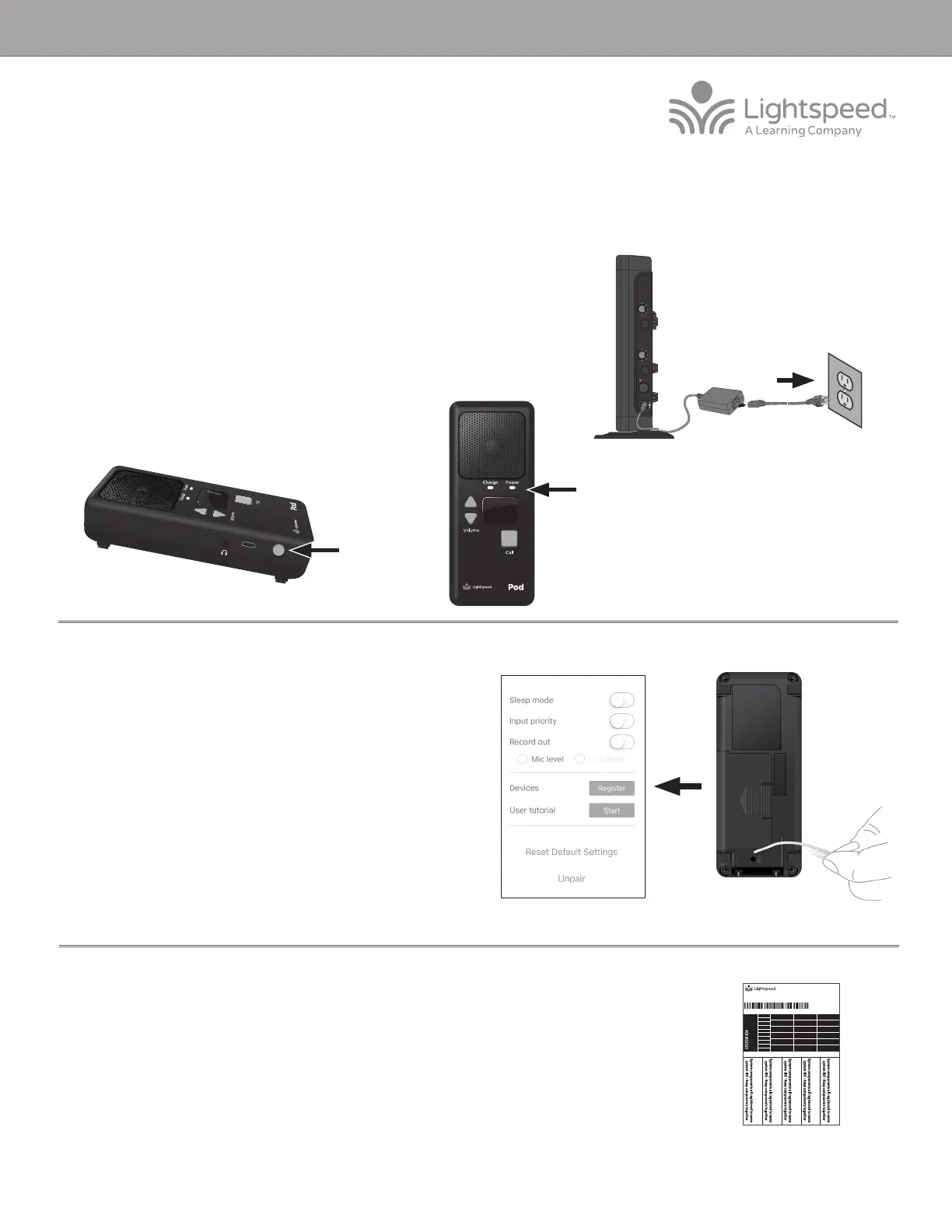
1. Start with the Redcat plugged in and powered on.
2. If replacing a Pod, make sure the malfunctioning Pod is powered o before
you begin the process.
3. Power on the new Pod. The blue power light should begin blinking.
4. On your mobile device, open the Lightspeed Activate app.
5. Go to the ‘Settings’ tab and scroll down to find the ‘Register’ button and press
the button.
6. Follow the instructions within the app to register the new Pod.
7. When the Pod is registered, you will see the Pod icon change to green on the
screen.
8. The registration is complete. Using the app, select the new pod and begin speaking into the Flexmike to check for audio.
9. Place system ID number (attached to the Redcat Quickstart Guide) on the new Pod.
NOTE: if at any point, the Redcat or Pod lights begin blinking rapidly, that indicates a registration error. Power o the Pod,
then repeat steps 3-6.
SYSTEM ID#
SYSTEM ID#
SYSTEM ID#
SYSTEM ID#
RETAIN EXTRA LABELS IN THE EVENT A COMPONENT IS REPLACED OR ADDED.
Match components
to this system ID#
Apply to system components to indicate which parts are registered
as a system. Keep registered items together when storing away.
Registration ID Labels
00-01
00-01
00-01
00-01
00-01
00-01
00-01
00-01
00-01
00-01
00-01
00-01
00-01
00-01
00-01
00-01
00-01
00-01
00-01
00-01
00-01
00-01
00-01
00-01
00-01
00-01
00-01
00-01
00-01
00-01
00-01
00-01
00-01
334-0162-02-00-01
10101
REDCAT ACCESS REGISTRATION GUIDE
REGISTER
AUDIO IN
MIN
MAX
AUDIO
(ALD) OUT
MIN
MAX
ON/OFF
DC INPUT
16V/2.0A



 To Next Page