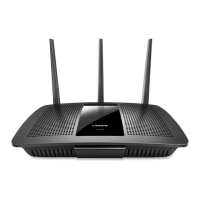
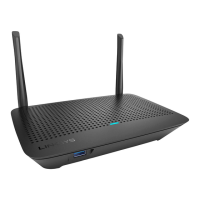
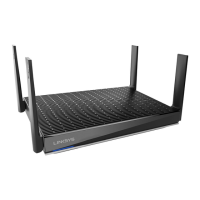
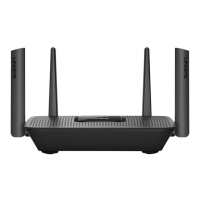
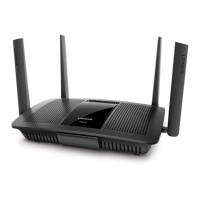
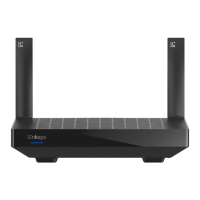
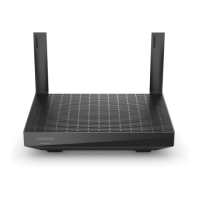
The Linksys Max-Stream Dual-Band WiFi 5 Router (Models EA7250/EA7430) is designed to provide a robust and secure wireless network for your home. This user guide outlines its features, setup process, and troubleshooting tips to ensure optimal performance.
Function Description
At its core, the Linksys Max-Stream router acts as the central hub for your home network, connecting all your wired and wireless devices to the internet. It operates on dual bands (2.4 GHz and 5 GHz) to offer flexibility and reduce interference, ensuring stable connections for various activities. The router supports Wi-Fi 5 (802.11ac) for fast wireless speeds, making it suitable for streaming, gaming, and general internet browsing.
The router features multiple ports for connectivity. On the back, you'll find an Internet port (yellow) for connecting to your modem, which brings the internet service into your home. Four Ethernet ports (blue) are available for wired devices, such as desktop computers, smart TVs, or gaming consoles, providing reliable and high-speed connections. A USB 3.0 port on the front allows you to connect and share a USB drive or printer across your network, enabling easy access to files or printing capabilities for all connected devices.
Usage Features
Setting up your Linksys Max-Stream router is designed to be straightforward. The process typically involves connecting the router to your modem and a power source, then accessing the setup wizard through a web browser (http://LinksysSmartWiFi.com). The on-screen instructions guide you through configuring your Wi-Fi network name (SSID) and password, as well as setting up your Linksys account for remote management.
Once set up, the router offers a range of features accessible through the Linksys Smart Wi-Fi interface, which can be accessed via a web browser or the Linksys app on your smartphone.
- Network Map: This feature provides a visual overview of all devices connected to your network, including both your main network and any guest networks. It allows you to easily identify and manage connected devices.
- Guest Access: You can create a separate guest network, allowing visitors to connect to the internet without gaining access to your main network's resources, such as shared files or printers. This enhances security and privacy for your home network. You can customize the guest network's name and password and specify the number of guests allowed.
- Parental Controls: This powerful feature enables you to manage internet access for specific devices. You can block access to certain websites and set schedules for when internet access is allowed, helping you control your children's online activities.
- Media Prioritization: For households with demanding online activities like streaming or online gaming, Media Prioritization allows you to assign higher priority to specific devices or applications. This ensures that critical traffic receives preferential bandwidth, reducing lag and buffering.
- Speed Test: The built-in speed test helps you monitor your internet connection speed, allowing you to verify that you are receiving the bandwidth you expect from your Internet Service Provider (ISP).
- External Storage: If you connect a USB drive to the router's USB 3.0 port, the External Storage feature allows you to configure file sharing, set up a media server (DLNA), or enable FTP access. This turns your router into a central storage hub, making it easy to share files and media across your network.
- Connectivity: This section provides advanced network settings, including options for managing network names and passwords, updating firmware, and configuring time zones. It also includes an option to enable/disable activity lights on the router.
- Wireless Settings: Here, you can change your Wi-Fi network names (SSIDs) and passwords for both 2.4 GHz and 5 GHz bands, adjust security modes (e.g., WPA2 Personal), and configure MAC filtering to control which devices can connect to your network.
- Security Settings: This section allows you to configure firewall settings, including IPv4 and IPv6 SPI firewall protection, and set up VPN passthrough. You can also define custom settings for applications and games, and manage internet filters to block anonymous internet requests or specific ports.
Maintenance Features
The Linksys Max-Stream router is designed for reliable operation, but like any electronic device, occasional maintenance may be required.
- Firmware Updates: The Connectivity section of the Smart Wi-Fi interface allows you to check for and apply firmware updates. Keeping your router's firmware up to date is crucial for security, performance improvements, and access to new features. You can choose to update automatically or manually.
- Rebooting the Router: If you experience internet connectivity issues or slow performance, rebooting the router is a common troubleshooting step. This can be done by disconnecting and reconnecting the power cord or through the Smart Wi-Fi interface under the Troubleshooting > Diagnostics tab. Rebooting refreshes the router's internal processes and can resolve temporary glitches.
- Reset to Factory Settings: In cases of severe configuration issues or if you forget your router's password, you can reset the router to its factory default settings. This can be done by pressing and holding the Reset button on the back of the router with a paperclip for about 10 seconds until the light starts flashing. Alternatively, you can initiate a factory reset through the Linksys Smart Wi-Fi interface. Note that a factory reset will erase all your custom settings, requiring you to reconfigure the router from scratch.
- Troubleshooting Tools: The Troubleshooting section in the Smart Wi-Fi interface provides diagnostic tools to help you identify and resolve network problems. It displays the status of your devices, logs, and a report of connected devices, which can be useful for diagnosing connectivity issues.
- Remote Management: By creating a Linksys Smart Wi-Fi account, you can manage your router settings from anywhere with an internet connection, using a web browser or the Linksys app. This allows you to check network status, adjust settings, or troubleshoot issues even when you're away from home.
- Physical Care: Ensure the router is placed in a well-ventilated area to prevent overheating. Keep the antennas positioned straight up for optimal wireless signal coverage. Regularly check that all cables (power, internet, Ethernet) are securely connected.
By understanding and utilizing these features, you can effectively manage and maintain your Linksys Max-Stream Dual-Band WiFi 5 Router for a seamless and secure home networking experience.

 Need help?
 General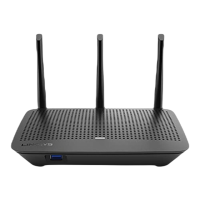


 To Next Page