This document is a user guide for the Linksys EA7450 router, model R74, providing comprehensive instructions and troubleshooting tips for its setup, configuration, and maintenance.
The Linksys EA7450 is a wireless router designed to provide internet connectivity and network management for home and small office environments. Its primary function is to create a local area network (LAN) and connect it to the internet via a broadband modem, allowing multiple devices to share a single internet connection wirelessly or through wired Ethernet ports. The router supports both 2.4 GHz and 5 GHz radio frequencies, enabling flexible connectivity options for various devices and optimizing wireless performance.
Usage Features:
The router offers a range of features to enhance network control and user experience, primarily managed through the Linksys Smart Wi-Fi interface, accessible via a web browser or a mobile app.
Network Setup and Connectivity:
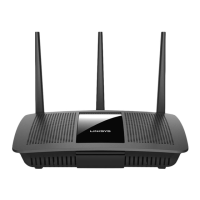
The initial setup involves connecting the router to a modem and power source, then accessing the Linksys Smart Wi-Fi setup page in a web browser. The guide provides clear instructions for both cable and DSL modem connections, emphasizing the correct port usage (yellow Internet port for the modem, blue Ethernet ports for wired devices). The router features adjustable antennas, which should be positioned vertically for optimal performance. It includes a USB 3.0 port for connecting and sharing USB drives or printers across the network or over the internet, expanding its utility beyond basic internet sharing.
Linksys Smart Wi-Fi Interface:
The Linksys Smart Wi-Fi interface is a central hub for managing the router's settings. Users can log in to their account from any computer with an internet connection, or directly from their home network. If a password is forgotten, there are on-screen instructions for recovery. The interface offers several tools and settings:
- Network Map: This feature provides a visual representation of all devices connected to the router, including those on the main network and the guest network. It allows users to view information about each connected device, aiding in network monitoring and management.
- Guest Access: Users can configure a separate wireless network for guests, allowing them internet access without granting them access to other computers or personal data on the main network. This enhances security and privacy for the primary network. The guest network can be easily turned on or off, and a password can be set for guest access.
- Parental Controls: This powerful feature enables users to block specific websites and set internet access times for connected devices. This is particularly useful for managing children's online activity, ensuring a safer browsing environment and controlling screen time.
- Media Prioritization: Users can prioritize specific devices, applications, or games to ensure optimal performance for streaming or real-time media services. This helps in allocating bandwidth effectively, preventing lag or buffering during critical activities.
- Speed Test: The router includes a built-in speed test tool that allows users to measure their network's internet connection speed, helping to diagnose potential issues with their internet service provider (ISP).
- External Storage: For devices connected to the USB port, this feature allows users to configure file sharing, set up a media server (DLNA), and enable FTP access. This transforms the router into a central hub for media and file sharing within the network.
- Connectivity: This section allows users to configure basic and advanced network settings, including network names (SSIDs) and passwords for both 2.4 GHz and 5 GHz bands, router login credentials, time zone settings, and activity light controls. It also provides an option for router firmware updates, which can be performed automatically or manually.
- Wireless Settings: Users can configure their router's wireless network, including changing the security mode, password, and MAC filtering settings. It also supports Wi-Fi Protected Setup (WPS) for easy connection of WPS-enabled devices.
- Security Settings: This section allows for the configuration of wireless security, firewall settings (IPv4 SPI and IPv6 SPI firewall protection), VPN passthrough (IPSec, PPTP, L2TP), and custom settings for applications and games. Internet filters can also be applied to block anonymous internet requests, multicast, NAT redirection, and ident (Port 113).
Maintenance Features:
The user guide emphasizes several maintenance and troubleshooting features to ensure the router's smooth operation.
Troubleshooting:
A dedicated troubleshooting section addresses common issues, such as the router not completing setup, "Internet cable not plugged in" messages, and inability to access the router.
- Reset Button: The router includes a physical reset button. Pressing and holding it for about 10 seconds will restore the router to factory settings, which can resolve many configuration-related issues. This can also be done through the Linksys Smart Wi-Fi interface under the Troubleshooting > Diagnostics tab.
- Rebooting the Router: The guide recommends rebooting the router as a common troubleshooting step for internet connectivity problems. This can be done by disconnecting and reconnecting the power cord from both the router and the modem, or through the Linksys Smart Wi-Fi interface. Rebooting helps the router reload its custom settings and allows other devices to rediscover it.
- Firewall Management: For setup issues, temporarily disabling the computer's firewall is suggested, indicating that security software can sometimes interfere with the installation process.
- Network Connection Verification: The guide provides detailed steps for verifying network connections on both Windows and Mac computers, including checking wireless network selection and entering security keys. This helps users ensure their devices are connected to the correct network.
- Modem and ISP Checks: For internet unavailability issues, users are advised to check modem power and cable connections, reboot the modem, and contact their ISP for potential outages.
- Browser Compatibility: The Linksys Smart Wi-Fi interface is compatible with modern web browsers like Google Chrome, Firefox, Safari, Microsoft Edge, and Internet Explorer 8 and newer, ensuring broad accessibility for management.
By combining robust connectivity features with a user-friendly management interface and comprehensive troubleshooting guidance, the Linksys EA7450 router aims to provide a reliable and controllable home networking solution.

 Need help?
 General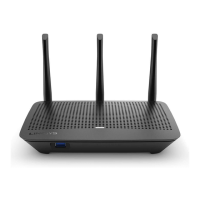



 To Next Page