Need help?
Do you have a question about the Linx 10V32 and is the answer not in the manual?
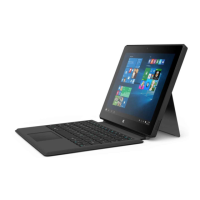
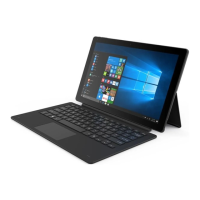
This document is a quick guide for the Linx 10V32 tablet, which comes with a keyboard cover and runs Windows 10 Home. It provides essential information for new users, covering setup, basic operation, and safety guidelines.
The Linx 10V32 is a tablet designed for general computing tasks, running the Windows 10 Home operating system. Its primary function is to offer a portable computing experience, combining the versatility of a tablet with the productivity of a laptop when used with its keyboard cover. The device supports various applications and features inherent to Windows 10, making it suitable for browsing, media consumption, and light productivity.
The tablet can be turned on by pressing and holding the Power/Sleep button. To conserve battery, it can be put into Sleep mode by pressing the Power/Sleep button once, and woken up by pressing it again. To turn the tablet off completely, press and hold the Power/Sleep button until the "Slide to shut down your PC" message appears, then slide your finger down the screen. In case of unresponsiveness, an emergency reboot can be performed by pressing and holding the Power/Sleep button for approximately 10 seconds until the screen turns off. It's recommended to wait 15 seconds before attempting to reboot after an emergency shutdown to prevent data loss or damage.
Volume can be adjusted using the dedicated Volume up and Volume down buttons on the device. Repeatedly pressing these buttons will increase or decrease the volume to the desired level.
The tablet features a 3.5mm headphone port, allowing users to connect headphones (not included). When headphones are connected, the tablet's internal speakers are automatically muted, and all audio is routed through the headphones.
The Linx 10V32 supports Micro SDHC and SDXC cards for additional storage. To install a card, locate the slot and gently slide the memory card in until it clicks into place. To remove a card, push it gently until it clicks, and the spring mechanism will push it out. It is crucial not to remove the memory card while files are being used by the tablet to prevent data corruption or loss. Only compatible memory cards approved for the device should be used to avoid damage to the card or tablet.
An integrated kickstand allows the tablet to be positioned at two different viewing angles (40 degrees and 80 degrees) for enhanced usability. To deploy the kickstand, locate the recess in the bottom left and right corners at the rear of the tablet and push or pull the stand until it clicks into the desired position. Users are advised not to use excessive force when adjusting the kickstand or pushing down on the tablet when it's propped up, as this could damage the kickstand.
The tablet's touch screen is the primary interface for interaction. To unlock the screen, wake the tablet from sleep mode by pressing the Power/Sleep button, then slide the lock-screen up. The main home screen displays application tiles and shortcuts. The Windows Start Menu button, located at the bottom-left of the screen, provides access to all main application tiles.
Windows 10 offers both Tablet mode and PC mode. Tablet mode is optimized for touchscreen devices, providing a streamlined Windows experience. PC mode offers a traditional desktop experience with a Start Menu and desktop file storage. To switch between modes, slide in from the right side of the screen to access the Action Center, then tap the "Tablet Mode" tile. When using the Linx 10VKBD Keyboard Cover, the tablet will automatically prompt a mode switch upon docking or undocking.
Apps can be opened by tapping their respective tiles. To close an app, slide your finger down from the top of the screen to the bottom. Switching between running apps is done by swiping in from the left edge of the screen, which displays all currently active applications. Tapping an app's tile will switch to it.
The main menu can be accessed by tapping the menu icon in the top-left of the screen. The Action Center is accessed by sliding in from the right side of the screen. The Windows home button, located on the screen bezel or by pressing the Windows icon in the bottom-left of the screen, returns the user to the main home screen. A "back" arrow button in the bottom-left of the screen allows navigation to previous menus or screens. A full list of all installed applications can be accessed by pressing the "Application list" icon on the bottom-left edge of the screen.
The Linx 10VKBD Keyboard Cover enhances the tablet's functionality. Before connecting the tablet to the keyboard cover for the first time, ensure the tablet is fully booted and the Windows desktop has loaded. Place the keyboard cover on a firm surface, then connect the tablet by aligning the Pogo Pin connection and pushing the tablet into the docking slot. The tablet will automatically detect and set up the accessory. It's important not to undock the tablet during this setup process. Once set up, the keyboard cover is ready for use, and subsequent connections will be faster.
The keyboard cover includes additional enhanced function keys (printed in blue) that provide shortcuts for various functions like volume control, screen brightness, and media playback. To use these functions, press and hold the 'Fn' key, then press the desired function key. Numerical functions require the 'number lock' function to be enabled.
The multi-gesture touchpad allows for mouse-like navigation without an external mouse:
The tablet comes with a Mains Charger and Micro USB cable. The battery is partially charged from the factory, but a full charge is recommended before first use. Connect the Mains Charger to a wall socket (ensuring it's switched off first), then connect the Micro USB cable to the tablet. Turn on the wall socket power; the tablet's power indicator LED will light up during charging. The tablet can be used while charging.
The tablet has an internal Lithium-ion polymer battery. Users should not attempt to change the battery themselves. If the battery appears dead, try charging it several times. Do not use or charge the battery if it shows signs of leaking, discoloration, deformation, or any abnormality. Avoid exposing the battery to liquids, excessive heat (direct sunlight, fire), or throwing it into a fire. Do not open the outer casing. Batteries are harmful if swallowed and should be kept away from children.
Do not use harsh chemicals, cleaning solvents, or detergents. Wipe the product with a dry, soft cloth or tissue paper.
Keep the product and all parts out of reach of children. Avoid using sharp objects on the screen. Do not place the tablet on uneven surfaces or insert foreign objects. Protect the tablet from strong magnetic or electrical fields and direct sunlight for prolonged periods. Use the tablet within ambient temperatures of 0°C to 40°C. Do not block ventilation slots. Disconnect from mains power during thunderstorms. Only use the provided power supply; unauthorized power supplies will void the warranty and may damage the product. Do not attempt to open the product, as it contains no user-serviceable parts, and unauthorized handling will void the warranty.
Used electronic products, batteries, and packaging materials should be returned to dedicated collection points for recycling to prevent uncontrolled waste disposal and promote material recovery.
When using the device, adhere to all local laws, customs, privacy regulations, and copyrights. Copyright protection may restrict copying, modifying, or transferring certain content.
Operation of radio transmitting equipment may interfere with inadequately shielded medical devices. Consult a physician or medical device manufacturer if you have an implanted medical device. Maintain a minimum separation of 6 inches (15.3 centimeters) between the wireless device and the medical device. Turn off the wireless device if interference is suspected.
When using headphones, be aware that your ability to hear outside sounds may be affected. Do not use headphones in situations where safety is compromised. To prevent hearing damage, avoid listening to audio at high volume levels for extended periods.
 General
| Operating System | Windows 10 |
|---|---|
| Screen Size | 10.1 inches |
| Processor | Intel Atom x5-Z8300 |
| RAM | 2 GB |
| Internal Storage | 32 GB |
| Screen Resolution | 1280 x 800 pixels |
| Wireless | 802.11 b/g/n |
| Bluetooth | Bluetooth 4.0 |
| Front Camera | 2 MP |
| Rear Camera | 2MP |
| Battery Life | Up to 8 hours |
| Weight | 580 g |
| Processor Model | Intel Atom x5-Z8300 |
| Battery | 7000mAh |
| Ports | Micro USB, Micro HDMI, Micro SD |

 To Next Page