English 2
Once you’ve launched Livescribe+, it will automatically
detect your Livescribe 3 smartpen. A notication will
appear, asking if you want to pair your new smartpen.
Select Pair. You’ll only need to pair your smartpen once
with each device you use it with; and once paired, each
time you launch the app, it will automatically connect
to it. You may only be connected to the Livescribe+ app
with one smartpen at a time.
WRITE
Test the connection by writing in your Livescribe notebook.
Your writing should instantly appear in the app.
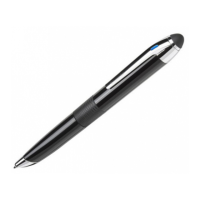
Once you’ve successfully paired your
smartpen and it is connected to your
device, the LED indicator will display
solid blue.
NOTE: Your Livescribe smartpen does not require an active connection
with the Livescribe+ app to capture your notes. Anything you write is
remembered and copied to your app the next time you connect.
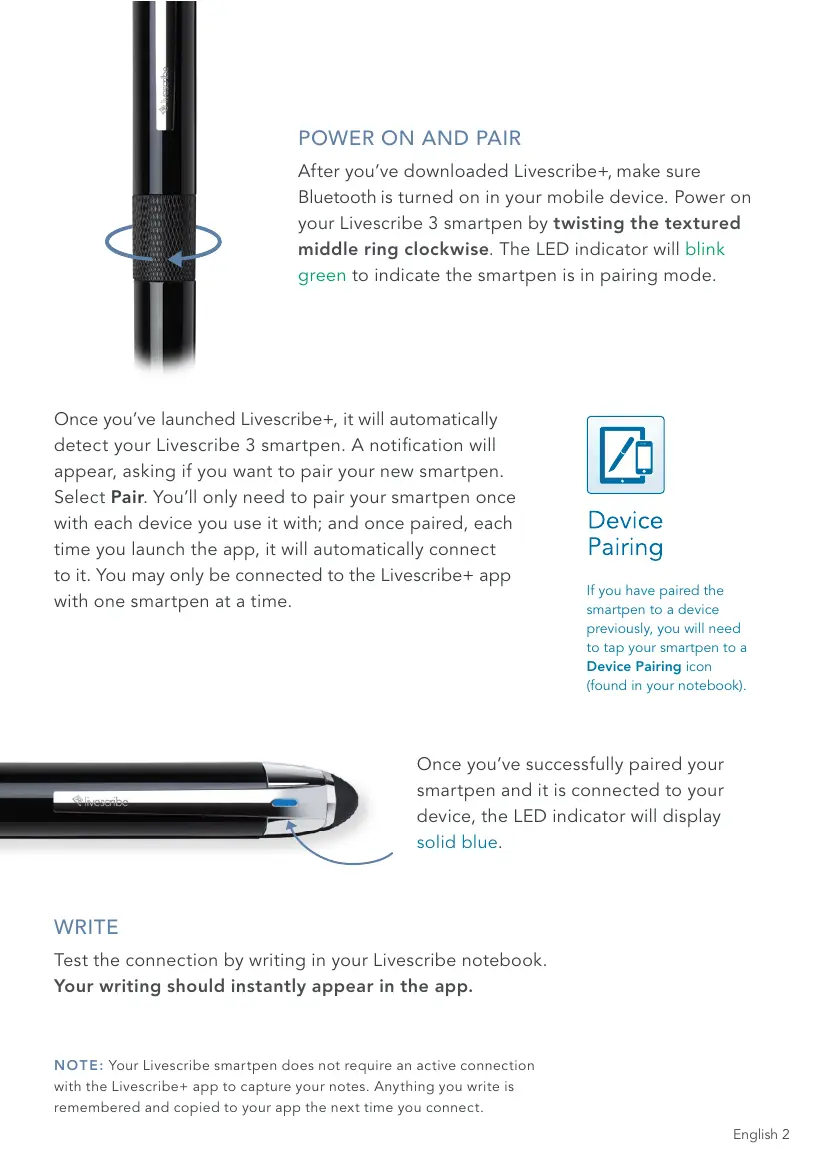
POWER ON AND PAIR
After you’ve downloaded Livescribe+, make sure
Bluetooth is turned on in your mobile device. Power on
your Livescribe 3 smartpen by twisting the textured
middle ring clockwise. The LED indicator will blink
green to indicate the smartpen is in pairing mode.
If you have paired the
smartpen to a device
previously, you will need
to tap your smartpen to a
Device Pairing icon
(found in your notebook).


 To Next Page